

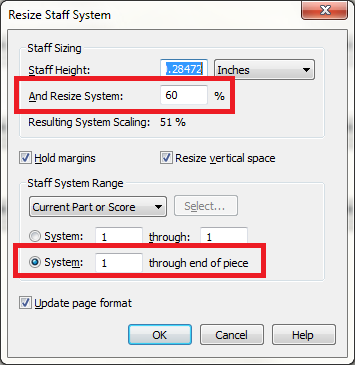
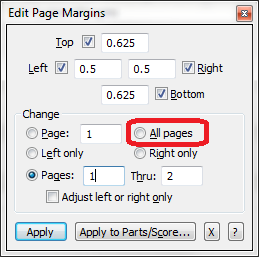
I had a weird problem yesterday. I was editing a score (153 measures long) and I reduced the chamber orchestra template that I had used down to just 4 string parts (for the moment that is all I'll need). When I looked at the score in Page View, at measure 113 the size of the score became larger till the end of the piece. I poked around a bit and ending up using the resize tool to change the size of the end part of the score. But I'd like to know if anyone knows why that might have happened in the first place. Also, I just guessed at the size of the first part of the score and, by trial and error, tried to find a sizing that was similar for the last part. How do I find out the exact sizing of the score so that I can match them up exactly. Lastly, at measure 113 (where the larger sizing began) the layout on the page is still weird - the staffs that I reduced in size still take up more of the width of the page than the correctly sized beginning staves. I'm sure I could spend a good bit of time going though and making everything match up, more or less, but it seems like a waste of time if it's Finale itself that's doing something strange to cause these discrepancies. Thanks in advance for any help!
Vinny Fuerst
Finale 2014.5

3 comments
Date Votes