New post
Avatar
0

 Hi,

I don't know if I should be asking this here or in the Cubase forum.  I am new to Cubase (used Sonar before).  Because Garritan strings use the velocity (controller 7) to record attack, I would like to set up an automation lane in Cubase that would record volume (CC1).  I have an automation lane set up for CC1 under my violin track and I can make changes to it manually with the editing tools, but I can't figure out how to record live to CC1 with my MIDI controller.  Can this be set up in Cubase, or does it have to come from the MIDI controller?  Thanks.

Barbara

I'm using Windows 7 and Cubase 9.5

27 comments

Date Votes
Avatar
0

With Garritan Libraries CC7 will adjust the channel volume (Automates the ARIA Mixer).  CC1 or CC11 controls expression volume, and this is kept 'relative' or 'scaled' to the main channel volume.  Some Garritan instruments also respond to 'key velocity' for attack volume/style as well.


CC Events in Cubase:


You have several options/methods...

1.  You can keep them in CC lanes in the MIDI Editor.

2.  You can keep them in VST Automation lanes in the main project view.

3.  You can keep them bound to specific notes in VST3 Note-Expression containers.


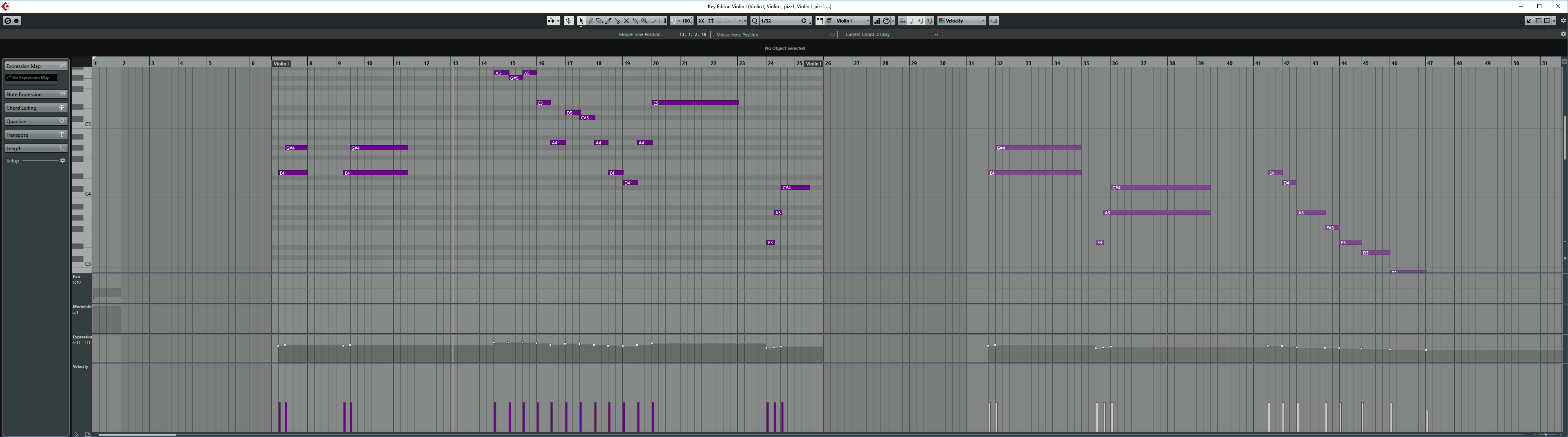
Out of the box, Cubase can record any MIDI events live that are played into it.  By default these recorded events go directly into the main Event/Part of a MIDI or Instrument track.  They show up in the MIDI Editor (Key, In-place, or List Editors), but will not show up in the main project view 'automation lanes'.  The image below shows CC1 and Velocity lanes in the "In-place" and "Key" Editors.  By Default, this is where any 'recorded' CC events from your MIDI Controller devices will go.


There are a number of approaches one can take to get effective expression volume events into a GPO Instrument track.  One of my favorite ways to 'rough in' some natural dynamics is to use the MIDI Logical Editor.  There is so much one can do with the Logical Editor in Cubase that would take many hours to attempt note-by-note, by hand with the mouse! 


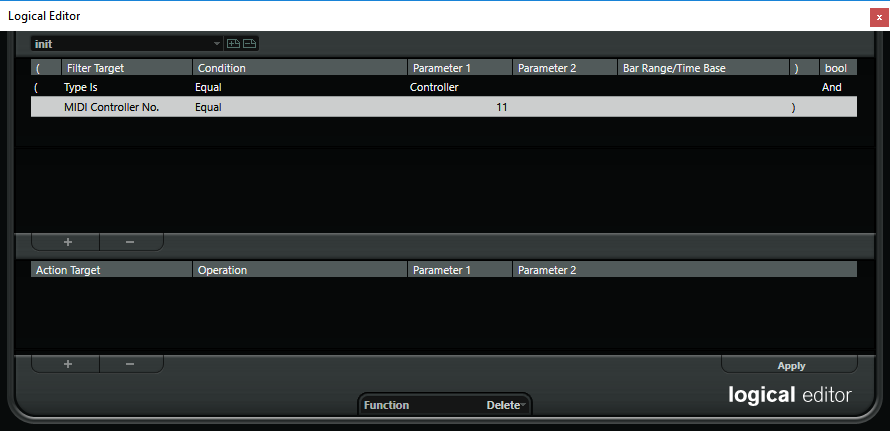
In this example, I am starting with a track that has no CC1 events at all.  I want volume to go up a little as notes get higher, and down as they go lower.  So, I've made a quick little bit of logic that will simply create a new CC1 event that matches the MIDI Note number.  I'd simply select all of the notes in a track I wish to apply this, then apply this Logic Editor (Which I have saved as a preset since I use it pretty often).


One can build Logical Editors for so many things.  I.E.  I could have made one that got the CC1 value from note-on velocity instead of the note number.  Groove and duration can be altered.  Notes transposed or doubled.  Various patterns applied, and more!  Do take a bit of time to read up on the Logic Editor.  Practice a bit with it.  Mastering this tool early on will save you tremendous amounts of time in the long run.


Once dynamics are somewhat 'roughed in', it's easy to grab several bars worth of CC1 events with the mouse and 'move or scale' them more precisely.  Finally, one can fine tune individual events one by one.


Recording Live Controllers


By Default, Cubase records them exactly as they are played in, and the events are kept in the main MIDI part.  You'll have to use the MIDI Key, List, or In-Place editors to see/edit them. 


There are a variety of approaches one can take to entering your CC1 events to a track with live recording.  Here is a more simple approach that should work with Cubase at its default settings right out of the box.


Assuming you've already entered the notes, and just wish to record some dynamics in real time as the music plays, I would recommend starting a new MIDI track just for your CC1 movements.  Make sure it is set to use the same Plugin and MIDI Channel, Arm it for recording, and record your mod-wheel movements while the DAW is playing.


Do as many takes as you like on fresh MIDI tracks, and mute them in and out to pick your favorite take.  Once you've selected your best, you can either cut and paste into your main track (with the notes and all), or 'merge' the two tracks.


Also be aware that Cubase has something called Retrospective MIDI recording.  When enabled, this means that Cubase is 'always' recording MIDI events, and they are MIDI-time stamped.  This constant MIDI buffer can be 'pasted' into MIDI or Instrument tracks at will using a key-combo of [shift+num*].


It is also possible to keep CC events in Project 'automation lanes', instead of in the MIDI part. 


This can sometimes offer some benefits when it comes to making larger Project Macros and Logical Editors, but for me personally, I find that when working with virtual instrument plugins it's better to simply stick with the default and keep all the CC events in the main MIDI part. If for some reason you prefer to keep your live recorded CC events in the Automation Lane, instead of in the MIDI Part, this can be changed from the menu:  MIDI/CC MIDI Controller Automation Setup


Either way, it's not that difficult to move things back and forth.  There is an option in the MIDI menu to convert all CC events in a MIDI part into automation lanes.  To move events from automation lanes into a MIDI part, one would need to "Merge MIDI in loop..." into a fresh new track.


If you have Cubase Pro, the Note Expression system is certainly worth reading up on, and learning how to set up and implement.  This method actually attaches CC events to individual notes, and thus can be moved and scaled about with a note.  I.E.  If one runs a quantization routine, the CC events move along with the notes.  I.E.  If one cuts a note that has decrescendo information attaches as CC1 events, then pastes it elsewhere, the decrescendo gets copied as well.  Here one can see that accessing such events can be done by double clicking a note in the Key Editor.  Or, in this case, I have selected several notes by click-dragging a box around them, and then double clicking the first.  CC events can be drawn or edited directly on the grid.


Again, tools are provided in Cubase that make it fairly simple to convert events back and forth between this 'note-expression' format, and keeping them in the old format, where they simply float in a lane on the timeline.


Personally, I do most of my composing the traditional DAW/Sequencer way, where  CC events are kept in the main MIDI part, and I edit them on CC lanes. 


I'll convert things into note-expression at later stages of the project, when I want to time-quantize things, apply custom 'grooves', or any time I'd like to copy-paste various passages or themes between different tracks while easily retaining dynamics and other CC data in the process.


With some newer VST3 plugins, like HALion 6, note-expression can go well beyond traditional channel based CC events, but that's a more advanced topic more suitable to working with true VST3 plugins.

Comment actions Permalink
Avatar
0

Thanks Brian,  Again, very good information.  I do have Cubase Pro and I've watched a tutorial on Note Expression.  I have also set up my MIDI controller to send on CC1 and found I could actively record the mod wheel into an automation lane.  I will study the logic editor and I have some programming experience that should help there.  

However, what I would like to do is have things set up so that I could play my controller keyboard and have volume (velocity) messages go to an automation lane (or CC lane in the MIDI editor) that is *not* CC7.  That way, I could reserve CC7 for manually entering attack with (Garritan string instruments). I didn't realize that CC1 automatically goes to the mod wheel, so I think CC11 is what I'm after.  Could CC11 be programmed somehow in Cubase to send note velocity events to an automation lane other than CC7?  Would CC11 work? Would it send note velocity as I played?  Thanks.


Comment actions Permalink
Avatar
0

CC1 and CC11 do the same thing in most Garritan/ARIA instruments.


If your MIDI controller can send mod-wheel, CC1 events, then use that.  Of course some controllers aren't all that flexible, and might only have a single slider or knob that will only send CC7.  If this is your situation, then yes, you can have Cubase 'transform' the events in real time into CC1 events.  Or, you can use your logical editor to 'change them' after recording.


I'll talk about the real time MIDI Input Transformer a bit, because this can come in handy for a lot of things.


In general, you get up to 4 "Global" input transformer modules.  These can be applied to any track in a uniform manner.  An example for a great 'global' transformer application might be:


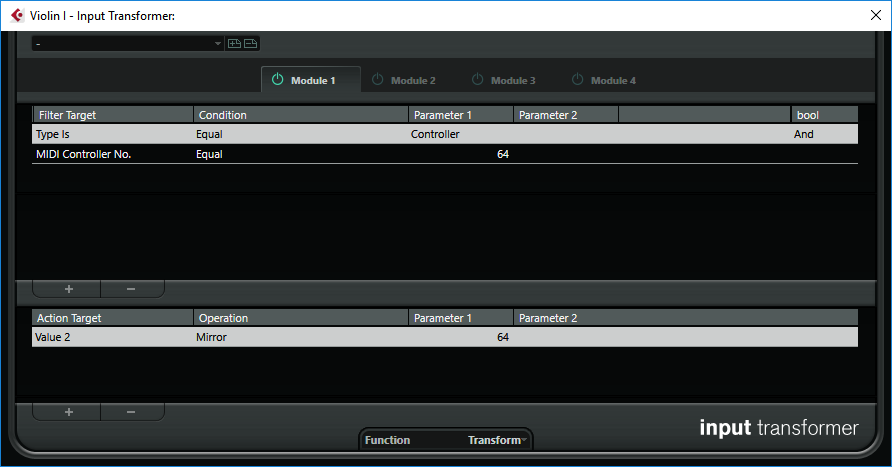
I have here a pedal that works backwards with my AKAI MPK61 controller keyboard (when up it sends 127, and when down it sends 0).  Unfortunately I can't flip it in the keyboard's firmware, and it's a nice Yamaha pedal that I'd rather not get rid of, so I use a Cubase global track transformer to invert (mirror) the pedal's event.  I choose a 'global' transformer for this because I use it at some point in pretty much every MIDI track I make that involves recording my live performances.


Each individual track can also have up to 4 'local' transformer modules, which are individually kept per track.  It is also possible in Cubase Pro to have even more transformers as 'MIDI track inserts'.


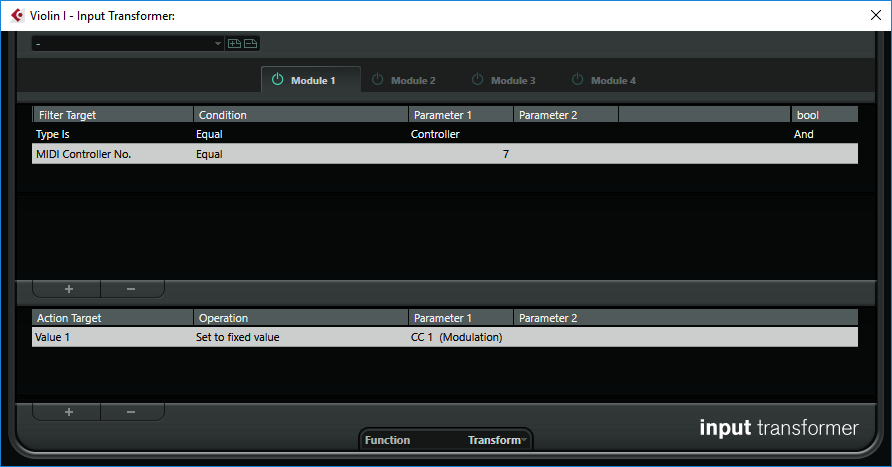
Here is an example of using a 'local' transformer to convert CC7 events into CC1 as they are played in.  Before getting 'recorded' all CC7 events get changed to CC1.


Note: when applied as a "Global or Local" track transformer, things are modified BEFORE any recording is done.  It is also possible to have 'post' track transformers, which manipulate the MIDI stream between track-output and the MIDI instrument/plugin.  I.E.  Record exactly what was played into Cubase, but do the transformation during the 'play-back process'.  To make this happen, you'd use a "MIDI Insert" version of the transformer, and click a little 'post' icon. 


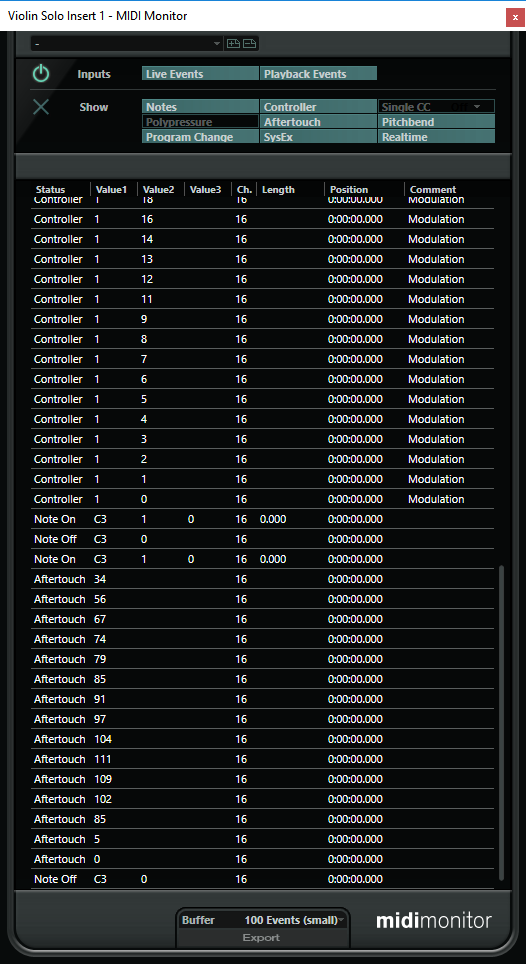
While mentioning the "MIDI Inserts", be aware that there is also a nice "MIDI Monitor" insert that lets you see what events are passing through the track.  It's a great trouble-shooting and analysis tool for seeing exactly what is coming into/out of a MIDI track.


Comment actions Permalink
Avatar
0

P.S.

I'm about to head out for dinner, but I will come back and re-read your question, and attempt to offer some ideas on good set-up and work-flow for GPO strings in particular.  Much of it will be 'subjective', as you might find a work-flow you like better, but it might serve as a good place to start.


Personally I reserve CC7 events for the final mixing phase.  During most of my composition process, I keep CC7 at around 100, and do dynamics with CC1.  This way, when I get ready to do a final mix, I can do slight bumps and such to CC7, and all of my expressive dynamics will 'scale' with it.


Some Garritan String instruments are also effected by key-velocity to some degree.  I.E.  It might change the amount of a given filter to change the timber of attack.  In some cases, it might effect the dynamic range of the attack, in others, it might just change the sample offset of where a sample starts playing back, etc.


The new GPO5 Orchestral Strings add even more, with ADSR style controls, so there's that as well.


As for CC11 vs CC1

I like to use both.  While they both do the exact same thing in most Garritan string and wind instruments, I'll often keep 'terraced' and 'attack' dynamics as CC11 events, and dynamic volume changes (crescendo, sfz, ect.) as CC1.  This practice just makes it a little easier to make batch edits to one type of dynamic change, without effecting the other.

Comment actions Permalink
Avatar
0

Thanks Brian.  I would really appreciate that.  To give you a little background information.  I have been composing music in Sonar by playing some notes in, but mainly by adding notes manually using piano roll (key view in Cubase).  There are two reasons for this, 1) I don’t play very well, but I can play in a single melodic line.  2)  Sonar doesn’t have any feature to quantize display only (staff view) like Cubase does, so in Sonar, I had to quantize everything in piano roll to make the notes in staff view look right.  Then, to make the piece into a finished performance,  I changed the tempo map for each note that I wanted held longer or shorter. This is fairly tedious and results in a tempo map that is all over the place.  It seems to me that with Cubase, I will be able to play in my melodic lines the way I want them and then use the quantize display feature to create a readable score.  Since I am writing mainly string quartets right now, it would be great to have my by controller keystrokes go to velocity (cc1 or cc11) so that I can then hand-edit the attacks in cc7. 

My end product is a musical piece written and “performed” by me in my DAW.  I then take the music and add animation to it that I make in Blender.  If you want to see what I do, go to http://bitsong.com/Music.html.  I was lucky enough to get a live performance of one of my pieces which is also there.  Thanks so much.

Barbara

Comment actions Permalink
Avatar
0

I have GPO 5

Comment actions Permalink
Avatar
0

OK,


First, CC1/11 and key velocity aren't exactly the same thing.  In "General MIDI" instruments, key velocity, which is one of 3 values sent with a note-on event, often has some effect over the 'attack volume' of a note.  Quite a few orchestral plugins, such as GPO buck the GM trend a bit, especially for string and wind instruments.


With GPO Winds and Strings, key-velocity usually does not have much if any impact on 'attack volume'; however, it might cause variations in the attack style/timber/quality.  Actual dynamics are done by 'expression volume', which is CC1, CC11, and in many cases CC2 (breath controller).


CC7, or 'channel volume' automates the ARIA Mixing console for a given channel.  Anytime you adjust CC7 channel volume, all of your CC1/11 events remain intact, but scale up/down with the Master Volume.


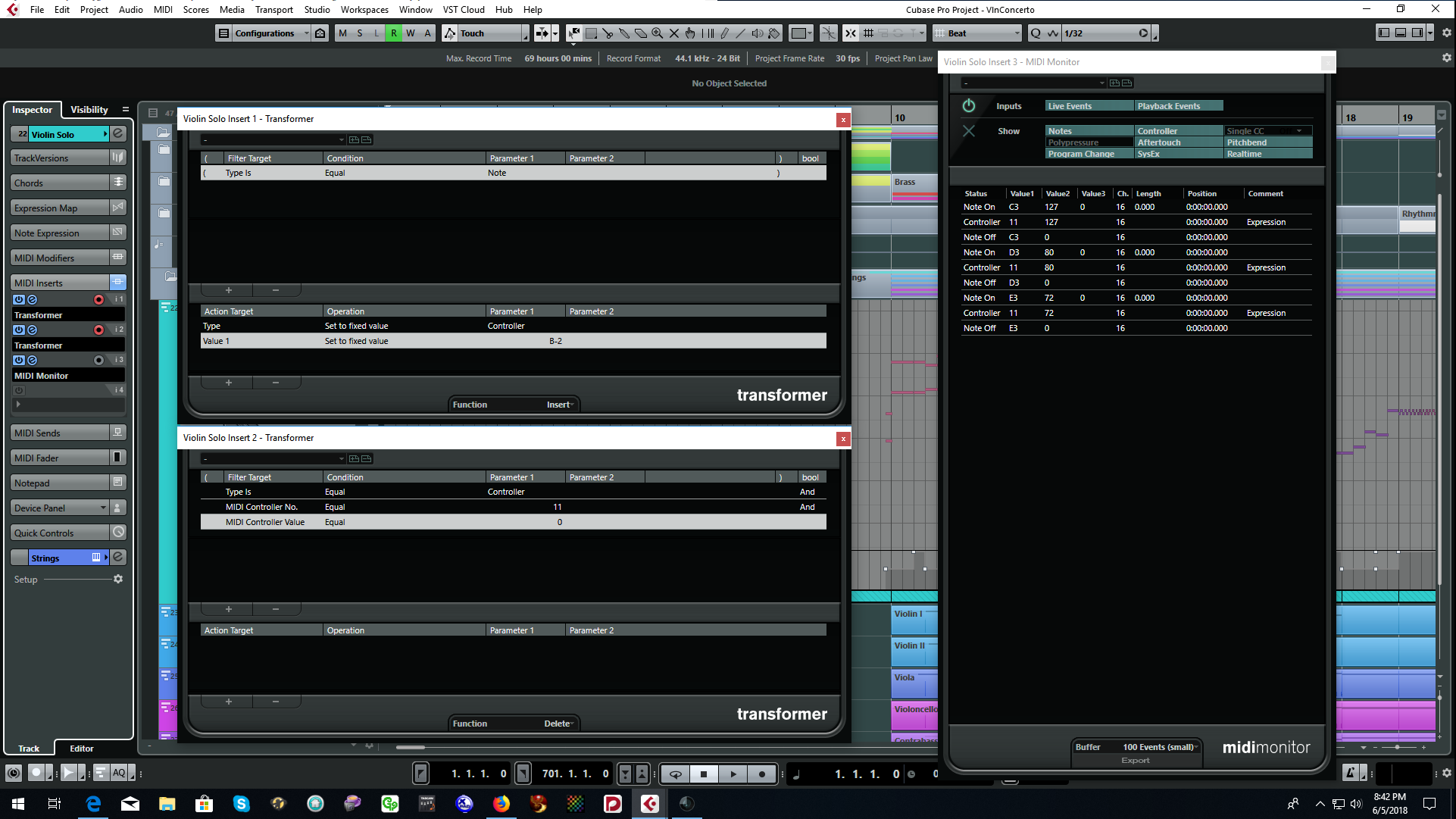
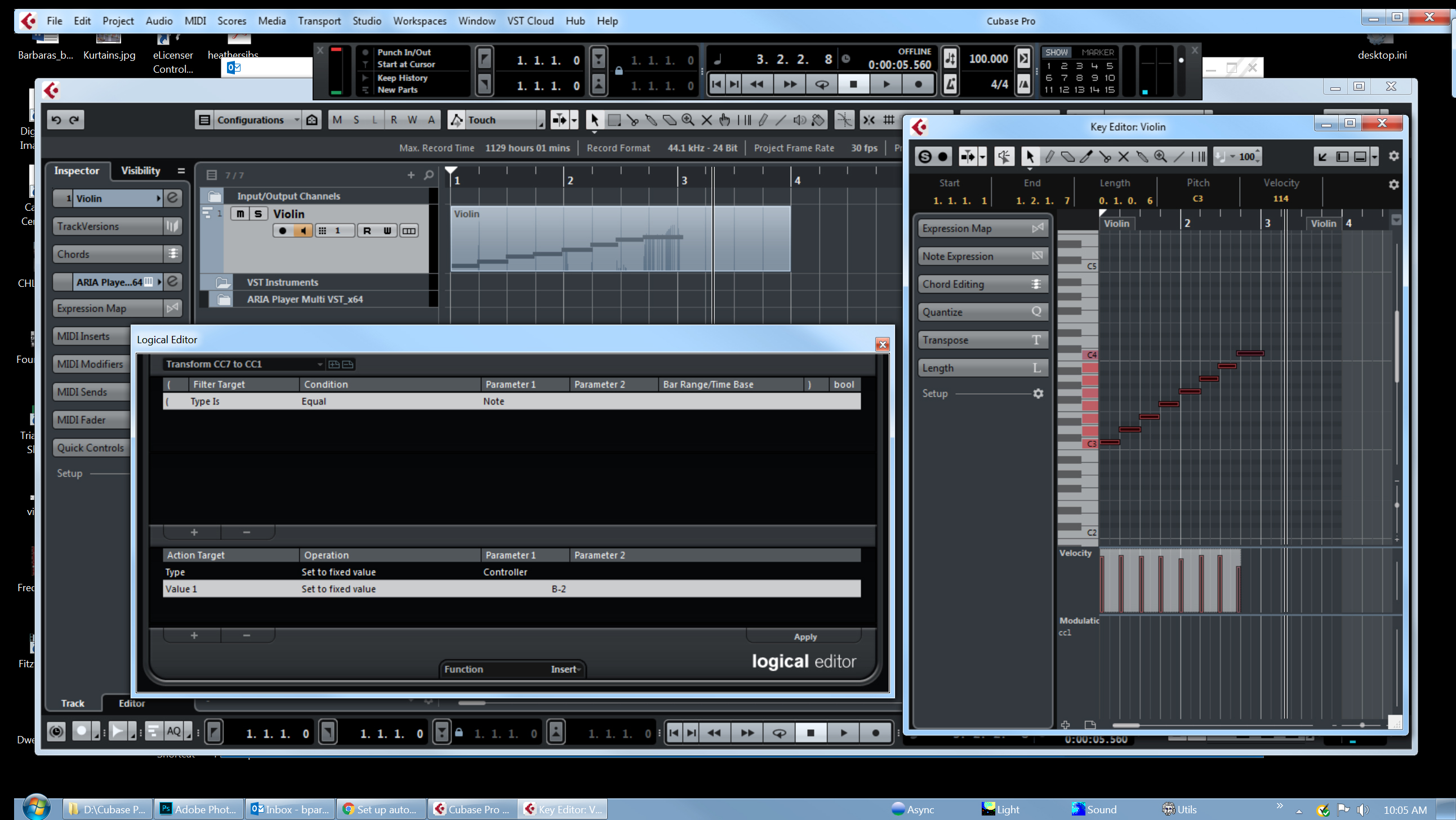
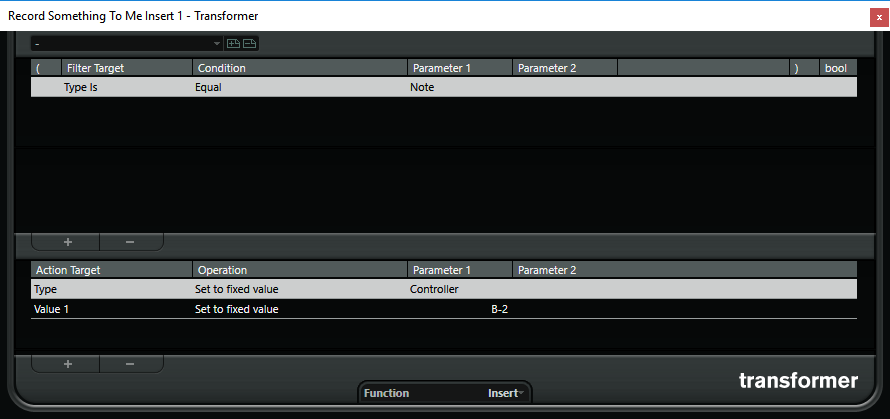
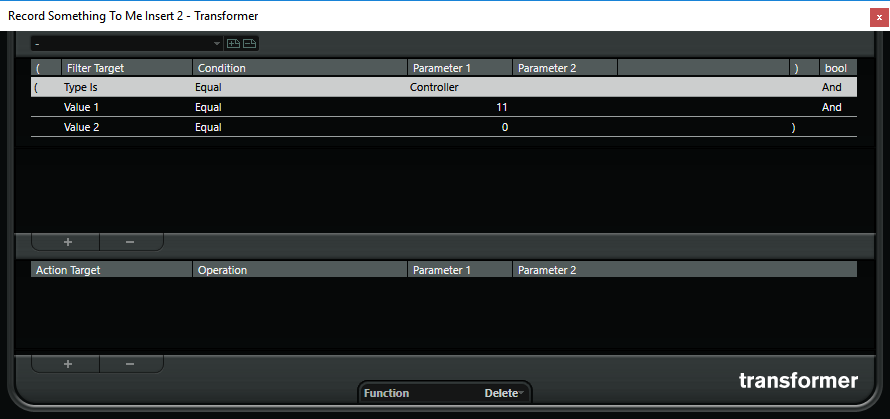
There is a way to make Cubase automatically insert and record CC1 or CC11 events equal to key-velocity while you are playing if this is desired.  This can be done by using a pair of MIDI Transformer inserts like so:

The logic is:

If (event_type == note) {

     insert_new_controller_event = type_controller;

     controller_type = 11; //It shows as B-2 after typing in 11 and hitting enter

     new_event_value = note velocity; //value 2 of the original event;
}

if ((event_type == CC1) && (value == 0) {

     delete the event;

     //This second transformer is optional,  without it CC11, 0 events will be sent when a key is released.

}


Now there is a CC11 event recorded with every note that is played.  The value will be equal to key-velocity (how hard/fast a key was struck).  It will fall at the same MIDI clock tick as the note-on event.


Do you want to do this?  It won't hurt to give it a try and see how it goes, but if you are mostly a step-input type of composer I have some other ideas that might work out better.  I'll follow up in another post as soon I get a chance.


Comment actions Permalink
Avatar
0

Hi Brian,

I got the local transformer to transform controller 7 to controller 1 set up, but it didn't seem to work.  The controller messages still went to 7, velocity.  I also tried to do the set up you mentioned above, but I didn't understand what to do with 2 input transformers, 1 and 2.  Sorry.  I thought it would be fairly easy to route controller messages from 7 to 1, but it's turning out to be very complicated.  I think I better just play in my music and let the messages fall where they want, and clean it up later.  Is there a way to copy controller messages from one controller channel to another?  If I could to that, I could take the data that goes to 7 when I play and simply paste it into a cc1 lane.  Thanks.

Barbara

Comment actions Permalink
Avatar
0

Some Possible Workflow Strategies


1.  Live input, real time recording.  If playback and expressiveness is the ultimate goal, and a printed score is not a top priority, this can be a great.  When working this way, simply play as much as you can one track at a time.  Don't worry so much about dynamics on the first pass, as you can use your logical editors to make quick work of roughing in your general dynamics.


After you've recorded a track, you can use the logical editor to quickly throw in CC11 events for the attack volume of each note.  I'll generally start out by selecting every event in the track, and then running a logical editor that inserts a CC11 event at the start of each note, which has a value that matches the MIDI note (value 1).  This makes is so every note has a static volume that is the same value as the note itself.  As notes go higher, they get louder.  As notes go lower, they get softer.  Obviously higher octave instruments like 1st violin will be much louder than violas, cellos, etc, but we can fix that in a second pass of the logical editor really quickly and easily, or we can just lasso everything and 'drag it lower' with the mouse in one easy motion to put the track on a nice dynamic scale.


Once note attack dynamics are roughed in pretty well using CC11, we can go back and use the simple line and curve tools of the MIDI editor on a CC1 lane to draw in things like hair-pin dynamics, Fp, sfz, and so forth, or, we can make a fresh MIDI track that is pointing to the same instrument, and attempt to record CC1 dynamics in live using faders/wheels/etc. while listening to the playing sequence.  One can set cycle points and such, so Cubase will keep repeating and making new tracks with each pass until we get one we like.  Once we've got a good take, we can copy and paste it into the track/part that has our notes, and get rid of all the junk tracks that are in the way.


Once a part/track has all of the dynamics roughed in, one can do a bit of fine tuning to individual CC events around specific notes.


Finally, we reserve CC7 master volume until the last phase, when all the parts for an ensemble are somewhat complete.  All of the instruments can be mixed and blended from there, usually without having to go back into tracks and deal with specific expressive dynamic components again.


Here is a Scherzo String Quartet, Cubase project that was roughed in using approaches described above.  Note, it is not currently score friendly at all, as key-switches and such are simply packed in.

https://drive.google.com/open?id=1qI88ceB8h_wvo1RhCnBaTI0fgr8utrv-


2.  Step input with the score and/or Key editor(s).  Here we work the other way around.  We generate a block score first, and go back to make it 'sound more musical/expressive' later.  With this approach one can build 'expression maps' which can attempt to 'interpret' what various symbols and text mean on a Score.  For instance, one can build an expression map that interprets staccato markings to mean 50% of the written note value when played back.  Accent marks can be set to boost key-velocity a certain percentage.  Techniques can be built to send controller events, program changes, key-switches, or channel bounces to change articulations.  Terraced dynamic markings drawn into the editor can be established to use certain CC events and/or key-velocity, and scaled.


A score interpreted by these expression maps is not going to be perfect, and it's typically not going to maximize the full capabilities of a given sample library, but it can give you a very solid starting place, which you can quickly export into fresh 'true MIDI' tracks, and then go to work with your logical editors for batch changes, and your mouse for fine tuning every detail.

I.E.  If you've set up an expression map to increase the velocity of accent marks (>) by 20%, you might not hear that right away with some Garritan instruments, but you can rather quickly and easily run a pass with a logical editor that will throw CC11 events in there that match the key-velocities.

Comment actions Permalink
Avatar
0

Yes, keep composing and experimenting, later I can try to show you some ways to change things about as needed.

Comment actions Permalink
Avatar
0

Also,

If you know how to make screen shots and can show specifically what you'd like to do, it can help a great deal.  Sometimes it's difficult to 'guess' what a user is seeing, and trying to achieve.  Let me know if you're not sure how to make screenshots.  I can hunt down a primer for that.

Comment actions Permalink
Avatar
0

Here is an attempt to demonstrate one way to change all CC7 events in a MIDI track into CC1 events step by step.  This is NOT the only way to go about this, but in my opinion, it is the most efficient method.  It only takes a few clicks....


Notice this Flute Track.  It is from a Standard MIDI File imported into Cubase.  The original author of this MIDI file had all of the hair-pin dynamics on CC7, and intended it to be played by any GM player/instrument.


The first thing I want to do is change these CC7 events into CC1.  So I will right click my Flute track in project view and choose, "Select all events."


Next, I will use a logical editor to change any and all selected CC7 events into CC1 events.


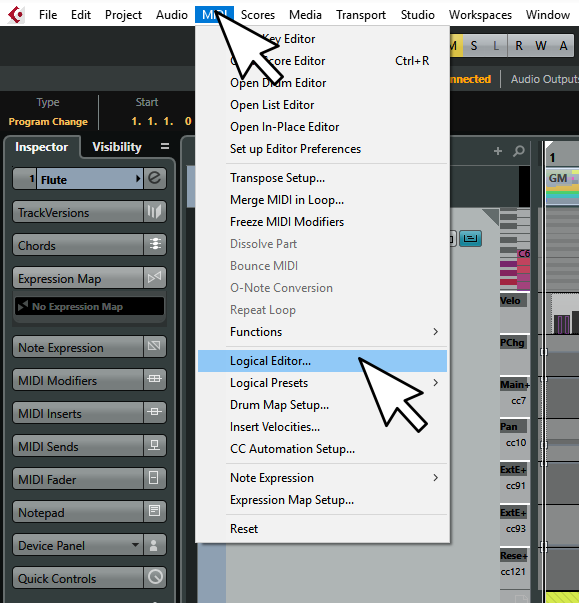
1.  Open a MIDI Logical Editor dialog.


2.  Build the logic to transform any selected CC 7 events into CC1 events, then click apply.


3.  When I look back at my Editor, I can see that the events that were once in my CC7 lane have disappeared.  I'm simply going to change that lane so it will now show CC1 events instead, and I can see that they are all there.


Yay!  All the CC7 events in that track have been changed to CC1, and I can see them in a CC1 lane:


In my next post I'll show a way to grab the velocities of each note and insert them as CC11 events to represent the type of 'attack volume' that is recognized by the GPO flute.

Comment actions Permalink
Avatar
0

Next, I'd like to extract the note-on velocity of all the notes in this same flute track, and insert those values as CC11 events at the very beginning of each note.


Again, I will right click my Flute track in the main project view and choose, "Select all events".


Again, I will go to the MIDI menu, and open a Logical Editor dialog.


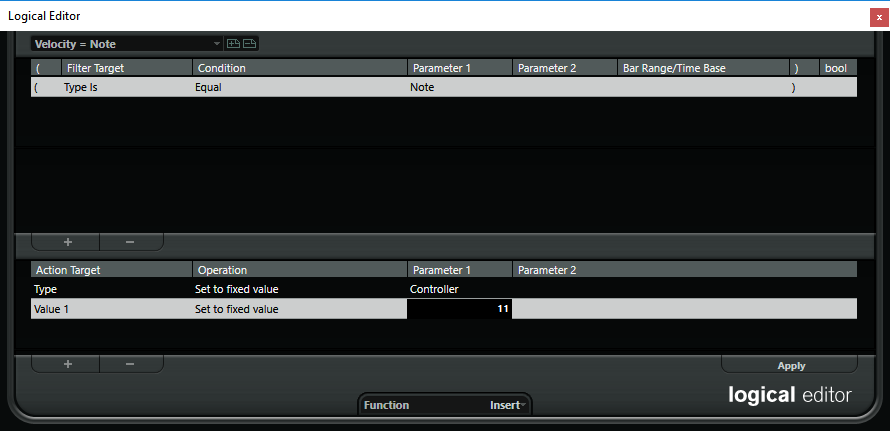
I will build this logic and click 'apply' when it's done:


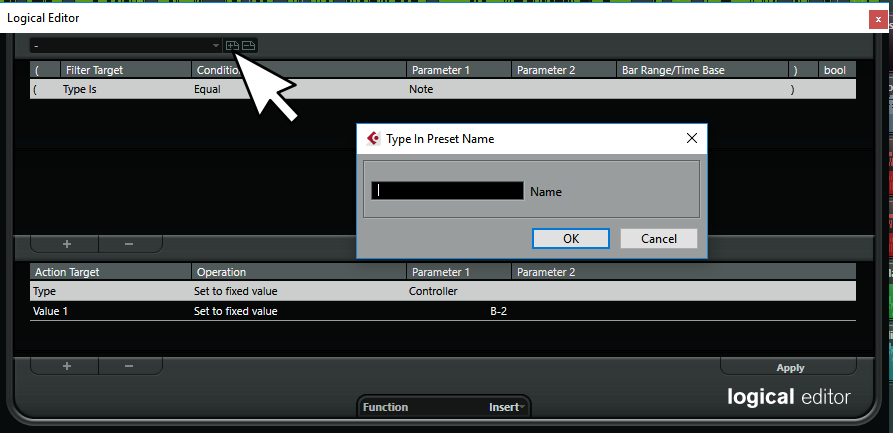
Note:  After entering controller 11 for value 1 under Action Target, when I hit enter, it's going to change the display for that field into a note/octave name of "B-2", but that's OK.  It's the same numerical value in the end.  Value 2 will be carried over from the original MIDI note' value 2, and it represents 'note velocity'.


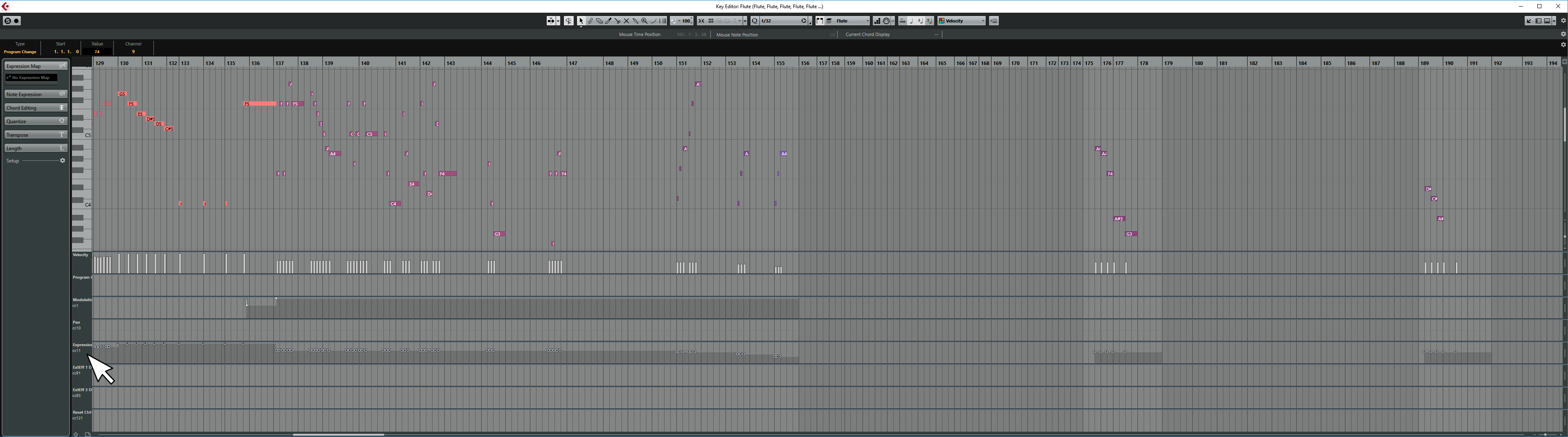
Finally, I will refresh my lane views in my Key Editor, and I can see that I now have CC11 events that are duplicates of the key-velocity levels.


Yay!  I can see these CC11 events in my track now...all ready to tweak and edit to my liking.


Comment actions Permalink
Avatar
0

Note, the MIDI Logic Editor can work on several tracks at a time!  It's not limited to just one.


So I could hold ctrl, or shift, and select several tracks at once, then right click one of the selected tracks, then go to my MIDI menu, and use a logic editor to batch process all of the tracks at once!

So, I'll go ahead and convert all the rest of the MIDI tracks in this project like above in two passes.  It's exactly as before, but instead of just working with the Flute Track, I'll go ahead and process all of the remaining MIDI Tracks using the same two logical editors as before.


Don't forget, that you can save presets of your favorite Logical Editors so you don't have to keep rebuilding them over and over again......


Comment actions Permalink
Avatar
0

Here is an alternative method I often use.


Instead of extracting the note-velocity I want a natural flow where notes get louder with higher notes, and softer with lower notes.  So instead of extracting 'value 2' of the note-on event, I will extract value 1, which is the actual MIDI note.


I'll first use a simple logic editor to remove ALL CC11 events from this Violin track.


1.  Select the violin track in project view, right click it, and choose 'select all events'.


2.  Make and apply a quick little logical editor strip out all the existing CC11 events.


3.  Make and apply this logic that will insert a CC11 event with the MIDI note value.


And now I have some interesting dynamics roughed in to begin with.  It's a pretty natural sounding thing for most instruments and musical styles.  Notice the gradual rise and fall of attack dynamics now in the CC11 lane.


From here, I can always lasso groups of events in this lane with my mouse to raise/lower or 'scale' them (depending on which little box handle I click/hold and drag).  Or, work with them 'one' event at a time.  I can also elect to run more Logical Editor passes applied to 'selected events' instead of trying to 'drag things' with my mouse.


Comment actions Permalink
Avatar
0

Hi Brian,  I tried your "flute track" method of changing C7 to C1 and I think I did all the steps correctly.  However, it did not seem to work.  The controller messages are still in the C7 lane.  Here is my screen shot.

Comment actions Permalink
Avatar
0

Hi Brian,

I tried the "insert as C11 events" method, but that didn't work either.

Comment actions Permalink
Avatar
0

Brian, Thanks again for all your information and help, but I think I am trying to run before I can walk.  I need to understand Cubase better and do some Logic Editor tutorials to get things to work.  Right now, I am working my way through set of Groove 3 tutorials on Cubase and I think I should keep doing that.  Thanks again.

Barbara

Comment actions Permalink
Avatar
0

In studying the screenshot, I think the confusion may be that you are mistaking 'note velocity' for CC7 events.  They are not the same.


Note Velocity is part of a 'note' event.  It represents how hard/fast a key is struck.  A single MIDI note event contains bits for the following information:

channel (1-16), note (0-127), on_velocity (0-127), off_velocity (0-127)


Note Velocity can be unique for every individual note, even if they are on the same channel.  If the instrument is up to MIDI standards, even if several notes are on the same time-stamp, they can each have independent 'velocities' and have those qualities interpreted and sounded.


For strings and winds, most Garritan instruments do NOT use velocity for 'attack volume'.  Instead they use CC1 (or CC11) expression volume. 


If you wish to copy those velocity ranges into CC events, see the post above for extracting 'velocity'.  It looks like you did run the proper logic for extracting velocity and inserting a new CC event, but perhaps did not update your lanes to include one for your newly inserted CC events.   Update the CC lanes in the editor to display 'all used CC'.  You should also be able to tell if a particular controller has any events in a track due to a little astrix (*) character being present in the list.  I'm pretty sure CC11 events should be in the track after running that second bit of logic.  Simply activate a lane for CC11 to see them.  If choosing 'show all used controllers' doesn't work, take note if CC11 has a * by it.  If so, your events are there, force a display lane to CC11 and you'll see them.


In your second screen shot, notice how the Part bar is not 'dark' like in your first screen shot?   It looks like it might be that no events were 'selected' at the time the logic editor was run.  Be sure that you have selected the track, right clicked it, and chosen 'select all events', before running the logic.  With logic this simple, the editor is only going to check against 'selected events'.


In this case, the velocity bars will remain.  The velocity values cannot and should not be 'removed'.  In fact, a note with a velocity of zero is technically a 'note-off' event in Yamaha's interpretation of things MIDI.


CC7 is a continuous controller event.  It represents overall 'channel volume'.  This automates the main volume faders in the ARIA Mixing console.


CC1 is a continuous controller event.  It represents 'modulation' and is typically assigned to a mod-wheel on keyboards.  Many instruments out there use CC1 for introducing 'vibrato' effects via LFO, but Garritan winds and strings do not.  Instead they interpret CC1 events as 'expression volume'.


CC11 is defined in the MIDI specification as 'expression volume'.  For Garritan winds and strings, CC11 does the same thing as CC1, which is 'expression volume'.  One controls attack volume, as well as hair-pin dynamics this way, and you can use either CC1, or CC11.


CC events are 'channel wide', so they apply to any and all sounding notes on a given channel.  If several of them are sent on the exact same time-stamp, the last one  received in the stream is usually the one that gets played and can be heard.


CC events take the form:

channel, controler_type, value


So what does velocity do with Garritan winds and strings?


It can vary from instrument to instrument.  In some cases it does little, if anything at all.  Sometimes it causes various filters to open or close slightly changing the timber of the attack.  Sometimes it causes the sample offset (where a sample file begins to play) to slide about.  In some cases, an instrument might even have more than one 'velocity layer' of samples to choose from.  Sometimes, there might be some slight variance in amplitude/volume due modulation of various sound shaping envelope parameters impacted by incoming note velocity, but typically it's not enough 'volume change' to be considered 'attack volume'.


Percussion, keyboards, plucked/strummed strings, etc...these do often interpret note velocity as 'attack volume'.

Comment actions Permalink
Avatar
0

Hi Brian,

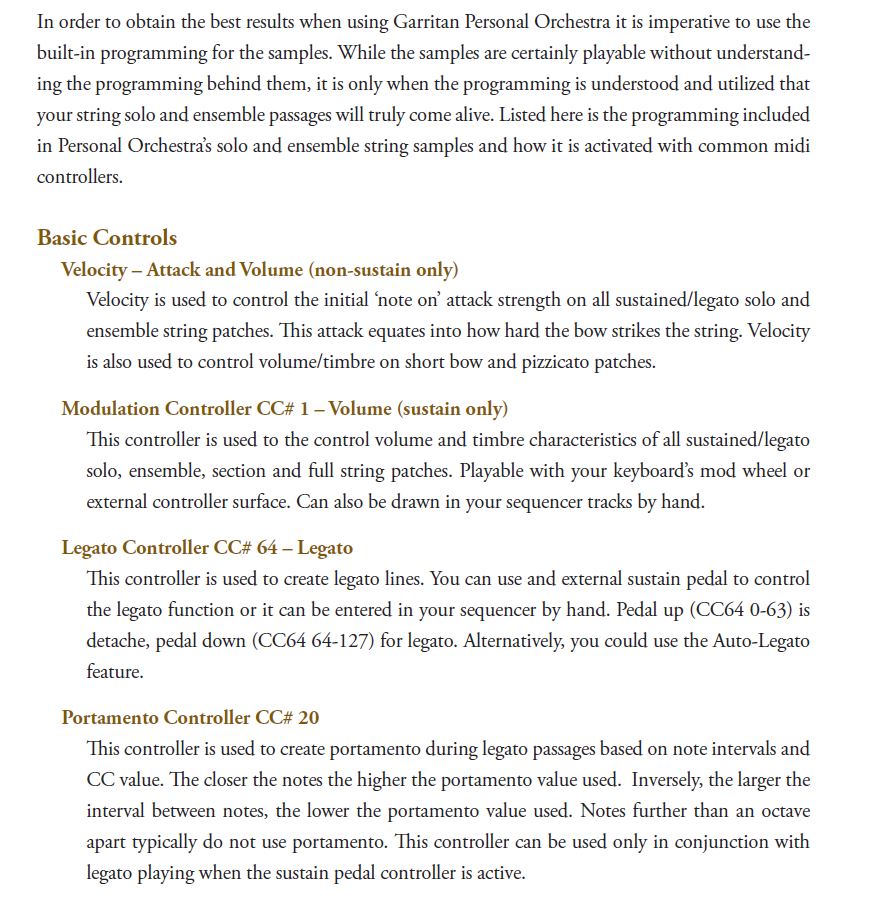
Here is a screen shot from the Garritan instruments manual.  It says that "Velocity is used to control the initial 'note on' attack strength on all sustained/legato solo and ensemble string patches.  This attack equates into how hard the bow strikes the string.  Velocity is also used to control volume/timbre on short bow and pizzicato patches." 

I have found in my own work with Sonar that the Velocity C7 lane very much controls attack, and that C1 controls volume on legato string patches.  I have worked quite a bit with these two musical parameters and I find they both are very important in getting the string sound I want.  Thanks again for all your help.

Barbara

Comment actions Permalink
Avatar
0

Yes, attack strength is not quite the same as volume/amplitude when it comes to Garritan bowed strings, winds, and brass.  "...and Volume (non-sustained instruments only)".


I agree that for some Garritan strings and winds (sustained notes), it changes the attack quality.  Usually by opening or closing filters to cause a 'brighter' or 'darker' timber.  For some, it doesn't do much at all, etc.  I'm pretty intimate with these instruments, down to the sfz level...


Also, 'velocity' is not CC7.  It is a different parameter.  From the perspective of the Cubase Logic Editor, Velocity is the second value of every MIDI note event.


CC7 is total Channel Volume.  Any underlying expression volume will 'scale' with this master volume level.

Comment actions Permalink
Avatar
0

CC7 (Master Volume) vs CC1 or CC11 (expression volume)


It's true that one can use CC7 to change the volume at any time.  Some MIDI file authors choose to simply set CC11 as loud as it will go (127) and then use CC7 for any and all volume control.  It's a pretty common practice with SMF (Standard or General MIDI files).


With an advanced Sequencer like Cubase, it's nice to understand that you can shape your entire dynamic template for a track using expression volume.  At that point, you can later 'mix' the track with others using CC7, and all that expression volume stuff applied before will 'scale' with the master volume.


For me, when working in Cubase, I find it better not to put a CC7 event inside the MIDI Track parts at all.  I reserve that for the last stages of my project, and keep the final mix on an automation lane in project view.  In short, I am recording the movements of Cubase Mixer faders when I go to do my final mix-down.  The automation of my Cubase Mixer Faders lives in the main project view, as an automation lane.


Typically, during those final mixing stages of a project, we want to be 'done' with things like sforzandos, crescendos, Fp attacks, the slight variances of amplitude we might add to a soloist's sustained notes to make them more expressive and realistic.  We want to be able to simply 'scale' the volume of the entire track in order to place the instruments in the sound-stage, and to make it blend with other tracks properly.


That's why it is advised to do as much of your dynamic control with CC1 or CC11 as possible first, while the Master Volume (CC7) of all the ARIA Channels is somewhere between 80 and 100 or so (I just hold ctrl and click the faders in the Cubase Mixer before I start composing on the track).  That gives you scalable track dynamics, and a bit of head-room to take the entire track 'louder' or 'softer' for the final mix.

Comment actions Permalink
Avatar
0

Thanks for the information, Brian.  I work on the volume of each sustained note to give it some shape (using CC1).  Then I work on the attack of each note in the velocity pane of the piano roll (key) view.  I find that this attack value in the velocity pane is quite influential to the overall sound of each sustained note. Then I make volume adjustments between the parts (using CC1).  Then I send all 4 parts to a master bus and work on the overall volume there (again, using CC1). I don't use the faders in the Aria interface at all.  I was hoping simply to find a way to input volume (velocity) from the keyboard directly to CC1 or CC1 as a start on tweaking the note volumes, but I guess that's not possible -- at least not for me at my current level of understanding. Maybe when I have studied and learned  Cubase more, I will understand your methods.  Thanks again.

Comment actions Permalink
Avatar
0

I see you're headed towards a different work-flow than I personally use for MIDI composition.  That is perfectly OK, as there are many ways to use Cubase, with work-flow options galore.  By all means, use what works best for you :)


In the screen shot above I see that you have elected to keep your CC1 events in a track 'automation lane', as opposed to keeping it merged in with the main MIDI part.  It is convenient, and works well with live MIDI controller devices. 


The catch with this method is that your MIDI Logical Editor doesn't work with automation lanes, and to me personally, the Logical Editor is an essential 'power user tool' to make massive batch edits in just a few clicks, that could take many hours to do individually/note by note using the mouse.  It also puts you in a position to need to juggle windows more often (instead of working in the same Key editor as you step-input, or record parts).


The good news is that you can convert this stuff back and forth at will.


If you wanted to merge the automation lane events into the main MIDI part at some point, you can set your locators and "Merge MIDI in loop..." to a fresh new track (or optionally overwrite the original).  At that point, it becomes possible to process your controller events using the MIDI Logical Editor.


If you wish to extract all of the CC lanes from inside a MIDI part to track automation lanes, you can use MIDI>Functions>Extract MIDI Automation to do this.


ctrl+z is a great friend in Cubase.  It makes it easy to take a second look at things after applying them.  If it didn't work out as planned, 'undo it'.  Many levels of undo are kept...

Comment actions Permalink
Avatar
0

Thanks Brian,  Lots of good advice and information for me to keep in mind as I get to know Cubase!

Comment actions Permalink
Avatar
0

I've attached a simple one track project demonstrating how to automatically record a CC11 event that matches the key velocity into a track while playing live.


https://drive.google.com/open?id=1e2CZJeDo-wNCMJiiN1TnTkYRteg4Qr8_


When you open the project, you should see a single empty track in the Main Project View ready for recording.


Arm the track for recording by clicking its 'record' button.


Tap the num-pad astrix key (*) to start recording, and after the count-in play something in with your MIDI Keyboard.  Alter how hard/fast you tap the keys while playing in your passage.


Next, toggle the inline editor on for the track or examine it in the Key editor.  You should find that there are CC11 events at the start of each note in the MIDI part that are equal in value to the Note Velocity Bars.


It uses two MIDI Insert Transformers on a track.  They both have the 'Record Output To Track" icons active.


The first transformer works in real time to extract the note velocity, then inserts a CC11 event where value 2 is equal note velocity.


The second transformer acts as a filter to delete any incoming CC11 events from the live playing stream, where value 2 is 0 from the live stream, as we don't want note release times to be 'clipped' off when a key is 'released'.


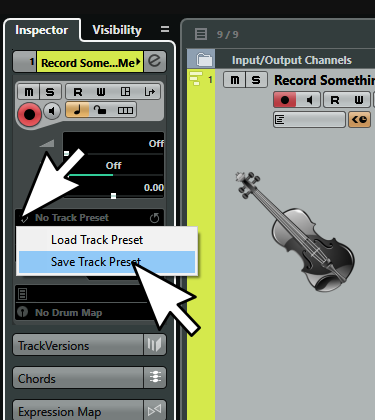
Note, you'd need to set these MIDI inserts up on each track that you wish to record to in this fashion.  To save steps, you can create a "Track Preset" that will remember all this, and make it easy to set up new tracks all ready to go when using "Create new track from preset".


Comment actions Permalink
Avatar
0

Thanks Brian,  Looks promising.  I'll try it when I get to know more about Cubase.

Barbara

Comment actions Permalink

Please sign in to leave a comment.