Nueva publicación
Avatar
0

Hello there...

  If someone there can help me, I have this problem:  I Work with Sonar 5 Producer Edition DAW as a host edition soft. I use it (and also all my plugins) under Windows Xp Sp3 (x86) S.O. Everthing works ok. But I recently installed the Garritan P.O. and the J.& B.B. plugins (I am veeeeery interested in use it for my editions) and ev'rything run ok; the installation was ok; the plugin can be inserted in the midi tracks ok; I can select what instrument I want to insert in the track; etc., etc. Also, the visual interface shows the Aria virtual Keyboard and the sounds from it can be eared. BUT...! when I play the midi file, the track which have the Garritan inserted, doesn't make sound at all.

  A kind person I did ask about this issue said to me that could be happen that the Weel Mode may be with level 0, because Sonar have a feature called "Reset Controllers", which reset all CC Midi values to 0, and it could be active. I looked in all the parts in my Sonar (and in the Help), and I don't find nothing like that. (and I figure that it must exist, but I don't find it). Besides, I DON'T use the plugin through a keyboard (because I don't use a keyboard; I just use the mouse to write notes in the piano roll and that's my way to edit), so I never use the weel mode "physically". And when I use it, I do it through the mouse, applying the event control, in the piano roll. So, I don't understood why is the problem with the "Reset Controllers". 

  I read in the manual something about the correct way to work with the plugin is -when is be used a sound card- to select the driver ASIO2. Well, for real, I use a Sound Blaster Live! sound card and usually, I keep it with the WMD sound driver, because Creative say it is the better for a less of latency. And, the trouth is that untill now, I never had problems with this audio settings. Besides, in the list of my SBLive! audio drivers it is shown "ASIO", but NOT "ASIO2", and I can't to now IF it is the same "ASIO" or "ASIO2", if you understand...


So...If someone there could explain this matter, or explain WHY I can't ear any sound... "I am all ears...!"  (Mainly, I would like that person be also user of Sonar).

Thanks for advance...

Alberto, in Buenos Aires, Argentina  (EXCUSE ME IF MY ENGLISH IS'NT GOOD. IF SOME OF YOURS SPEAK SPANISH, IS WELLCOME...!)


3 comentarios

Fecha Votos
Avatar
0

Greetings,


I'm not a regular Sonar user, but I'll try to make some suggestions.


First, if you can open and view the ARIA plugin while the sequence is playing, do you see the keys in ARIA lighting up as the music plays?

If so, is the mod-wheel all the way down?

If so, can you hear the active instrument if you drag the Mod Wheel in ARIA up with your mouse?


If so, your friend was right on target.  Sonar is 'reseting controllers' when you hit the stop button, and Garritan instruments often use CC1 to control expression/dynamics.


All you need do is enter a CC1 event at the beginning of the track at the volume you want for the instrument. 


You can do this in Sonar through the Piano Roll View.

You'll need to set up a Controller Pane for CC1.

From there you can draw the dynamic changes you want into the Controller Pane using your mouse.


I'm not very familiar with Sonar, but you probably have a variety of choices on how you set up the Piano Roll View.  I.E.  There is an inline view that can display multiple tracks at once, as well as a single track, full window mode that displays all the selected events in master your project view.


You will want to add at least one CC1 event at the very beginning of every track.  Anytime you want dynamic changes in a part, simply draw them in the CC1 controller pane, at the timeline position you desire.  You can draw in ramps and curves for sforzando, sudden Fp or pF changes, or crescendo effects.  You can also dot in single events for terraced type dynamic changes.


Note the CC1 expression volume event automates the Mod Wheel in ARIA.  This volume is 'relative' to the CC7 master 'channel volume', which automates the main ARIA Mixer.  This  allows you to make things like hair-pin dynamic changes with CC1, but scale them en-mass with the CC7 channel volume.


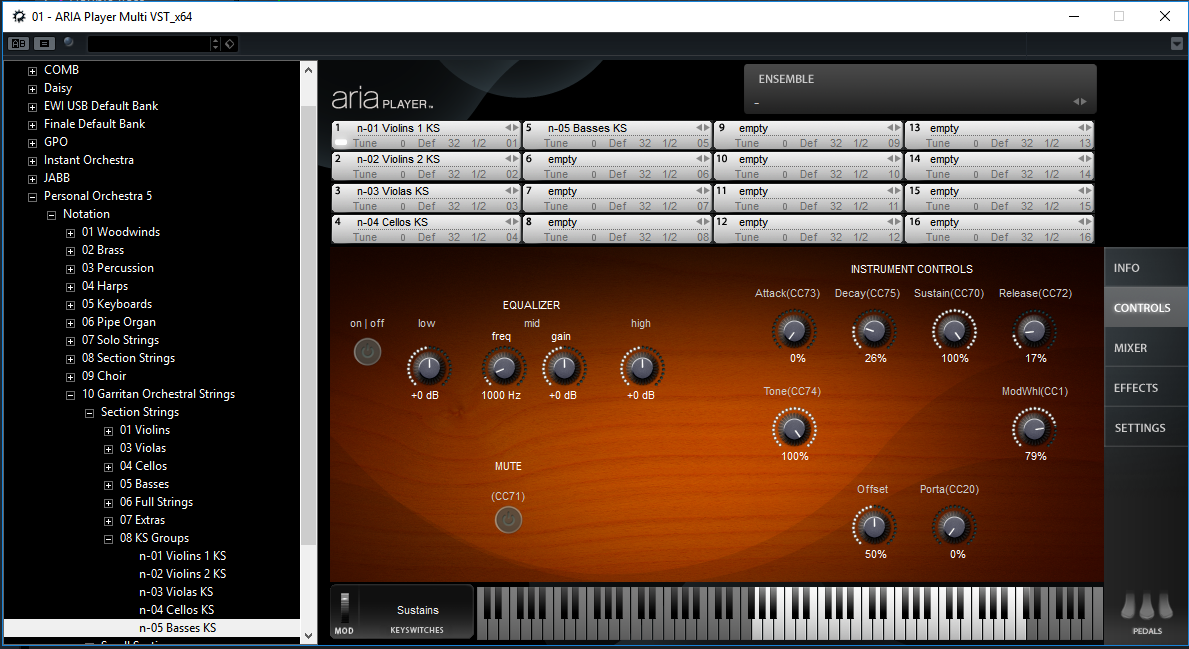
While you are exploring the controller pane, it's also worth noting that you also automate other controls in ARIA using CC events.  Notice in the image below the small text above each control knob with a CC number.  I.E.  In a Controller Pane for a track that transmits to ARIA on MIDI channel 1, you could enter CC72 events on the timeline to automate the Release knob of this Violin instrument in real time.


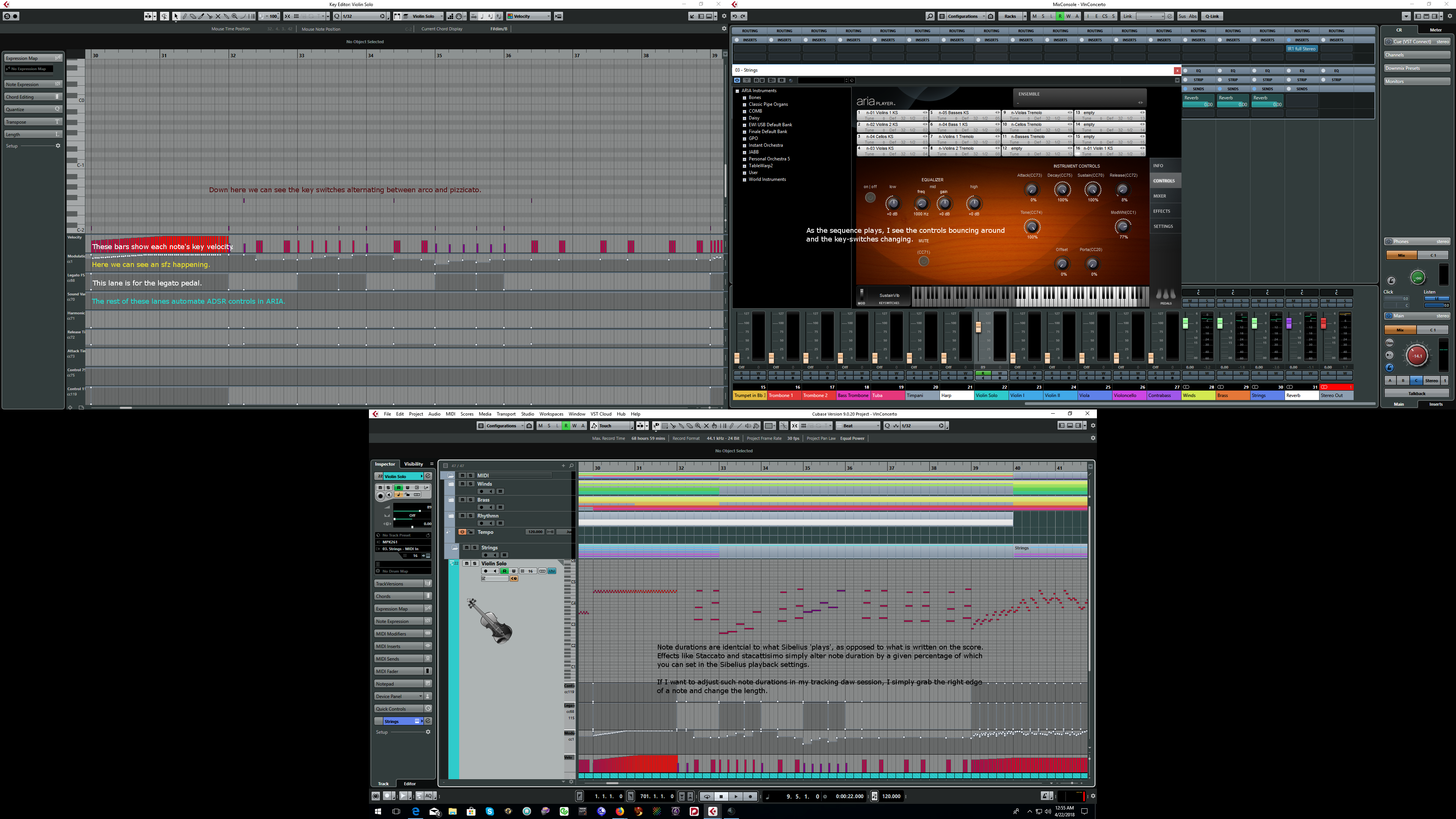
Sorry, I don't have a copy of Sonar handy to demonstrate, but here is screen shot showing what a solo violin part looks like using the GPO5 instrument above.  Notice how I've got all kinds of controller events going on in the controller panes (Cubase calls them controller lanes, but same concept) to make ARIA sound more expressive.

I'm not sure about Sonar, as I have not read the entire manual, but many tracking DAWs of this nature have methods to do simple batch or logic based edits to an entire track very quickly.  For instance, if I wanted to take a track in CuBase and make it get louder as notes go higher up in the scale in pitch, and softer as they go down in pitch, I could make a quick little script that automatically insert CC1 events before every note, that is the same as the MIDI note being played. 

The logic is something like:

If (any MIDI event in the track == note on)

then(insert a CC1 event)

then (set the value 1 of the inserted CC1 event to be the same as the note on value.

When I run the logic script....I get instant dynamics roughed in that are unique and more musical.


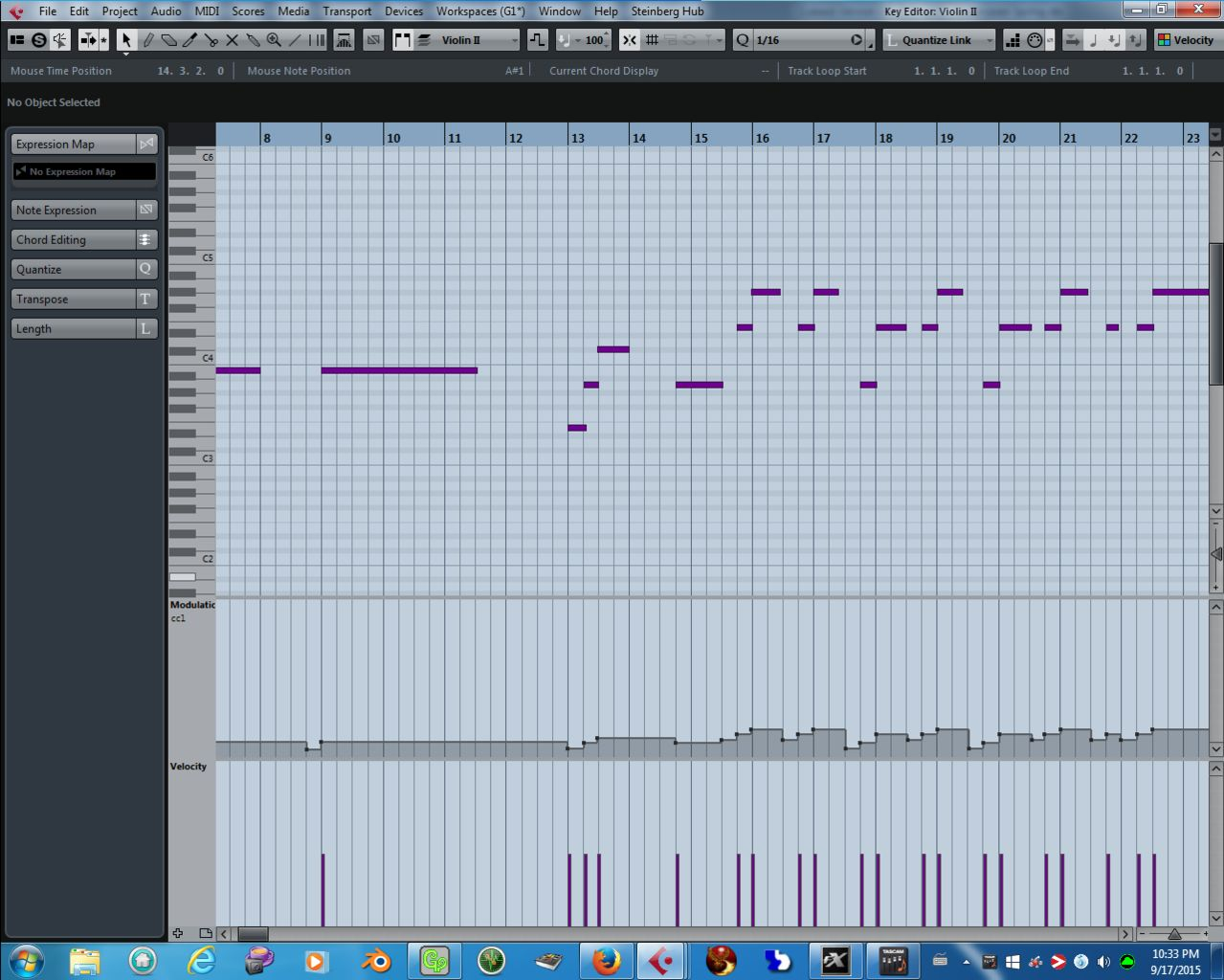
Here's what such an editor looks like in CuBase (Study up on Sonar. If it has something similar to the CuBase "Logic Editor" or any other type of 'scripting engine' for conditional batch manipulating MIDI events, it is very much worth learning how to use.  It will save you a LOT of time roughing in high quality dynamic and other expressive changes throughout a piece that simply make it sound more 'natural and realistic'.


Notice how now my track has a change in volume for every single note.  It goes louder with higher notes, and softer with lower notes.


Now that I've got some base dynamics to work with that aren't just boring and static, and it only took me a few seconds to do it for the entire track.  I didn't have to go in and draw it in for each and every note in the piece by hand.  It's not perfect yet, but I've saved myself hours of work by laying in a general dynamic template for the part.  In this case, it's a march-like passage that I have selected to batch insert many measures worth of dynamics, so I want the effect that melody goes a little louder when pitch rises, and vice verse.


Now that it's roughed in, I can go in and manually scale or manipulate things according to specific needs and tastes note by note, or passage by passage using my mouse.  By using the Logical MIDI Editor present in my DAW, I can manipulate a whole lot of things MIDI in just a few seconds.

Acciones de comentarios Permalink
Avatar
0

Hi, Brian..!

Wow, I celebrate the celerity of response and even most the excelent, marvelous kind of it, tank you very, very much..!

Well, First of nothing, I must say this:  I refered the ARIA player in the previous post, but I clarify now it was my mistake. The interface that show the keyboard is not ARIA, it has the name Kontakt Player - Garritan Personal Orchestra. I apology for that. Perhaps does exist some differences on that, mostly because the version of GPO that I have is not the 4 version (wich I understand needs the Aria Player). It is the GPO VST, DXi. Mentioned this, I continue:  In the File menu (the only one in the bar) a little screen appears that have some Setup Options. I followed it and I think I understand the Sample Rate box; the Oputput & Input boxes (wich shows "DS SBLive! [DF00] -my sound card) and the ouput/input latency (35ms/50ms), wich I suppose have the standard default for the audio driver in use (WDM). What I don't understood is  the legend "Direct Sound" showed in the Interface box. There are two options; the mentioned and "Multimedia", and I don't know wich of them is the correct. If the settings are automatized by default, I supose that Direct Sound is ok, but however, that tittle "dance" in my head as "On board audio card". Hope I am wrong and it is ok, in order of that the button active is the Sound Card options settings. In another way,  the  ROUTING button  (inputs/outputs) appear empty for both. And in the MIDI field, I can see that the Input/ Output Interface shows "SB Live! Midi Port / SBLive! Synth A" respectively (both in ON), wich I think is correct. I mention this 'cause I want to know if I have the correct settings.

Now, in the little General Options screen,  some buttons appear which I have a doubt about: I figure that the "Auto-convert loaded samples to 32bit" is ok when is active, but I have doubts  in reference to "Display Mapping on keyboard" and I don't know if I must to put it in off if I dont use a keyboard. Also, what represent the "Use Std CC#7 / CC#10 volume & Pan"..??? and finally: How must I to interpret the options of the button "Sustain/Sustenuto pedal mode"...?  I mean, wich is the best option in my case, when I don't use a keyboard..? Sorry to ask this, but I don't understand entirely the manual;  and for this is what I said I would like to contact somebody who talks in spanish  (Of course, I as well appreciate your friendly, kind  help,  and I strongly wish --and will do--, to try to understand everything what you say, wich is very interesting). In order of wich I BEG YOU  to try to write with easy words; explaining the "technical" terms with the complete name or explanation, (at less for the first time), for example what means "CC", or others words, wich I thinks are abbreviations of something that I NEED to understand, because I am not a technician, but only an amateur plenty of learning wishes.

Respect to the midi tracks that contain write notes  (like a midi file already finished), I was practicing and I saw that the notes in the file I was editing HAD the events of volume, expression, etc. So, I was thinkin' that IF the midi sound was playin ok, and I can listen the original midi sound, and the GPO was correctly inserted; so Why can't I ear any GPO Sound..? So I can't see the relation between the original midi sound in the track (in which the notes appeared with a reasonable -and detectable- velocity) and the amount of volume, (or velocity, I don't know how to mention it) that the GPO must detect as SET <---in spanish = colocado. I see that the Kontakt player virtual keyboard change the colour; and if I hit a note with the mouse, it sounds ok,  and I also see that the mod weel (in the virtual keyboard) is in the max volume. But nothing happens...

Another thing I note is this: When I insert the GPO in the track panel, it shows:

Input: SBLive! MIDI Port (by Midi Omni)

Oputput: Garritan GPO

Channel: 3 GPO ('cause it is a Piano)

Bank: 0-Presets

Instrument: 0  (?) you can select "1"- "2" - etc, but NONE OF THEM PRODUCE SOUNDS...!

-----------------------

Also: When the field "Bank" is set (by you) as "0-Bank", the legend in the "Instrument" box is the same: 0.  However, I did the correct selection in the command (or buttom) LOAD in the Kompact virtual keyboard. I did choose Steinway piano.

Look, I am accustomed to the Edirol (Orchestral-Super Quartet-Hyper Canvas) and them, EVER show the list of presets in the Bank box, and the list of instruments in the Instrument box. I don't understand why the GPO does not. And I think that may be GPO does'nt sound because it are no bank selected in the bank box, or there are not any instrument selected in the instrument box . So, do I have an incomplete plugin, perhaps?

In other matter, what do you think about the absence of the ASIO driver in the settings of the SBLive!..? I mean, you don't have a Sonar, but, I can tell you that if you go to the Menu bar and select\Options\Audio, there appear -in the settings of your combination "Sonar-SBLive!"- that there are a list of tree drivers available: WDM (which is what I use myself, ever)  - ASIO - MME (32bit). I can image that -in order I have not the GPO 4 version. I don't need the ASIO Driver. But in any case, when I tryed to set the ASIO driver through the Sonar\Audio Settings, it disappeared the whole settings of my Sound card in the Sonar interface. As like the Sound Card does'nt found the ASIO driver, so it eliminate itself from the settings in Sonar. What do you think about that..?  I was thinking to write to Creative Support and ask them for that issue when I found your answer in my email box. I figure that for real, the ASIO driver is a not native driver in Creative products, and is one want to work with it, perhaps one must to install it appart the sound card. Am I correct...? And, anyway, do you think that is the same to use the WDM driver if you are working with the GPO VST/DXi and NOT with the version 4 that uses ARIA player...?

Well, sorry if I make the thing complicated to you (besides of my bad english), but in order of what the Garritan Manuals have not a spanish version, it is complicated for me too, because I am forced to decrypt the big amount of technicals terms on it, and the whole edition conventions, audio making conventions, midi conventions, etc, etc. So it's very hard to me. In spite of wich, I'm gonna sit right down and read with all my attention your (s) email (s), and see what can I do for to make the practice on it.

Listen, I don't want to break up any rule of the Forum, but if there are a way that you and I can write each other in a direct way, I will appreciate of it, for not to make a abuser use of the site. And I also wish to send one or two of my orchestral editions, to show you what is what I want to do with the GPO and the GGJ&BB (of course, if it's possible and if you want to) (and if you can stand my "Master Yoda and Tarzan" kind of english).

Thank you very much, my appreciated and admired instructor.

Greetings from Argentina.

Alberto.


Acciones de comentarios Permalink
Avatar
0

One step at a time.


Currently I do not have any version of Kontakt installed to help trouble shoot.  As for the audio interface questions, and MIDI related terminology, I can try to give you some ideas.


On selecting the best audio driver.

IF you have an audio interface that supports true ASIO drivers, that is usually the best way to go if you intend to play along live triggering sounds with some kind MIDI controller.  The reason being, ASIO devices are intended to be as low latency as possible.  By latency, we mean, the time it takes for us to actually hear a sound after we tap a key on the keyboard.  When latency is less than 40 milliseconds, it's comfortable to play along with our audo tracks and such in real time.  When latency grows too large, it's really hard to play because there is a noticable 'lag' between the time we tap a key, and we hear the sound.  ASIO drivers usually provide an easy way for the user to alter the audio buffers.  Lower buffer sizes make less latency, but also give the computer less time to process things.  If the buffer is too small for you computer system, you might hear pops, clicks, or unwanted digital artifacts.  If the buffer is too large, you will notice considerable lag when trying to work in real time with things like mixer-controls in the DAW, or trying to trigger sounds live with a MIDI controller.


If your sound device does not have true ASIO drivers, then simply try what is available, and use what seems to work best.  Any of them should work fine.  Simply load some simple audio tracks into the DAW, and if it plays, then you should be OK.  If you are having any problems getting VST/i plugins to make sound at that point, at least you know it is not the fault of the audio interface/drivers.  If there is too much latency, see if you can adjust audio buffer size, and/or try different driver options to see which works best on your system.


One can also install something called ASIO4ALL.  This little utility is a back-end bridge between a DAW that supports ASIO, and regular WDM audio drivers.  An interesting thing about this software utility, is that it allows you to more easily alter buffers sizes, and you can 'aggregate' multiple audio devices to work with a single driver.


On digital audio resolution and sample rate choice. 


For most of us, 24bit is a good choice.  This resolution gives nice headroom against common mistakes novice audio engineers make in setting dynamic levels while mixing (before making a master).  It does not require an extensive amount of hard-drive space when recording.  Some DAWs now allow recording to disk in 64bit resolution, but this requires a good deal of hard-drive space, and offers little or no benefit for the majority of users.  If your audio card cannot do 24bit, then 16bit is fine...just be careful when recording from mics to leave a good 10 to 12db headroom on the level meter when possible (for the mastering engineeer's benefit).


On clock rate.  Unless you have REALLY nice microphones/preamps you wish to use, and work in nearly ideal studio conditions, 44.1khz, or 48khz is good for most of us.  Going above 48k takes up a lot of disk space when recording, and usually is not worth it (some exceptions exist, but a maximum of 48k is good for the majority of us).  Choose 44.1k if your ultimate target media is going to be for CD mastering, or you are trying to sync with external audio equipment by something like SPDIF that requires a 44.1k clock (I.E.  I sometimes like to sync my DAW with an old BOSS digital recorder via SPDIF.  I must use 44.1k in this case).  Choose 48k if the target media might to be for video, or live internet streaming.  If you're not sure, I'd probably go for 48k, as it's easy to convert that to 44.1k later with minimal quality loss.  These days, 48k is probably most common, as music tends to be lossy compressed and served over the internet, or even put up in a video format (YouTube and such).


MIDI breakdown (terminology).

A MIDI track consists of simple instructions we shall call 'events'.  The types of events are:


Note on (Note number, Note on velocity)


Note off (Note number, Note off velocity)


CC, or Continuous Controller (controller number, controller value).  The MIDI specification allows for 128 Continuous controllers per channel.  These are commonly used for things like volume, panning, expression, pedaling, and more.  One can see the 'recommended' assignments for these controllers here:  http://www.nortonmusic.com/midi_cc.html 


Pitch Bend (a special higher resolution 14bit event):  This allows bending pitches.  The amount of bend possible is set in the instrument.  I.E.  Is the maximum bend possible a half step, a full step, an entire octave?  The resolution increases with smaller maximum bend settings.  Some software also uses pitch bend events for music that requires 'micro-tuning', alternative scales, and/or alternative tuning systems.


Program and Bank Change:  Technically, this is actually more than one CC event combined.  Some of the newer external MIDI instruments also support a single 14bit method of entering a bank and program together in the same sequence event.


Channel Pressure (Often called after touch):  Nicer MIDI keyboard controllers have a pressure pad under the keys.  The harder you lean into the keys, the higher the channel pressure message is.  Some instruments use this event for thing like introducing vibrato, causing pitch bends, or other expressive effects.  Wind type controllers often use this for emulating 'wind-speed' or pressure, but not all instruments/plugins support it.


Poly Pressure (Not often supported, similar to Channel after-touch but on an individual key basis)


RP, NRP (Registered and non-registered parameters.  These basically are a combination of CC events working together in order to provide more 'resolution' for controllers that need it.  Some instruments also use these for things like establishing alternate tuning systems or alternate scale systems.  External instruments with built in sequencers often use them for things like changing tempo, setting time signatures, etc.  Some MIDI instruments also use them instead of sysex packets for more easily operating the device via 'remote control'.  Occasionally, individual users will invent their own NRP if they need more controller resolution than the 7bits that MIDI provides in a single CC event.


Sysex:  These are data packet dumps that instrument makers can use to transmit information that is very instrument specific.  I.E.  Dumping a bank of sounds, or changing the configuration of an instrument.  Sysex is not commonly used for VST/i plugins.  In contrast, it is quite common in stand alone synths and sampler instruments.


Misc:  MIDI also has provisions for sending clock signals, transport controls, and some other things.  Typically the user does not have to get very involved with this end of MIDI, as it is usually built into the Sequencer one is using already.  In some cases, one might need to go into the DAW preferences and make some changes if he wishes to sync multiple DAWs, or work with more unusual pieces external of gear that must be synchronized.  Sometimes a user might need to make adjustments if his external MIDI controller/keyboard has transport controls, and they are not working.


I am not sure what MIDI primers might be out there in Spanish, but here is a quick and easy to read one done in English.  I highly recommend it.  How MIDI Works


My Spanish skill is way to poor to know how to best conduct web searches in the language.  With that in mind, I recommend you conduct your own searches for forums dedicated to Spanish speaking people.  They must be out there somewhere, because I hear a good deal of really good music coming from Spanish communities.

Acciones de comentarios Permalink

Iniciar sesión para dejar un comentario.