Nueva publicación
Avatar
1

I'm on Mac Big Sur using Finale v27

I've spent the past two hours trying to get an answer to this online.

All I want to do is set up a lead sheet that has all the staffs flush left. Just like you see them in fake books.

I know there's got to be an easy way to do this.

Thanks in advance for your time and attention.


7 comentarios

Fecha Votos
Avatar
1

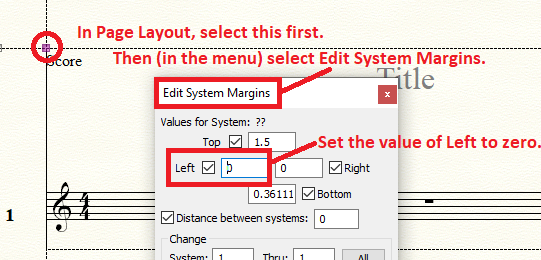
1) Document menu > Page Format > Score…

For the First System Margins, set the Left Margin to zero.

After this step you will not right away get any change in the score, but read on:


2) Page Layout Tool.

Page Layout menu > Redefine Pages…

Redefine the first page.

Now the first system has a Left Margin of zero.


3) To create many new documents like this, save the above document as a template, and use that template for new documents.

Acciones de comentarios Permalink
Avatar
0


Basically, what Peter said.
Acciones de comentarios Permalink
Avatar
0

Thank you for this ... 

Problem from the start: "Score" is greyed out.

Acciones de comentarios Permalink
Avatar
0

OKay, was able to get "Score" opened. I had to go to New > Default Doc

Thank you. It all worked.


Acciones de comentarios Permalink
Avatar
0

Thank you for your help.

I have one more question.

I need to place a chord where there is no note.

So, I went to Layers; created a second layer; placed the beats I needed; placed a chord over the beat.

But now I want these red notes to go away.

I read the Finale instructions which says CTRL + click and press H to hide them. But it's not working.

Do I do this when I'm in Layer 1 or 2? I've tried it both ways. The red notes won't go away.

What am I missing here?

Acciones de comentarios Permalink
Avatar
0

AFAIK one does not have to have notes in a measure to put a chord symbol there. Just select the chord tool and move the cursor to the beat desired using the SPACE bar. Then type in the chord symbol.


Acciones de comentarios Permalink
Avatar
0

Oh yeah. 

That's right!

So much easier than making another layer.

Thank you!

Acciones de comentarios Permalink

Iniciar sesión para dejar un comentario.