New post
Avatar
0

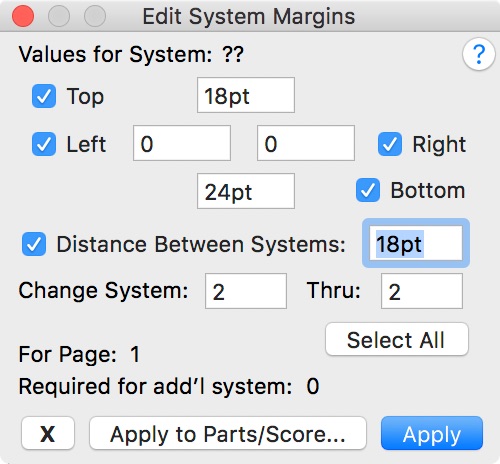
In Finale 2014.5 in editing part and am trying make the distance between the staves tighter. I can make some of the lower staves tighter using the Page Layout tool but not the top 2 only tighten a short distance then I can't move them as tightly as I can the lower staves. Tried messing around with the "edit system margins" dialog box in the Page Layout tool dropdown but nothing I do there works. I'm on a Mac, 10.11

9 comments

Date Votes
Avatar
0

Your post is a little confusing.

In the thread title you are talking about systems, but in the post you are talking about staves.

* Is your document a 1-staff document, so that 1 system = 1 staff?

Comment actions Permalink
Avatar
0

Yeah, sorry. Should have said "staff systems". My problem is with spacing between the staff systems, or in simpler terms the lines of music on the page. Used to be able to do this pretty easily in my version 2011 but the techniques I used in that version aren't working in 2014.5.

Comment actions Permalink
Avatar
0

Dennis Sichner,


You wrote:

“I can make some of the lower staves tighter using the Page Layout tool but not the top 2 only tighten a short distance then I can't move them as tightly as I can the lower staves.”


* Is your document a 1-staff document, so that 1 system = 1 staff?

Comment actions Permalink
Avatar
0

It's a part for single instrument extracted from a score. So it's a single page of music with multiple lines of staves. Just trying to figure out the best way to adjust the distance between each line of music on the page. I guess in Finale document language they're called "staff systems".

Comment actions Permalink
Avatar
0

Dennis Sichner,


You wrote:

“It's a part for single instrument extracted from a score.”


* Is that “single instrument” a 1-staff instrument (like e. g. a flute), or is it a 2-staff instrument (like e. g. a piano)?


The better I understand, the better I can help.

Comment actions Permalink
Avatar
0

OK, now I understand what you're asking. It's a 1-staff instrument.

Comment actions Permalink
Avatar
0

OK, now I understand, too.


You wrote:

“I can make some of the lower staves tighter using the Page Layout tool but not the top 2 only tighten a short distance then I can't move them as tightly as I can the lower staves.”

If I understand you correctly, you have tried to move the systems by dragging them “manually”, right?


Let us try another approach (still in the Page Layout Tool):

Typing numbers in the dialog box Edit System Margins.


To make this a little easier I suggest that you set Finale’s Measurement Units to something small, like Points or EVPUs, rather than the default Inches.


Generally, you will use separate margin settings for System 1 (because of the Title), and separate margin settings for System 2 and onwards.

However, in System 1 the Bottom margin should probably be the same as the Bottom margin in the following systems.


To examine the current margin settings in a system, click the system to select it.

Then go to

Page Layout menu > Systems > Edit Margins…


 Examine the margins in System 2.

Use the dialog box to apply the System 2 margins to all the following systems.

Remember the Bottom margin for System 2.


Examine the margins in System 1.

Make sure that the Bottom margin is the same as in System 2.


I hope that this is clear? If not, ask again.

Comment actions Permalink
Avatar
0

Your last post exposed my mistake. I had gone to the Edit System Margins dialog box but couldn't any changes I entered to "apply" to the staff. When I read "click the system to select it" in your post the light bulb went off. As soon as I did that I was able to manipulate the distances between the staff systems quite a bit. As is often the case, I just needed to find that one stupid little thing that I was missing and you found it. Thanks so much for your help.

Comment actions Permalink
Avatar
0

One thing more:

You can work faster by accessing the Edit System Margins dialog box via the context menu.

Comment actions Permalink

Please sign in to leave a comment.