New post
Avatar
1

I have a Finale MUSX file 802K in size, consisting of 517 measures, 6 staves per system, 39 pages total.

When I use the Mac to "Save As PDF" this MUSX, the resulting PDF is a whopping 24.9 Mb in size - so big it crashes forScore on my iPad Air 2 w 128Gb RAM.

When I use the Windows PC to "Export" as a PDF file this same MUSX, the result is a more reasonable PDF of 3.5 Mb.

And when I use the Windows PC and Adobe Acrobat XI to have Finale "Print to Adobe PDF" the result is a tiny PDF of only 503K - smaller than the MUSX it came from.

1) Why are Mac Finale PDF's as much as 50 times larger than Windows?

2) How can I get Finale on the Mac to make smaller PDF sizes like Finale on Windows?

I use Finale 25.2.0.79 on Mac Sierra 10.12.3.

I use Finale 25.2.0.92 on Windows 8.1.

-Tom

5 comments

Date Votes
Avatar
1

As a test, try this:


Graphics Tool.

Graphics menu > Export Pages…

In the dialog box, in the pop up menu, set the Type to PDF.


* When you export to PDF via the Graphics Tool, then what is the file size?

Comment actions Permalink
Avatar
0

Peter,

Excellent suggestion! The result on the Mac is a very acceptable monochrome PDF of 898K.

1) Why such a difference in file size between Mac Print As PDF, and Mac Graphics/Export Pages as PDF?

2) How can I get Mac Graphics/Export Pages as PDF to be in color, as I see on the screen?

-Tom

Comment actions Permalink
Avatar
0

Tom Feledy,


You wrote:

“Excellent suggestion! The result on the Mac is a very acceptable monochrome PDF of 898K.

1) Why such a difference in file size between Mac Print As PDF, and Mac Graphics/Export Pages as PDF?”


The smaller file size is because the resulting PDF file is monochrome.

Due to a bug in Finale v25 only export via the Graphics Tool gives a monochrome PDF file.

MakeMusic is aware of this bug, and is working on it.

My guess is that the bug will be fixed in the next maintenance update.


“2) How can I get Mac Graphics/Export Pages as PDF to be in color, as I see on the screen?”

I could be wrong here, but I do not think you can, since the Graphics Tool sees the layout as it is, namely monochrome.

The colours you see on the computer screen, are display colours.

To get the display colours in a PDF, use the Print command.

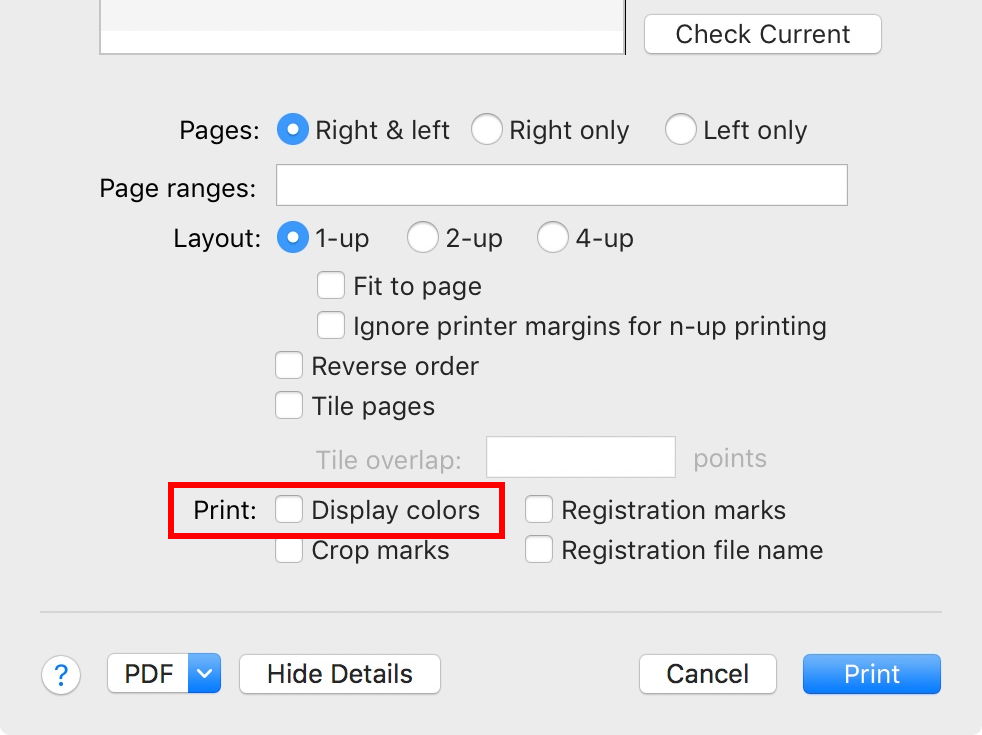
In the Mac OS X Print dialog box, in the pane Print, select “Display Colors”.

Then, use the PDF pop up menu in the lower left corner.

You can choose “Save as PDF…”.

But you can also try “Open PDF in Preview…” - and then hit ⌘S to save.

In the Save as directory dialog box you can choose a Quartz filter, e. g. Generic PDF-X Document.

The resulting file size will vary, depending on the way you print to PDF.

Comment actions Permalink
Avatar
0

Peter,

1) I do not see why the lack of color would explain the file size difference, since the PDF's generated with Print/Save as PDF on the Mac are only monochrome also.

2) In the Mac Print panel, in the Preset menu I selected Color, and unchecked the box "B & W", but the result was still a monochrome PDF with none of the colors as I saw on the screen. I tried the "Open PDF in Preview" method; it gave the same result as Print/Save as PDF: file size 24.9 Mb, monochrome. Is there some other method for getting the color to appear in the PDF when you use a Mac?

Perhaps this no-color bug extends beyond the Mac-Finale Graphics Tool.

-Tom

Comment actions Permalink
Avatar
0

Tom Feledy,


You wrote:

“I do not see why the lack of color would explain the file size difference, since the PDF's generated with Print/Save as PDF on the Mac are only monochrome also.”


Actually, no. The PDFs generated with Print/Save as PDF are not monochrome.

They are not completely Black&White, what should be Black, is rather a mixture of colours.

That is the bug I was talking about.


You wrote:

“In the Mac Print panel, in the Preset menu I selected Color, and unchecked the box "B & W", but the result was still a monochrome PDF with none of the colors as I saw on the screen.”


From your description it sounds like you are not following the steps that I suggested above:

“In the Mac OS X Print dialog box, in the pane Print, select “Display Colors”.”


Comment actions Permalink

Please sign in to leave a comment.