While extracting parts and editing, is there any way to make the rehearsal measure numbers lock directly above the bar line?
I am having to manually click and drag each rehearsal number to its correct location on every part. Is there a solution?


I think I understand what you are talking about. You are talking about how the rehearsal mark boxes go a bit outside the barline, correct? The rehearsal marks align according to the text, so the text should align correctly with the left barline, not the box.
There are a couple things you can do to change the positioning to affect all of the rehearsal marks between score and parts (before extracting parts to save time):
1. Reduce the size of the box (enclosure) around the rehearsal mark in the Expression Designer.
2. If needed, add a Horizontal Offset to the Rehearsal Marks category from the Category Designer.

… While extracting parts and editing …
I wonder why you are extracting parts?
Finale has had linked parts since Finale 2007.
Anyway, you can not avoid generating linked parts - since extracted parts are created from the linked parts.
Here is an idea:
Instead of “extracting parts and editing”, consider the reverse order:
“editing (linked) parts and extracting”.
To edit a linked part:
Document menu > Edit Part > …

To adjust rehearsal letter positioning in score and parts (I do not believe it can be done separately for score and parts, which may be why you are extracting, although I agree with Peter that linking is preferable) you can alter the horizontal and vertical offsets of the Rehearsal Marks Category.
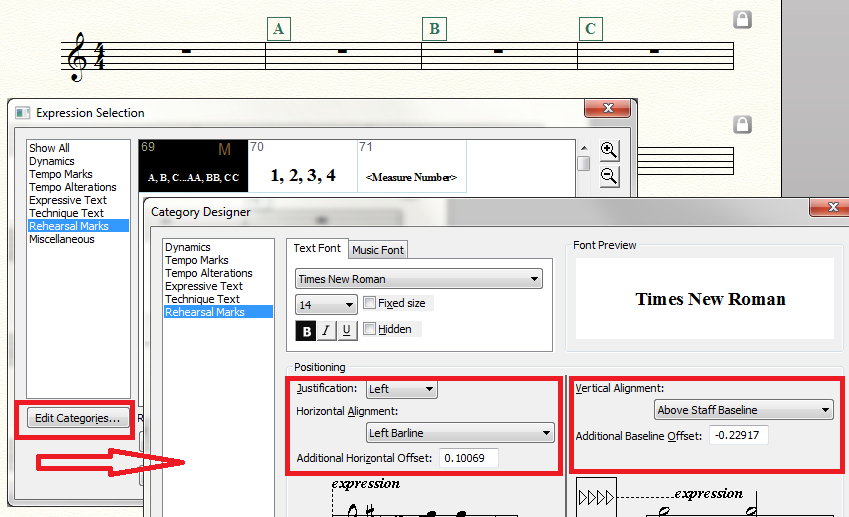

This is dead easy with linked parts, but you have to know how expressions and other things link between the score and parts.
In the score, anything you nudge or drag WILL transfer to the parts, UNLESS you hold down the override key (command on Mac, probably control on PC).
In the linked parts, anything you nudge or drag WILL NOT transfer to the score, UNLESS you hold down the override key (command on Mac, probably control on PC).
So go to a part, and in the Expression tool select one or more rehearsal marks. While holding down the override key, drag or nudge with the arrow keys to get them in position. That means they will also move in the score, but they will also move in EVERY part, because they stay linked.
Now, go to the score, and select all those rehearsal marks that are probably in the wrong place. While holding down the override key, right click and select Clear Manual Positioning. They will go to the default placement ONLY IN THE SCORE. They will turn orange to show that they are no longer linked. If your default placement is set nicely (and if you use auto rehearsal marks, you only have to set this ONCE) then you're done.
Please sign in to leave a comment.
4 comments
Date Votes