New post
Avatar
0

Hi All,

I'm new here. Is there anyone here with experience in setting up GPO5 in Mixcraft 8? 

I sort of have it working. I find that I have to set up each track with a midi channel to get GPO 5 to work in Mixcraft 8. This seems like a lot of work if I have to do that every time.

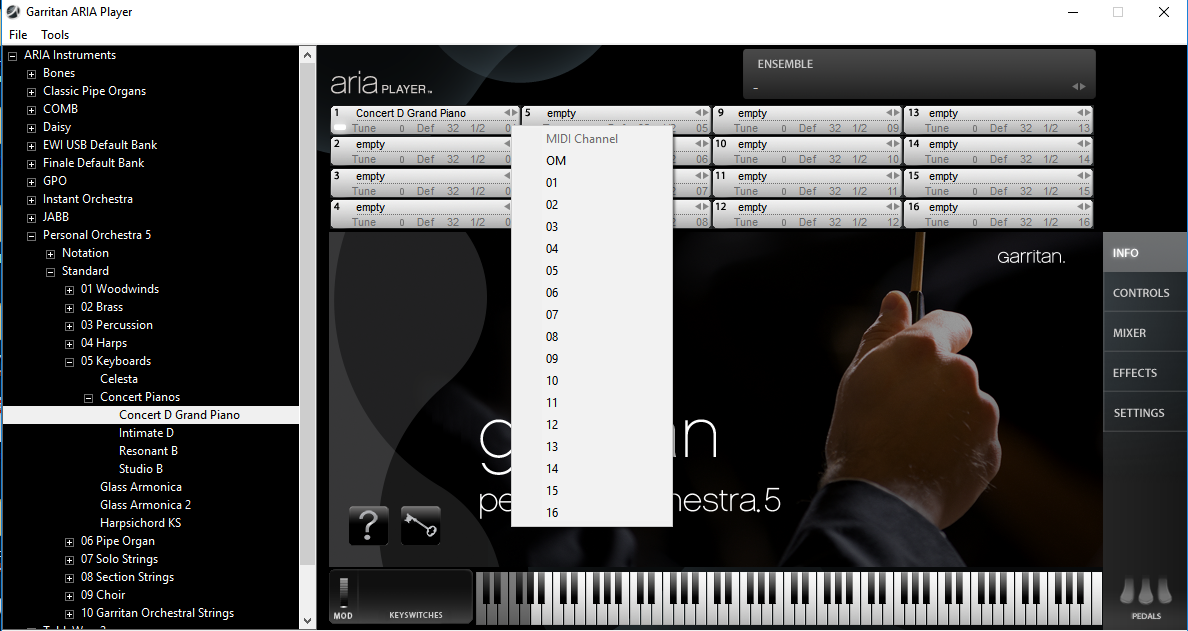
I can't figure out how to set up the midi channels in GPO 5 either, maybe that's the issue. With other vsts in Mixcraft, you just load them and they work. With GPO 5 I have to tell it which midi channel to use. It is always channel one also, none of the others work.

I run a Windows 10 64 bit PC.

Cheers and I'm loving GPO 5 so far.


Rob


1 comment

Date Votes
Avatar
0

Hi Rob,


It's been a while since I've used MixCraft but maybe I can offer some useful ideas.


First, it's pretty standard for any DAW that I have ever used to require a bunch of manual tweaking to set up virtual instrument and/or MIDI tracks.  In briefly browsing the MixCraft 8 Manual (somewhere around page 275), things looks pretty standard to how it is done in most tracking DAWs. 


The good news is that MixCraft, like most DAWs, will also allow you to create various types of track and mixer presets, or export/import groups of tracks with their settings all preserved.  Taking advantage of these sorts of features in your DAW can save you a lot of time in walking through all the 'steps'.  I.E.  You'd simply create or duplicate a new track, then choose a preset that sets it all up according to the saved preset.  It is also pretty common to make 'project templates', which will have most of your favorite workflow stuff all ready done before you begin entering/recording music.


With that in mind, the first thing I would do is experiment with making Track presets in MixCraft.  Next I would look to see if it's possible for me to bind hot-keys or macros to the track presets I most often call up.  It might well be possible to teach MixCraft to create 16 tracks all connected to a single ARIA instance with your favorite instruments all loaded at the push of a single key-combo!  If it turns out that you can't select a bunch of tracks and save them together under a single preset, check into the possibility of exporting a group of tracks all set up, which you can easily import into a project any time you like.  Finally, consider making really good starting template for different sizes and type of work-sessions.  Good starting templates better equip you to simply start with most of what you will need already set up and ready to go when you're ready to begin a new project.


ARIA is a multi-timbrel plugin, which means you can load up to 16 instruments at a time into a single instance.  By default the ARIA slots are set to use an independent MIDI channel from 1 - 16.  You can change the channel of an individual slot by clicking the channel area and a pop-up menu will display.  This is mainly useful if you wish to build 'layers' by setting multiple instruments to use the same channel.  For example, you could create your own trumpet section by loading several individual trumpet instruments into slots and setting them all to the same channel.  Note there is also an "OM" (omni mode) option, which will make a given slot respond to any and all MIDI channels being input into the ARIA instance.


Note that in the same way you can change the MIDI channel, you can adjust an instrument slot's "tune, pitch bend range, max polyphony, audio output (if in stand-alone and your audio device has multiple outputs, or using the Multiple output version of the plugin).


Some people prefer to use entirely new ARIA instances for every track.  Doing things this way is mostly helpful for DAWs that allow you to store 'loop tracks' which can be imported into a project with all of its plugins and effects intact.  Unless you've a powerful PC, it's generally a good idea to disable ARIA's built in reverbs and use effect sends in your DAW to create and shape your effects.

Comment actions Permalink

Please sign in to leave a comment.