Why is my score doing this. It prints like this as well.
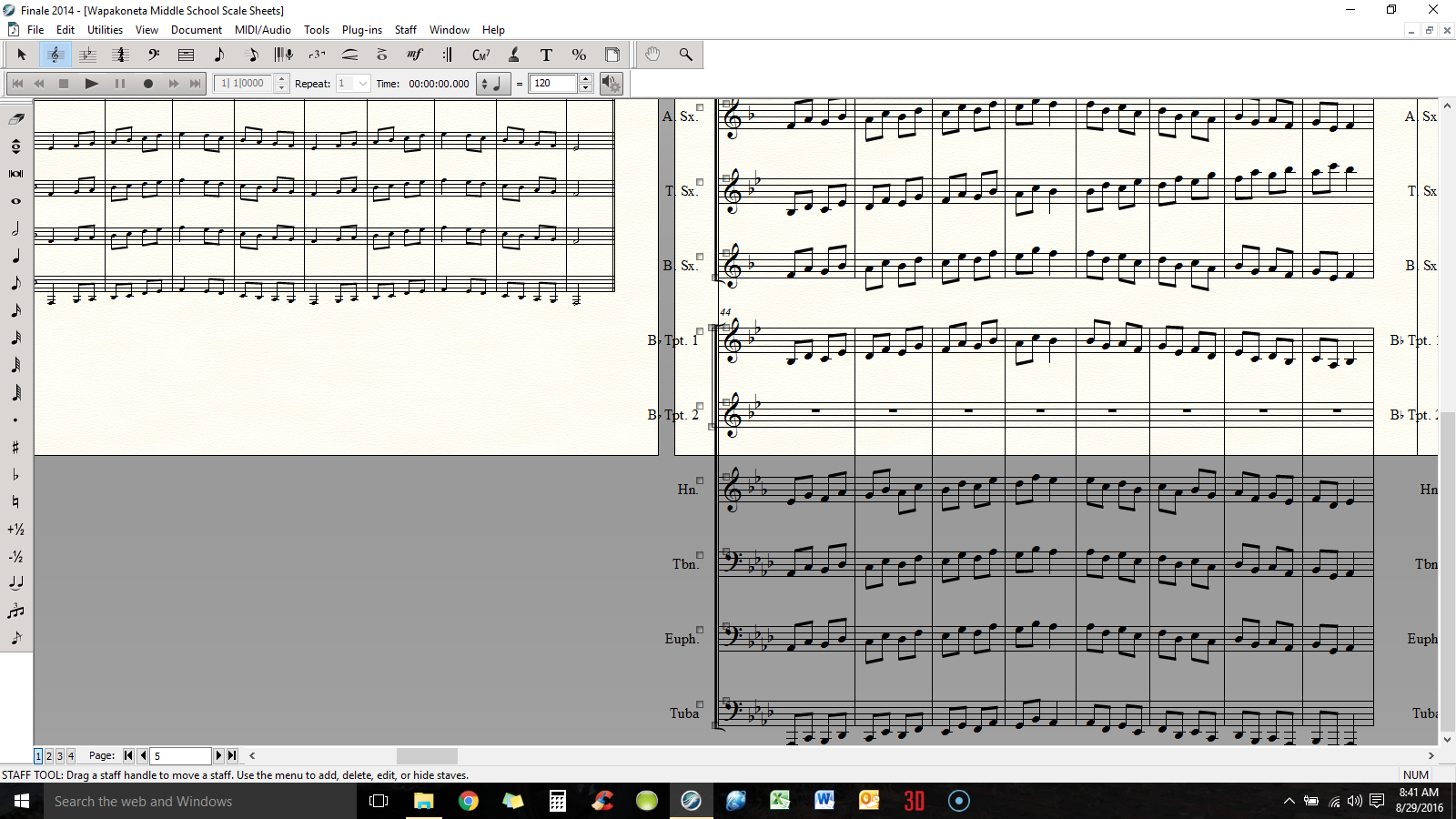


This is because as new measures and resulting pages are added, the score formatting takes on settings found under Document Menu > Page Format > Score. In this case, the music is much larger than before because of those particular settings.
A quick fix:
:
√ Go to Page Layout Tool and under the menu make sure "Update Page Format for Score" is checked.
√ With the Resize Tool "%", go to the last correctly sized page and click in the corner of the page. Hit OK.
√ Again with the Resize Tool, on the same page, click in the middle of the system, not on a measure but in the white space in between staves. Hit OK.
Problem solved.
Please sign in to leave a comment.
1 comment
Date Votes