New post
Avatar
0

I am using Finale 14.5 with a mac

I have purchased a score that has hidden parts that I can view in scroll view.  How do I extract those hidden parts?  When they are extracted, I get blank pages.  Somehow I have managed to get one part extracted but I have no idea how I did it and can't seem to do it again.

8 comments

Date Votes
Avatar
0

1) Are you sure you need to extract parts?

Finale has linked parts.

Can you perhaps use linked parts instead?


2) I suppose that the hidden part is hidden with the Staff Tool, right?

Hidden with a staff style, right?

I would clear the staff style.

Comment actions Permalink
Avatar
0

Yes, I need to extract the part so that instrument has music.  How would I extract a linked part?

 I go to Document - Manage Parts - Generate Parts - Yes - chose the part I want to extract and I get a score with only the Name and no staffs.

and I don't know how the part was hidden since I didn't create the score.

Comment actions Permalink
Avatar
0

… Yes, I need to extract the part so that instrument has music …

In “Finale-speak” the word “extract” means “create as a separate document”.

I suspect that you by your word “extract” mean something else, namely “print” - or perhaps “export as a PDF file”.

Even if you prefer to extract parts (in the “Finale-speak” meaning of create as a separate document), you can not avoid generating linked parts since an extracted part is created from the corresponding linked part.


… How would I extract a linked part? …

You can view, and edit a linked part here:

Document menu > Edit Part > …

While viewing the linked part you can print the part, or use the Graphics Tool to export the part as a PDF file.


… I go to Document - Manage Parts - Generate Parts - Yes - chose the part I want to extract and I get a score with only the Name and no staffs.

and I don't know how the part was hidden since I didn't create the score …

Staff Tool.

Staff menu > Show Staff Styles (select this option)

Staff menu > Show Staff Style Names (select this option)

When you have selected these two options, you will see staff styles displayed above the staff as colored bands (perhaps best in Scroll View).

You can context-click on a such “staff style band”, and choose “Clear Selected Staff Styles” (or select the region, and use the Staff menu).


I hope that this is clear?

If not, ask again.

Comment actions Permalink
Avatar
0

If you can see the notes in Scroll View, then Peter's suggestion that Staff Styles is the logical area to pursue.


Can you show us an image of what the part looks like in Scroll View?

Comment actions Permalink
Avatar
0

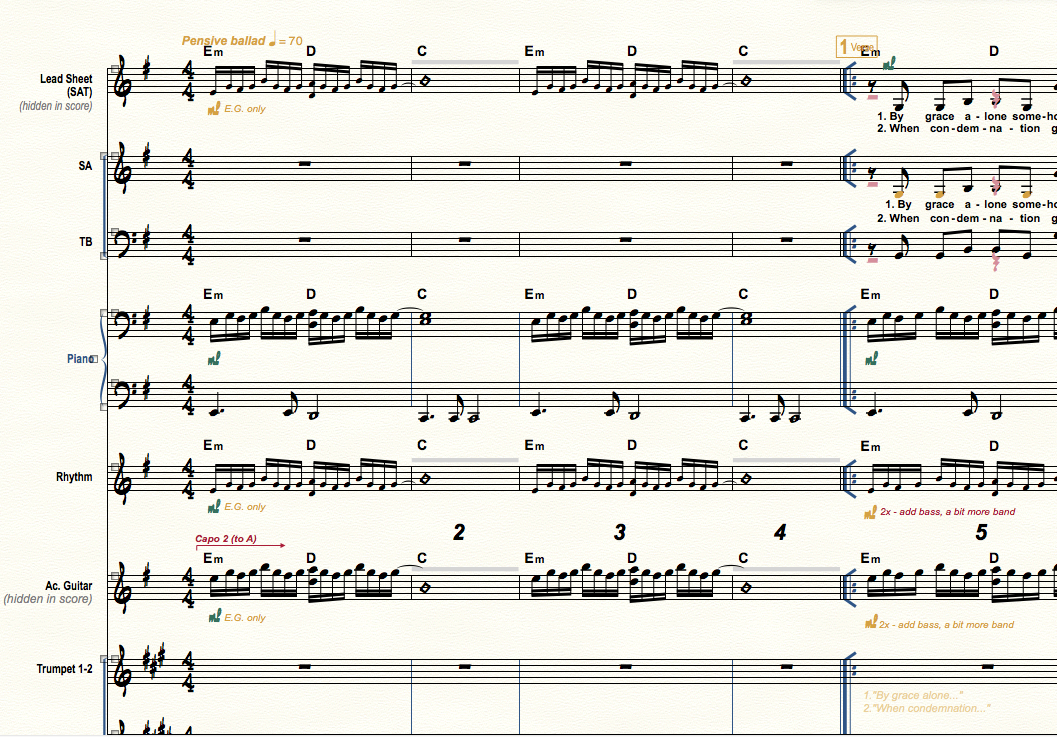
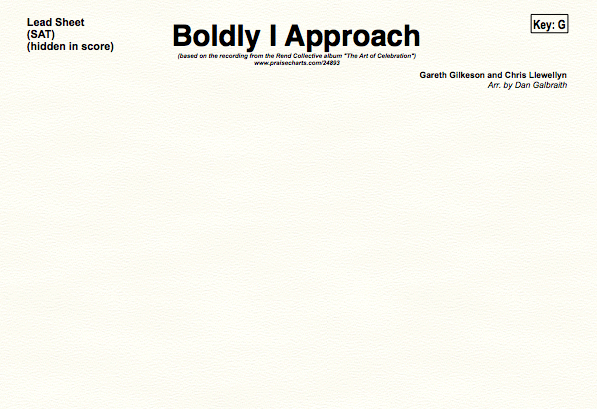
Here are a few pictures.  this is scroll view.  The lead sheet, Ac. Guitar and string reduction parts all say hidden in score.  I was able to print parts for each instrument show on the score except for the 3 that I can only view in scroll view and they all say hidden in score.  I also put a screen shot of the blank page I get from the hidden parts.    Peter I tried the staff style directions you gave and where the grey bars were shown different items like rhythmic notation or slash notation are shown and clearing the selected staff styles did not allow me to print a page with a score.


Comment actions Permalink
Avatar
1

Mary Kulinski,


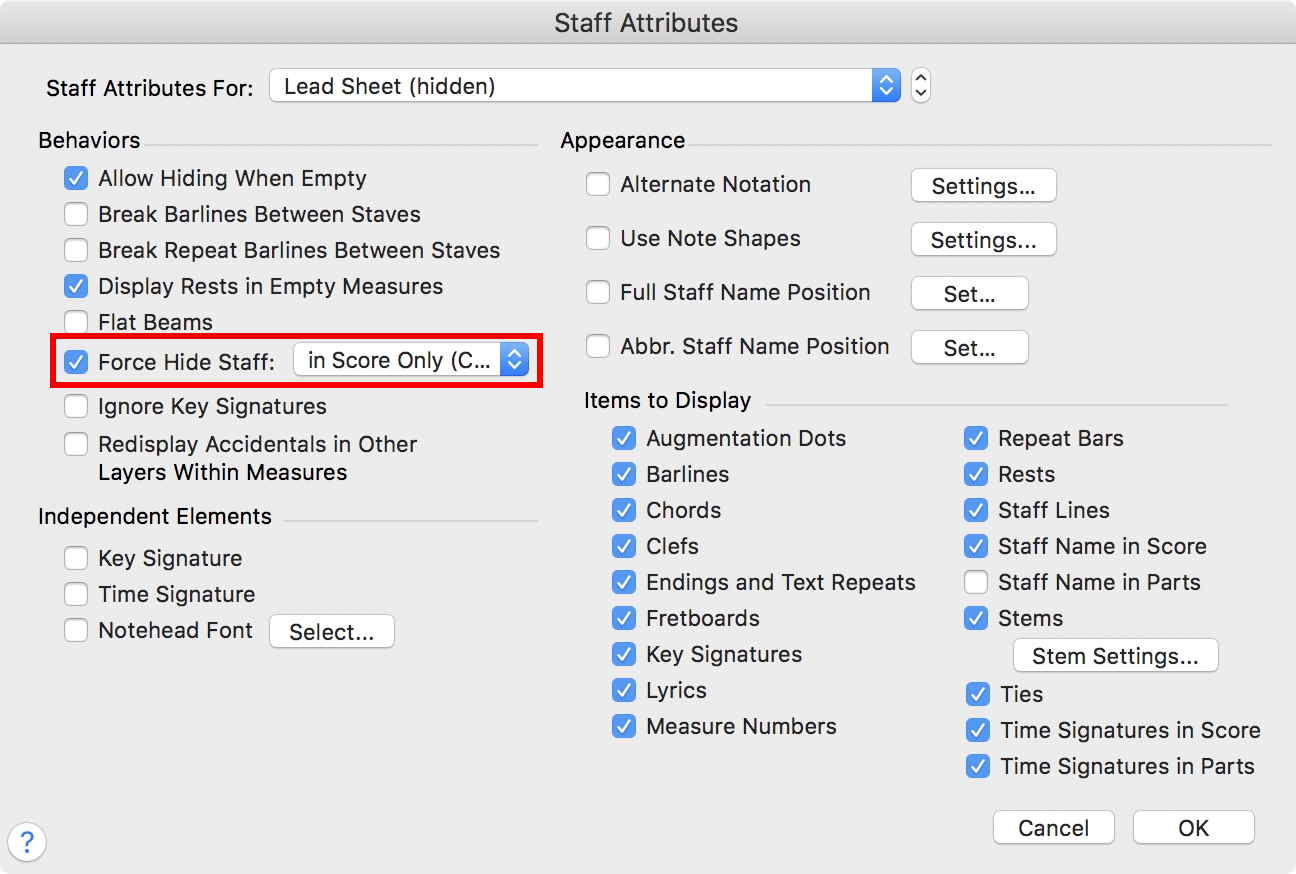
Since the staves are not “staff style” hidden, I suppose that they are hidden with the Staff Attributes.


Try this:

Staff Tool.

Double-click a staff.

The dialog box Staff Attributes appears.

Via the pop up menu in the top (= Staff Attributes For:) you can navigate through all the staves.

For each staff, check whether the staff has “Force Hide Staff” selected.

Comment actions Permalink
Avatar
0

I had wondered if the problem could be a Staff Attribute, but the Force Hide Staff is something I was unaware of. And in the Cutaway and Collapse mode it does make the part look the way Mary's did.


Thank you, Peter.

Comment actions Permalink
Avatar
0

Thank you, Peter.   I appreciate all your help!  My problem is now solved  :)

Comment actions Permalink

Please sign in to leave a comment.