Nueva publicación
Avatar
0

Any way to keep palette open at all times?

13 comentarios

Fecha Votos
Avatar
0

Nope.


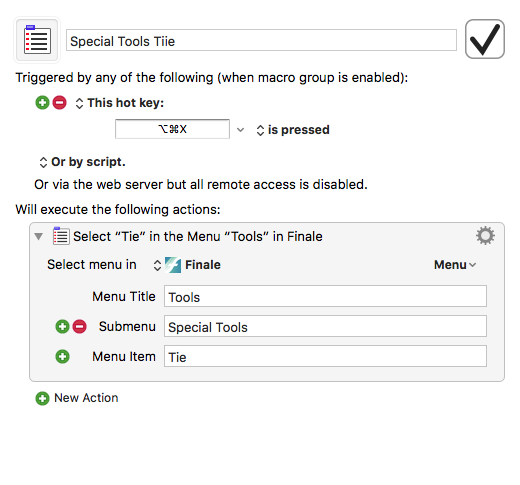
I use Keyboard Maestro to assign a macro keystroke to the specific special tools I use most. That way, I don't have to mess with the mouse and my tool is just a keystroke away.

Acciones de comentarios Permalink
Avatar
0

That is super helpful. Is it easy to assign a macro? Could you stand to explain how to do it?

Acciones de comentarios Permalink
Avatar
0

By the way, you're my hero for just answering a question that's been on my mind for probably 15 years of using finale. Ty

Acciones de comentarios Permalink
Avatar
0

Keyboard Maestro is a separate product from Finale. I believe it's $36. There are a number of programs like this that allow you to create your own keyboard shortcuts and speed up your workflow. I use a Mac, I believe it also works for Windows. Good Luck.


Forgot, how to do it. In Keyboard Maestro you'll create a FInale group. Then you create a macro. Give it a name. "Special Tools Ties" for instance. Then in the editor window you've assign a keystroke to trigger this macro and you'll list the plce in FInale where keyboard Maestro will go to open this tool. You can see that in the screenshot. It's a little confusing at first, but once you get the hang of it it's pretty easy.
 

Acciones de comentarios Permalink
Avatar
1

There are a few things to keep in mind :

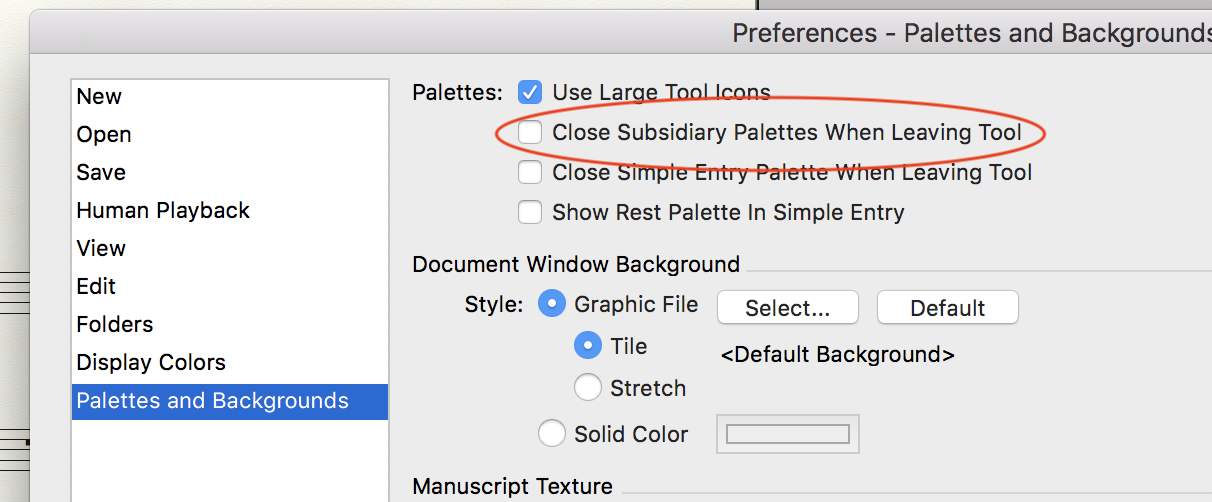
• In the Preferences -> Palettes and Backgrounds, there are some options

• In the Window menu, you can select some palettes that would like to keep open. Save preferences (File menu) if they don't stick.

• There are possibilities to add keyboard shortcuts to menu items, but you didn't tell if you use PC or Mac.

P.S.: Keyboard Maestro is Mac only, and I would recommend it, too. (On the Windows side, you have Autohotkey).


Acciones de comentarios Permalink
Avatar
0

Unless I misunderstand, you're overcomplicating the issue. Go to Preferences > Palettes and Background, and uncheck Close Subsidiary Palettes When Leaving Tool

That's on a Mac. Windows should have a similar command.

Acciones de comentarios Permalink
Avatar
0

That works but it leaves all palettes open, unless I'm mistaken.

Acciones de comentarios Permalink
Avatar
0

I'm back. Been at work. I have a PC. Gonna try these things when I get home. Ty

Acciones de comentarios Permalink
Avatar
0

I'm back. Been at work. I have a PC. Gonna try these things when I get home. Ty

Acciones de comentarios Permalink
Avatar
0

Windows user here

I use Finale's own built in plugin for this purpose, and it works exellent! At least for me anyway.

As Jeffrey points out: I have assigned menu shortcuts to the specific special tools I use most.

In the menu: Plug-ins/TG Tools/Menu shortcuts - and then assign whatever You want. If You by accident assign a shortcut that is already in use by Finale, You may discover that it won't work. Then just change it to something else.

You wil figure it out in no time!

Acciones de comentarios Permalink
Avatar
0

TY. Later I should be able to try these different solutions. I will report in what works best for me. I'm so happy that this posting actually brought answers. I'm gonna have to post my other questions that I've had for a thousand years

Acciones de comentarios Permalink
Avatar
0

Ok....So far the easiest thing has been Mike Rosen's suggestion. Yay!! But, I'm going to work on making shortcuts as suggested too.

Acciones de comentarios Permalink
Avatar
0

Thanks, Michael Herr-- great quick fix!

Acciones de comentarios Permalink

Iniciar sesión para dejar un comentario.