
When using Finale, you may find that newly created pages will contain systems that are too large for the page they are on. It appears as if they suddenly exploded in size and looks like this:
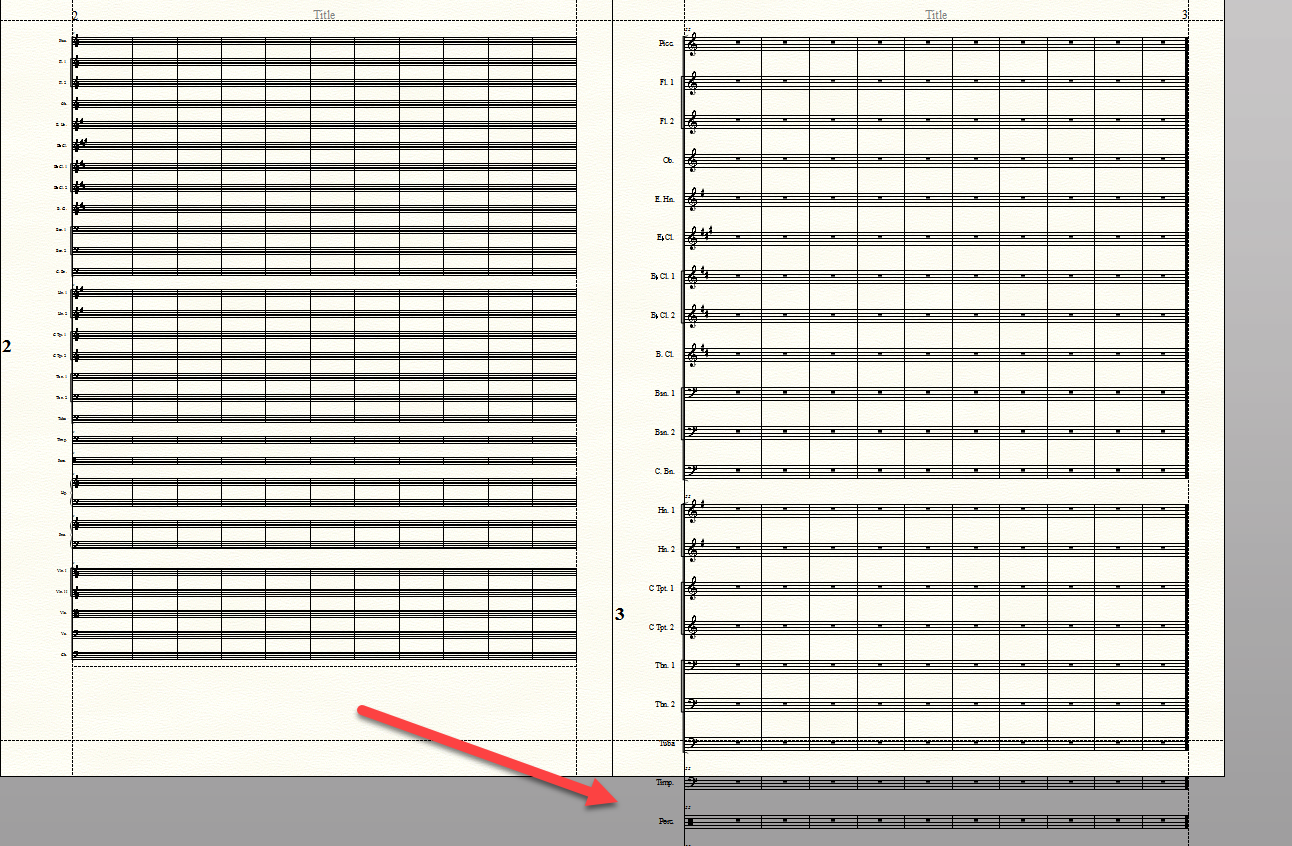
If you are seeing this type of behavior from your document, don't fear! It just means that the default page size in the Page Format for Score dialog box has been altered for some reason. This can be fixed with a few steps...
Fixing the default page format for score values
- Choose the Page Layout tool.
- Select the handle in the upper, left-hand corner of the last systems that looks correct.

- Choose Page Layout > Resize Staff System (Staff System Reduction).
- Make sure that the Update page format option in the Resize Staff System dialog box is selected.
- Choose the second option in the Staff System Range section; click OK.
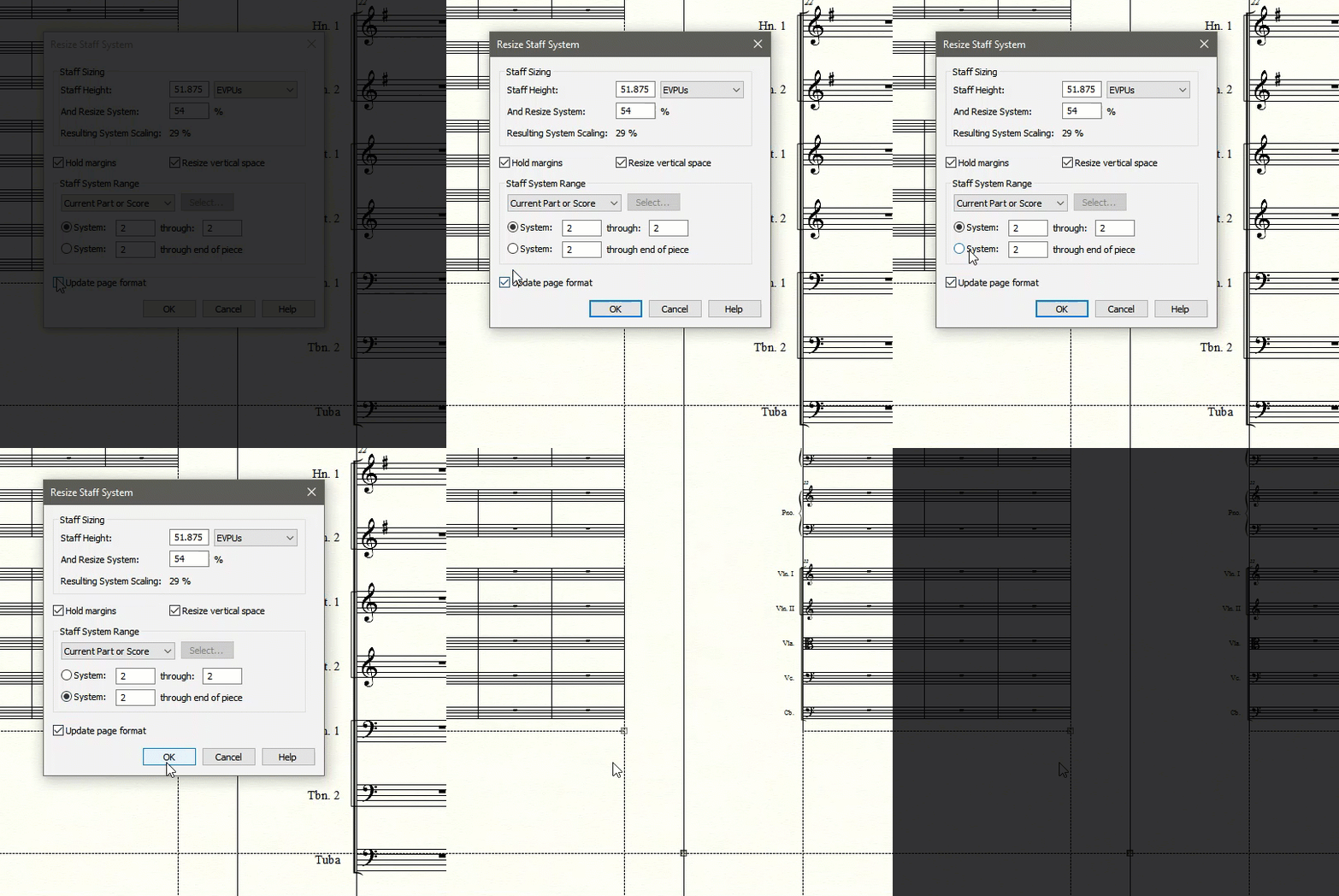
This process fixes any errant systems, basing them on the values of the correct system you selected, and updates the default system formatting values found in the Page Format for Score (Document > Page Format for Score) dialog box. This ensures that all newly created staff systems have the correct values as well.
For more information about the Page Format for Score dialog box please visit this user manual article: Page Format for Score dialog box (Mac | Windows)