New post
Avatar
0

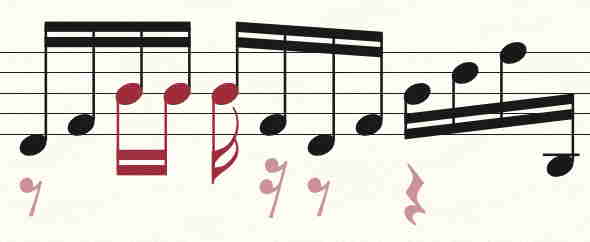
When I make use the Advanced Tools menu to add a second stem (in the opposite direction) to some beamed notes, those second stems are too long and I can't work out how to shorten them. The Stem Length tool in Advanced Tools has no effect on the "secondary stem". In the graphic below, they are the ones pointing downwards.

MANY THANKS FOR ANY SOLUTIONS!

Finale 26 in Windows

5 comments

Date Votes
Avatar
0

Have you tried the beam adjustment tool?

Comment actions Permalink
Avatar
0

… The Stem Length tool in Advanced Tools …


This is a misunderstanding.

For adjusting single (unbeamed) notes you can use the Stem Length Tool.

For beamed notes, use the Beam Angle Tool.


By The Way:

I do not know of a (sub-)tool called Beam Adjustment Tool.

Comment actions Permalink
Avatar
0

Thanks for your replies Mike and Peter. Sorry, I was inventing my own names for the tools. The problem is that neither the "Stem Length" tool nor the "Beam Angle" tool have any effect on the second (downward-pointing) stem. I've even tried changing every different stem length setting in the "Document" menu, but all to no avail ....... so I'm still stuck !

Comment actions Permalink
Avatar
0

I suppose that you created the extra stems with the Double/Split Stem Tool - right?

As Far As I Know, the length of such extra stems can not be individually adjusted.

You can, in Document Options - Stems, set the general value for Normal Stem Length.

That value will also affect the extra stems.

But you can not adjust the extra stems individually.


However, you have full control if you instead add the extra stems in Layer 2:

Comment actions Permalink
Avatar
0

Great. Then it is the new layer that's the solution then!  A little more laborious than a simple Beam Angle adjustment, but it will definitely do the trick. Many thanks again, Peter

Comment actions Permalink

Please sign in to leave a comment.