New post
Avatar
0

Hello.

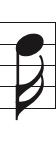
Using the Maestro music font I am unable, in the Document Options/Flags (thanks Peter for showing me that library), to find a 16th note downstem flag that is shorter than the default one (nº 82). This means that the stem lengths have to be quite enormously long on these notes in order for the flags not to touch the note head, which can be a problem in music that needs fingerings, bowings, dynamics etc all crowded in. Any advice will be much appreciated !

Finale 26 and Windows 10


6 comments

Date Votes
Avatar
0

You are using the Maestro font - right?


Are you saying that you - in the dialog box Symbol Selection - do not have flag characters in the font slots #147 and # 239 ?


Those flag characters are there all right, in my own copy of the Maestro font.

Comment actions Permalink
Avatar
0

Yes, Maestro font. But 147 and 239 are for 8th notes, not for16th notes. If I could find (or make) the equivalent of 239 for a 16th note I would be delighted ......

Comment actions Permalink
Avatar
0

Oops! I missed that.

Indeed the default 16th note flag character is #82.


16th note flag character #146 is slightly shorter, but still too long for a stem length of 18pt (= 72e).


As a workaround you can create a custom stem with the Custom Stem Tool; the Custom Stem Tool is also a Custom Flag Tool - since in Finale the flag is considered a part of the stem.

In the Shape Designer you can combine two text blocks with 8th flags, to create a combined 16th flag.


Or you could try straight flags …

Comment actions Permalink
Avatar
0

Thanks Peter. I've gone to the Custom Flag Tool. In the Shape Selection box there are no flags so I tried to "create a shape" which is where I got stuck. I can find (and type) in the Maestro font a 16th note as well as just a 16th note double flag, but can't work out how to manipulate them, or how to find, import and combine the text boxes of single flags as you suggested. I'll have to study the Shape Creation info !


Comment actions Permalink
Avatar
0

Ian Swedlund,


In the Shape Designer, use the Shape Designer menu to set the font to Maestro 24.

Then, using the sub-tool Text Tool, create a text block.

If I recall correctly, I typed ï (= an i with two dots above it), and got the short downstem (single) flag character.

Create another text block, and type ï again.

Now you have two text blocks showing the (single) flag character.

Use the Shape Designer’s sub-tool Selection Tool to select a text block, and nudge it into position as needed.

You can nudge the other text block in the same way.

Also, using the sub-tool Line Tool, create a vertical line 18pt long, with the same thickness as the document’s stems.

Use the Selection Tool to nudge the line’s end points into position.

Result:


PS

In case my custom stem is “good enough” for you, I shall be happy to mail it to you (gtpthomsen ad aim dot com).

Comment actions Permalink
Avatar
0

I have put it into my Template document and it works like a charm  - even with a Stem Length of 60 EPV. Brilliant !

If there is an easy way to make that my default 16th note downstem, then one day I would love to know how, but in the meantime I couldn't be happier with this "little" (but very useful) fix.

MANY THANKS !

Comment actions Permalink

Please sign in to leave a comment.