New post
Avatar
0

There's a text frame in my score attached to page 1 and containing composer name and work title (added via Text - Inserts and created in Score Manager - File Info). After generating parts (Document - Manage Parts - Generate Parts) I don't see the composer name nor work title appear in any of the parts. As far as I know any text frames attached to a page are by default linked to any parts. Am I forgetting something? Thanks for your replies!

12 comments

Date Votes
Avatar
0

Do the text fields on your score use the Inserts from the File Info tab of the Score Manager, or did you type the info in manually on page one of the score?

Comment actions Permalink
Avatar
0

Thanks for your reply. I did use the 'Inserts' option which shows the File Info of the Score Manager. During the process of finding out the problem I might have erased it and typed it in manually. I therefore created a new Text Frame with 'Inserts' and this seems to show in the parts!

I noticed that the Font Size of the Text Frame is the same as the Font Size of the score. This seems quite obvious but in the parts I would prefer to use a smaller Font for title and composer. Can this only be done manually or is there a way to link a score text frame to a part with a different font size? Thanks!

Comment actions Permalink
Avatar
0

… I noticed that the Font Size of the Text Frame is the same as the Font Size of the score. This seems quite obvious but in the parts I would prefer to use a smaller Font for title and composer. Can this only be done manually or is there a way to link a score text frame to a part with a different font size? …


Two ideas:


1) Use a Fixed font size.

This means that the font size will always be the same everywhere, regardless of different Page Scaling / System Scaling / Staff Scaling in score and parts.


2) Use two different text blocks, one for the score, and another for the parts.

a. Enter the “Parts” text block in the score, and position it in the score so that it appears at the desired position in the parts.

Then, in the score, zoom out, hold down the Override key, and drag the text block outside the right edge of the page.

Because of the Override key, the text block will not move in the parts.

You will notice a colour change because the “positioning” linking is now broken between score and parts.

b. Enter the “Score” text block in the score, zoom out, and drag it outside the right edge of the page (without holding down the Override key!).

Because you did not hold down the Override key, the text block has also moved in the parts.

Hold down the Override key, and drag the text block back onto the score page.

Because of the Override key, the text block did not move in the parts.

Comment actions Permalink
Avatar
0

@J Adrian Verkouteren: Just noticed that the Font size in the linked parts text frames only 'seems' bigger. Probably caused because the score has a higher scaling percentage than the parts? Same question arises: can the font size of a linked text frame be changed for the parts as an overall setting? Thanks again!

Comment actions Permalink
Avatar
0

@Peter T.: The 'Fixed Font' method did the trick and works best for me but also your other options work and are new to me, thanks!

Comment actions Permalink
Avatar
0

each time i attempt to access score manager the file information appears-how do i get rid of it and how do i regain access to the score manager?

Comment actions Permalink
Avatar
0

Matteo Giammario,


Are you using Finale v27 ?


… each time i attempt to access score manager the file information appears-how do i get rid of it? …

In the ScoreManager’s chiclet {File Info} each information item (Title, Subtitle, Composer, Arranger, &c.) is displayed in a separate text field.

To get rid of an item (e. g. the Title), double-click in the text field, and hit the Delete key.

Now the text field (e. g. the Title field) will be empty.


… how do i regain access to the score manager? …

Window menu > ScoreManager

There are two chiclets in the ScoreManager:

{File Info}

and

{Instrument List}

If your copy of Finale is installed correctly, both chiclets should be click-able.

Comment actions Permalink
Avatar
-1

each time i attempt to access score manager the file information appears-how do i get rid of it and how do i regain access to the score manager?

Comment actions Permalink
Avatar
1

Matteo,

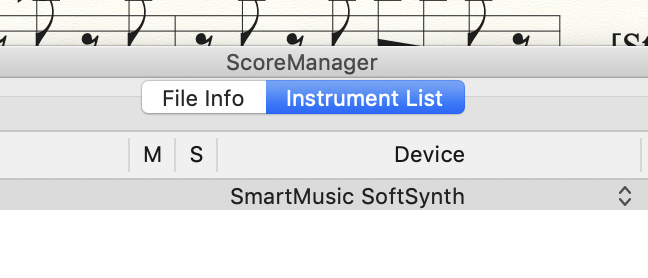
When you are looking at the file information dialog... click on "Instrument List" at the top/middle of the dialog window.  Those two "buttons" are very poorly designed tabs.


Comment actions Permalink
Avatar
0

Success in deleting text in panels  (chiclets) but no luck in in deleting entire window which would permit access to score manager.  In other words, each time I try to access score manager the  information file appears which prevents me from accessing score management.

Comment actions Permalink
Avatar
0

I think we have told you the same thing now several times. If you still have not understood us, perhaps you should search out someone living near you who understands Finale and can show you in person how to use the Score Manager.

Comment actions Permalink
Avatar
0

… Success in deleting text in panels (chiclets) …


This is a misunderstanding.

What you call “panels” (= text fields), are not chiclets.


In the ScoreManager there are two chiclets (two tabs, two windows).

One is called File Info, the other is called Instrument List.

You can switch between the two by clicking their buttons (shown in Doug Bakkum’s screen shot).


… how do i regain access to the score manager? …


What you call the “ScoreManager”, is actually the Instrument List chiclet in the ScoreManager.

Just click on ‘Instrument List’ (shown in Doug Bakkum’s screen shot), and you get to the Instrument List.

Comment actions Permalink

Please sign in to leave a comment.