New post
Avatar
0

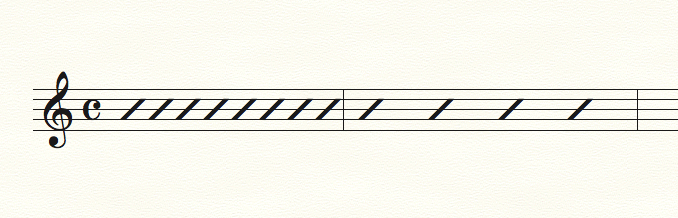
Greetings. I'm using a "real" time signature of 8/8 in order to get swing 16ths playback, with a 4/4 (abbreviated to C) time signature for display. Problem is, alternate notation slashes show 8 in a measure when I really want only 4, and I haven't been able to figure out a way to fix it. Is there a way around this?

Mike

Fin 25.5.0.259

Macbook Pro, OS10.10.5

5 comments

Date Votes
Avatar
0

I entered four quarter notes. Using JW Change, I muted them, changed the noteheads to "large slash," and stems to "hidden."


A few moments for the first time. But I can copy it, and paste or paste multiple, as often as needed.


Comment actions Permalink
Avatar
0

Yea Mike.. that way works, thanks. JW is a plugin that used to ship with Finale I think? Anyway I don't have it anymore but the change function in utilities does it the same, then hide stems with the special tool. It seems like there should be a global setting tho, to display alternate notation when using a different time sig for display, especially if working on something you already did to the end. A good solution anyhow.

Cheers, Mike

Comment actions Permalink
Avatar
0

There are two ways to get swing 16ths playback.


One way (workaround, really) is to set the “real” time signature to 8/8 - as you have found out.

But that workaround creates a problem with Slash Notation (as you have found out).


The other solution is to create Swing Playback in the Performance Data.

With this solution you can set the “real” time signature to 4/4 - and get 4 slashes in a measure:

1) Fill one measure with 16 sixteenths (you may already have a such measure somewhere in the document).

Apply Music Spacing, and Update Layout (so that the measure is wide).

2) MIDI Tool.

3) MIDI Tool menu > Note Durations (select)

4) Double-click inside the staff of the measure filled with sixteenths.

The dialog box MIDI Tool appears.

5) Double-click the handle on the second sixteenth.

The dialog box Edit MIDI Note appears.

6) Set the Start Time to 85 EDUs.

This step will delay the note’s Start Time by a triplet 32nd.

7) Repeat the steps 5) and 6) on the fourth sixteenth - and all the other even numbered sixteenths (= 2, 4, 6, 8, …).

8) Selection Tool.

9) Edit menu > Edit Filter…

10) In the dialog box Edit Filter, de-select everything except “Performance Data”.

11) Select the measure, and copy its Performance Data to all the other measures.

You can use the dialog box Paste Multiple to do all the copying “at one fell swoop”.


Now all measures play back with Swing 16ths - even without using Human Playback.


Re. steps 5) and 6):

You might also edit the un-even numbered sixteenths (= 1, 3, 5, 7, …), and add 85 EDUs to their Stop Time, but it may not be strictly necessary.

Comment actions Permalink
Avatar
0

Thanks.. yes this works. Only thing I don't get is the multiple paste operation doesn't copy the performance data.. I have to manually copy from one or more measures to the same number adjacent, in the same staff. The copy function doesn't seem to have effect when copying from one staff to another. Good solution tho.

Comment actions Permalink
Avatar
0

Indeed the Paste Multiple operation does not work when pasting the Performance Data vertically.

It looks like you have found a bug in Paste Multiple.

Make sure you report this to the folks in Tech Support.


Fortunately “the other pasting” works for pasting Performance Data vertically:

Selection Tool.

Select the measure with the 16ths.

Hold down Option, and click the staff below (or above).


It does not take many seconds to click the staves one by one.

Comment actions Permalink

Please sign in to leave a comment.