New post
Avatar
0

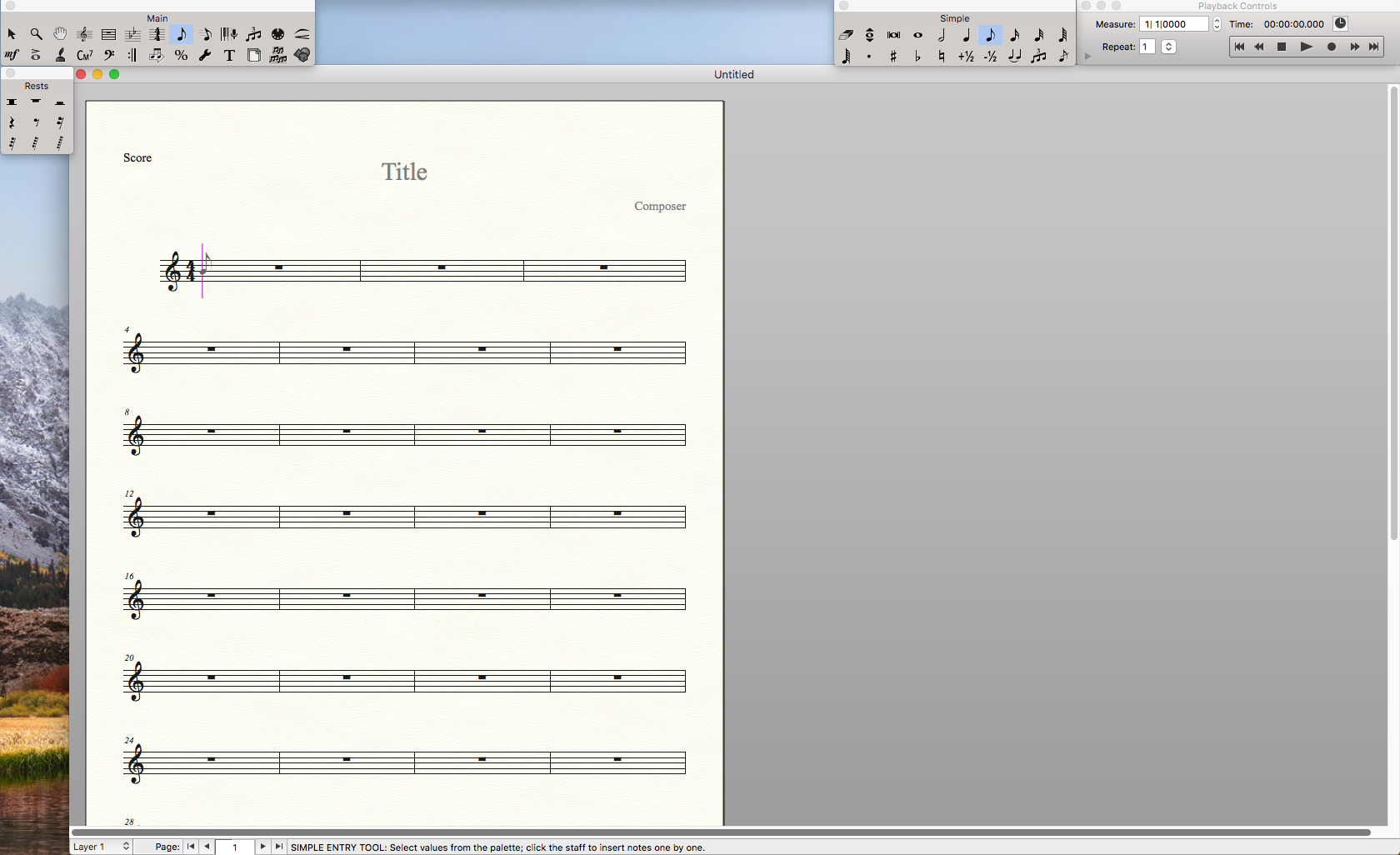
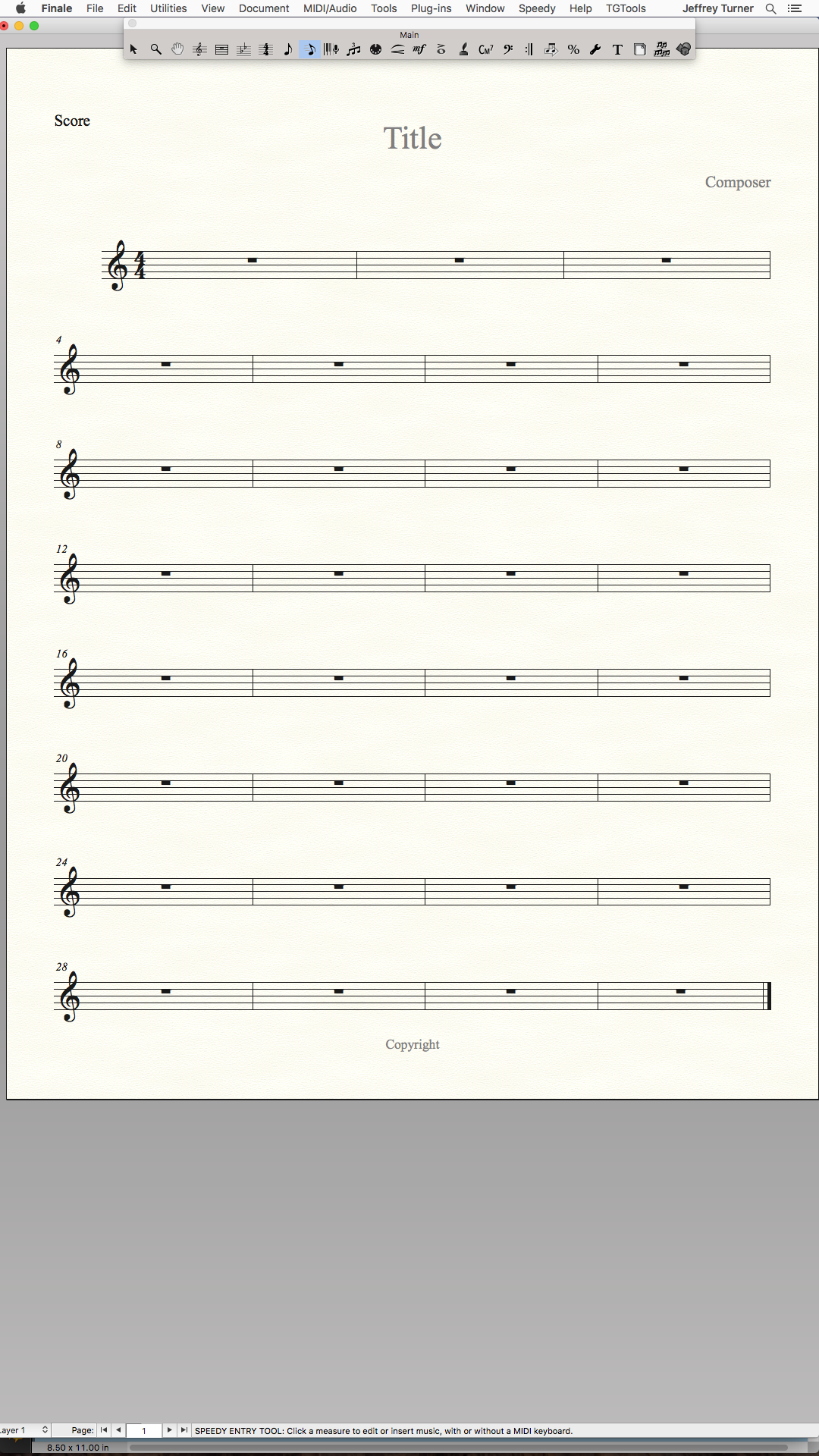
I prefer Looseleaf Column view which aligns the pages vertically but to the far left of the window, therefore to the far left of the widescreen monitor. Same with Current Page Only.

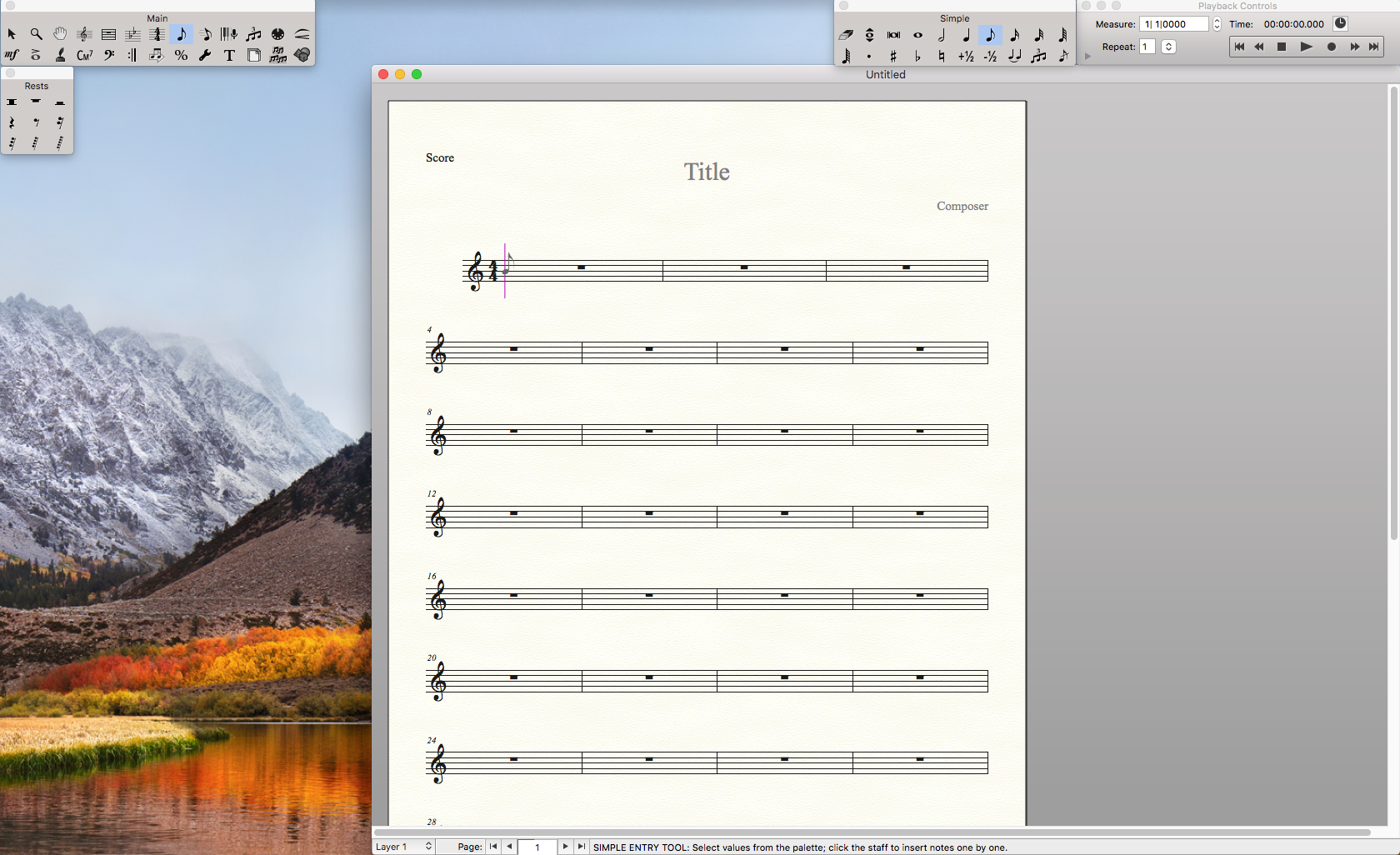
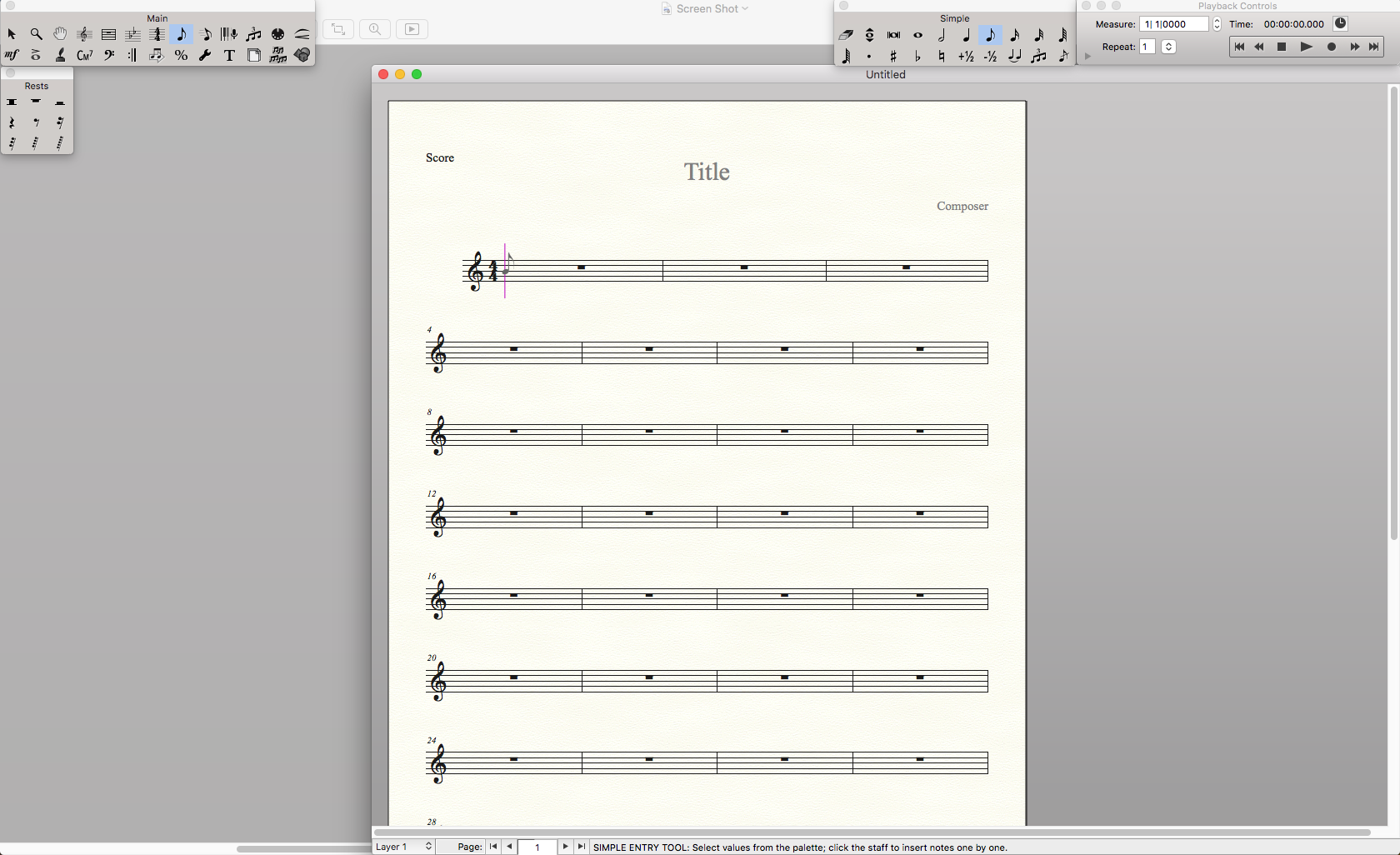
Is there any way to make the pages in the centre of the window other than adjusting the size of the window to move it to the centre? Problem with this is it shows what’s in the background which is distracting. My work around is to screenshot the default Finale grey colour and have this open in the background, which seems better than physically moving my screen to the right so the pages align with my head and keyboard.

I assume this was fine back in the old square box monitor days, but I think this needs some adjustments to suit widescreen monitors.

MacMini; High Sierra 10.13.6; Finale 25.5 & 26, GIF

5 comments

Date Votes
Avatar
0

I use looseleaf, current page. It works fine for me. I usually zoom in so the page width takes up the full monitor. When I need to see the full page, I zoom out and the gray background is all I see besides the page. No need for a screenshot. You can adjust the background color and image in finale preferences/palettes and backgrounds.


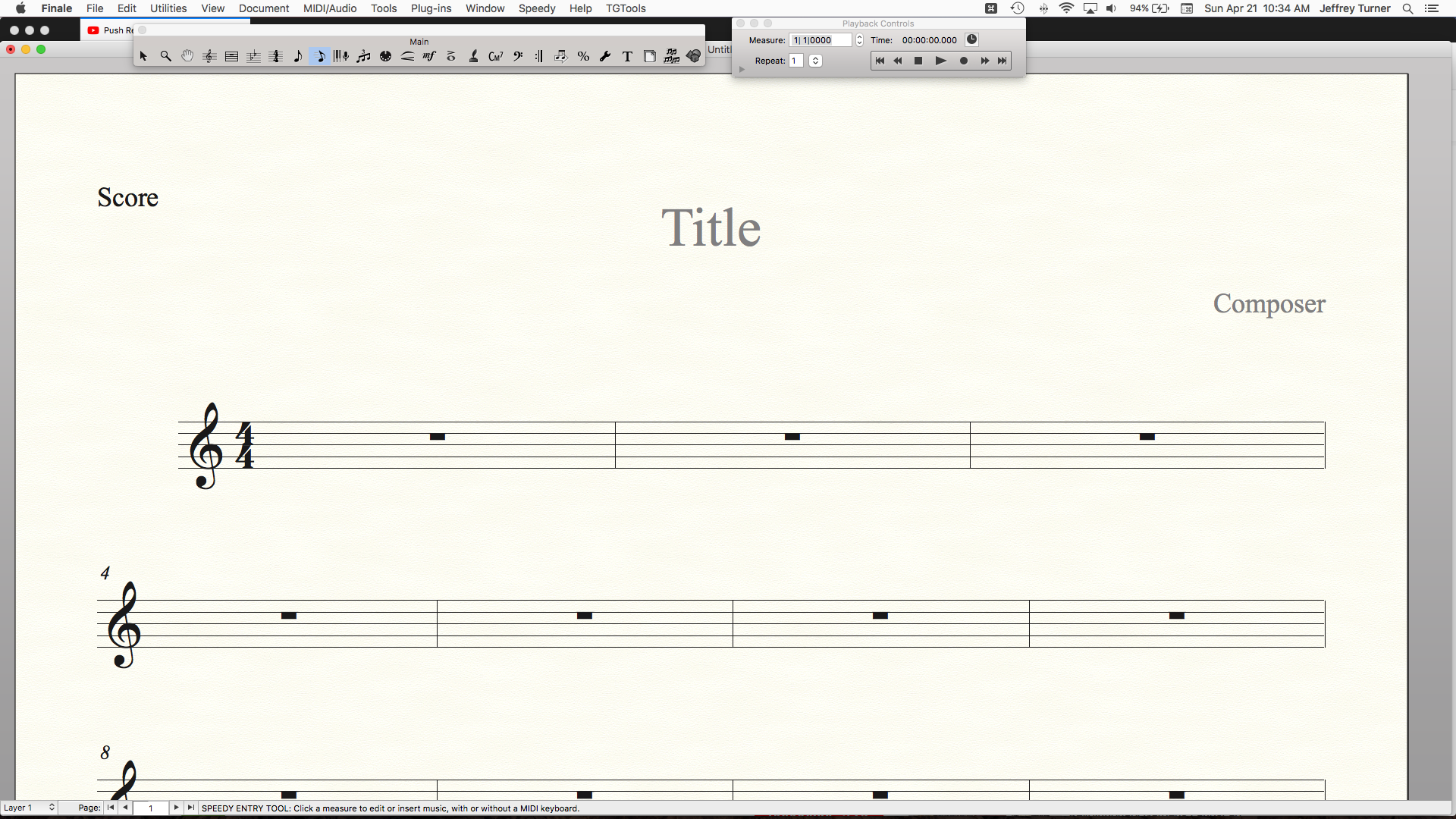
When I need to see the entire page all the time, I pivot my monitor to portrait mode and the image fills up the entire screen.

Comment actions Permalink
Avatar
0

A pivoting monitor! Hadn't seen that before! Thanks for the tip :)

I still think the views can be better. First screenshot is how it opens (page is hard to the left) and at the zoom i use, but it makes me tilt my head to the left. Second screenshot is how I work, but everything in the background is annoying. I could make the Mac background grey but there are usually Finder windows open. Hence the grey screenshot idea open in the background to make it look more like Finale's background.

Comment actions Permalink
Avatar
0

When you have the document window with the size and position as needed, go to

File menu > Save Preferences

Finale will remember.


The next time you open a new document window, it will have the size and position as previously saved.

Comment actions Permalink
Avatar
0

Glenn,


Just for comparison, here's what I use. The first screen shot is landscape mode, the 2nd is portrait. In portrait the image is larger than actual size. And when working on an 11" x 17" score, the image is lifesize. In Mac's System preferences under display, there's the option to rotate the view 90 degrees to portrait. My monitor swivels, but you can get a desk clamp and pivot any monitor.


Comment actions Permalink
Avatar
0

Thanks guys! All tips are useful and I've got something to look into now :)

Comment actions Permalink

Please sign in to leave a comment.