New post
Avatar
0

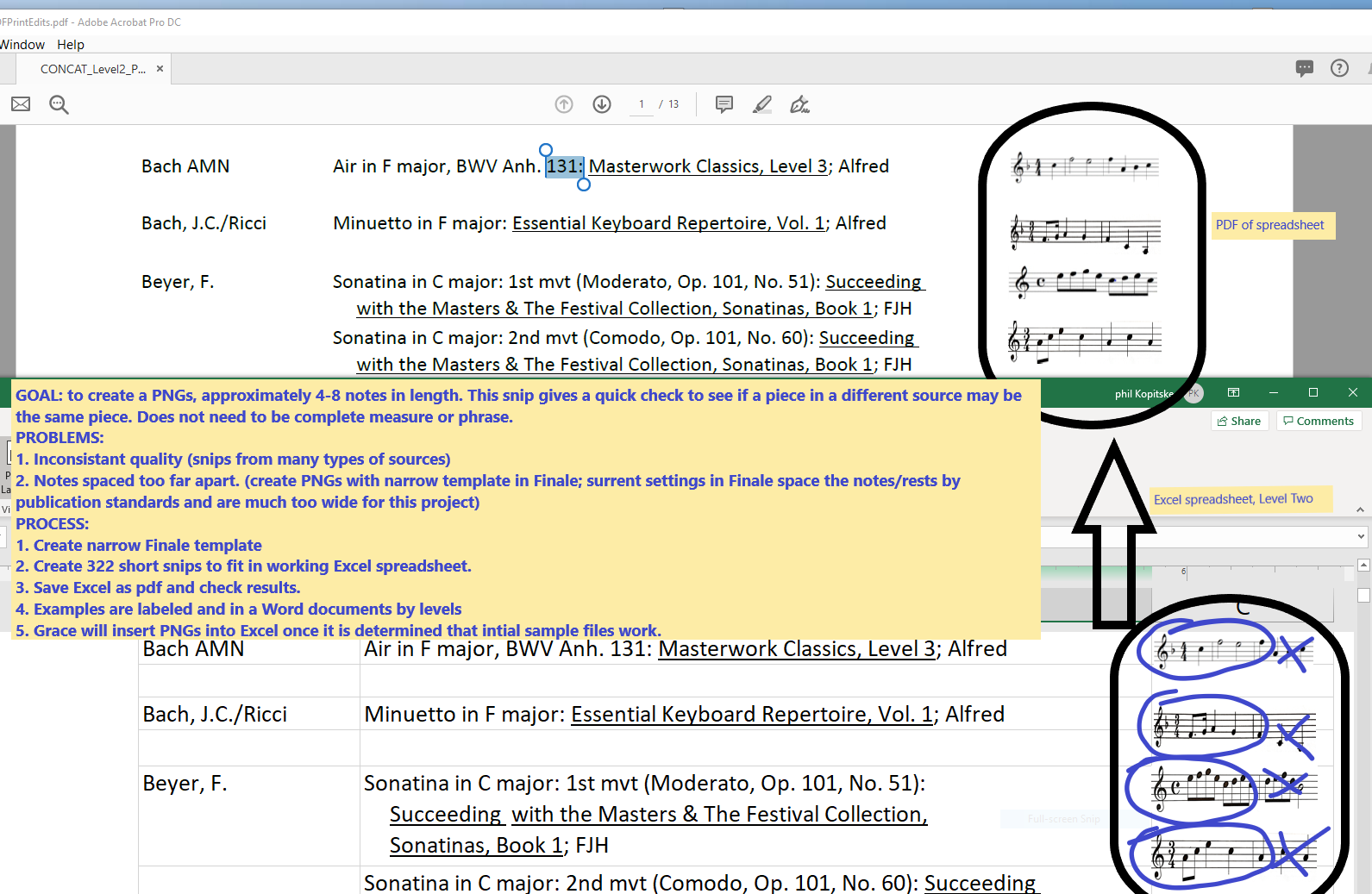
In Finale 26.1 I need to create several 3-5 note PNG snippets that will fit into a small sized cell (height .39 & width 1.5) in an Excel Spreadsheet. I've been experimenting with the various spacing options but so far I haven't been able to make them small enough to fit and still be legible. I'm seeking advice to see if there is an easy way or what I might be misunderstanding in the spacing options, that I can't seem to make things work.

10 comments

Date Votes
Avatar
0

I don’t know excel very well. Can you paste a PDF image onto a cell? If you can, you might set up the Finale clip, export it as a PDF, and shrink to fit.


But that’s going to be awfully small, especially if there are staff lines involved. Can you give us a better idea of what you are doing?

Comment actions Permalink
Avatar
0

Sorry for my lack of details; I'm still trying to wrap my head around this project. We are creating a repertoire syllabus; the project is detailed below. Shrinking a pdf is what has been done in the past, but the snippets have been too small or distorted. I was thinking of potentially setting up a template with margin parameters to fit, and limited spacing between the notes. 

Comment actions Permalink
Avatar
0

You're doing it the way I would. You might try moving the notes closer together by adding more blank measures to the staff. I don't think you need a special template. Just use the same document for each clip; the default doc worked for me. As long as you use the same parameters for clipping and cropping, they should stay consistent.


You could also look at the plugin JW Note Spacing, which gives you 8 different options for spacing.

Comment actions Permalink
Avatar
0

Given that your instructions above indicate you need 322 PNG files (that's a lot of exporting using the drag tool... none will be exactly the same size...)

Try this:
1. Set measurement units to inches
2. On page 1 - delete everything on the page except for the staff (text objects, page numbers, etc...)
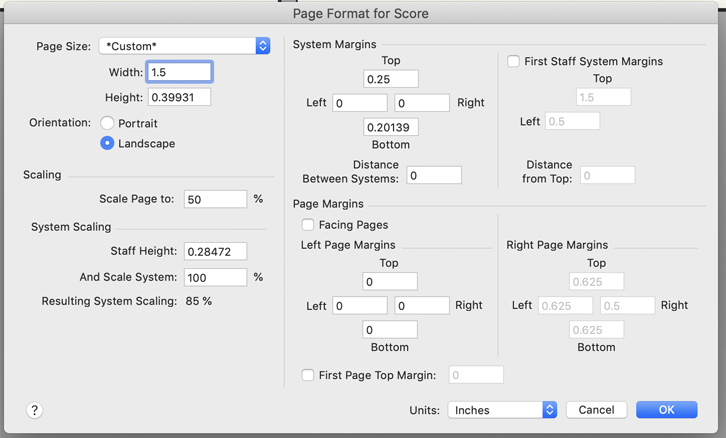
3. Set Page Format for Score to the following numbers:


4. Using the Page Layout tool - select Layout > Redefine Pages > All Pages of Current Score/Part.
5. Using the pointer tool - click to highlight the entire staff (all measures)
6. Select Utilities > Fit Measures...
7. Select "Lock Layout with 1 Measure(s) per system and Change All Measures. Click OK.
8. If you are using different key/time signatures in your examples, highlight the staff, right-click the first measure and select > Edit Measure Attributes.
9. Check: Hide Cautionary Clefs, Key and Time Signatures.  This will turn them off.
10. Finale wants to change some bar lines to double bars automatically at times... to turn this off:
             1. Select Document Options.
             2. Uncheck "Double Barline Before Key Changes" and "Final Barline at End of Piece"
11. You could then highlight the staff - right click and select whatever barline you might want for all examples.

You should now have a multi-page document with one small measure per page. Depending on how you have the View setup - you will see one small page or several small pages.

At this point - enter your music. You might have an easier time if you switch to Scroll View to enter your music/time/key changes, etc.

Here's the cool part:

12. When you have all of your measures entered - click on the Graphics tool - then select Graphics > Export Pages...
13. Select Type = PNG, select which pages, generate names from (enter a file name or leave it as is).
14. Click "Save In..." and create a folder to save them to.
15. Select the resolution you might want - start with 300 - then click "OK"

Finale will work for a few seconds and then you check the folder you created. You will see all of your individual examples as individual PNG files with a sequential number indicating the original page number.  They will all be EXACTLY THE SAME SIZE - and will drag and drop directly into Excel.

Let me know if it works on your end or if you need any additional help - I'm hoping I wrote out everything I tried. Good luck!

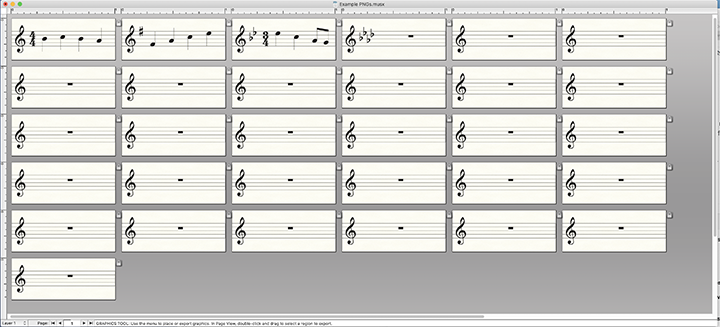
Here is a shot of my screen with all of the individual "Pages" showing:

Comment actions Permalink
Avatar
0

One update on my above post:

If you save as PNG - the printing in Excel will be good, but not great.

If you save as a SVG file (Scalable Vector Graphics), they will all print crisp and in true black. PNG is not true black (on my printer anyway).

The SVG files might look a little smaller when dragging into Excel, but you can resize them with no loss of quality/resolution. Be sure to "Shift-Drag" a corner handle to resize, otherwise the graphic will not maintain it's correct proportions.

Doug

Comment actions Permalink
Avatar
0

Thanks so much for your help! Yes, exporting over 300 snippets and getting them exactly the same size was one of my oh no concerns. I've set up the document and I'll let you know how it goes.

Comment actions Permalink
Avatar
0

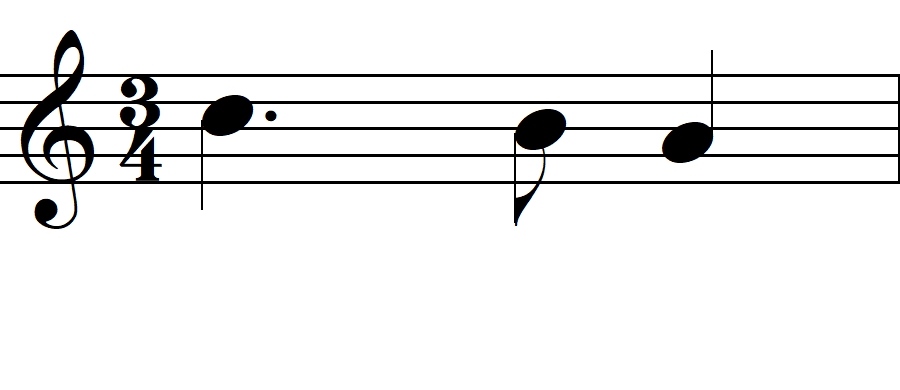
Hmm. It's not going as well as I'd hoped! Example 1 is done as above (oops, I see this was inserted before I deleted page numbers) compared to what they're looking for in example 2. You can see the notes are bigger and spacing is closer so example 2 is easier to read. Sorry they're not the identical examples; I haven't spent time figuring out how to add a measure to the above set up to account for a pick-up note, but this does show the problem of size/spacing. Any ideas?

Also, is there a way to darken the staff lines?

Comment actions Permalink
Avatar
0

I played around with it a little and discovered some issues when leaving Finale and working with Excel.

PNG files don't print at full resolution in Excel - they print at 72 dpi (as far as I can tell). Plus - they are not true black, so on a laser printer, they will not be as black as your text.

SVG files print at full resolution, but appear a little smaller when dragged onto an Excel sheet. A quick shift-drag on a corner will resize them and should be OK.  Mine printed crisp and clear - vs the PNGs that were blotchy and not true black.

Excel only pastes TIFF files "into" cells - and I haven't explored that option at all.

Regarding the lines, yes we can make them thicker for this project.  It's in the Document > Document Options dialog - Lines & Curves panel.

Did you try making SVG files instead of PNG files?  Put a few into your excel sheet and print that  - should be better...

Comment actions Permalink
Avatar
0

I've played around a little bit more. The attached sample shows the staff % increased. While we can now see the notes better, the project manager would still like to see the spacing between notes to be closer. I've tried note/beat/time signature spacing, etc. but it doesn't make enough of a difference. Any ideas?

Comment actions Permalink
Avatar
0

Have you looked at JW Note Spacing?

Comment actions Permalink

Please sign in to leave a comment.