New post
Avatar
0

Current Finale 26
Windows 7 and 10

Hi all,

I would like to create a NEW articulation.
From what I can see, Finale's idea of "new" is simply another way of saying "duplicate."

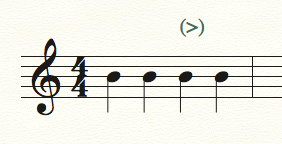
What I want is an accent inside of parenthesis, such as this:  (>)

I could use the Expression Tool to create it and then use the existing accent but hide it, but I would like my creation to have functionality as an Articulation.

Any suggestions?

Thank you,
:-)
Nessa

10 comments

Date Votes
Avatar
0

And what function do you want? If you want the same as an accent, first, look at the playback definition of the accent. You will see that it's Key Velocity = 125%.


So, go to the Expression tool, and click Create. Set up the parentheses in the accent, and on the playback tab, set the Key Velocity to 125%. The only problem that I found is that it accents all the following notes, rather than the single one. I'm sure there's a way around that, but the easiest for me would be to create another, hidden expression returning the key velocity to 100%.


Expressions are document-specific. If you want it available in all of your docs, make the change in your templates and document styles.


Comment actions Permalink
Avatar
0

Thank you, Mike,

What I did was as I had mentioned: create an Expression and apply it, and then apply the accent but turn of "Show" (right-click).

It works.

:-)
Nessa

Comment actions Permalink
Avatar
0

… I would like to create a NEW articulation.
From what I can see, Finale's idea of "new" is simply another way of saying "duplicate." …


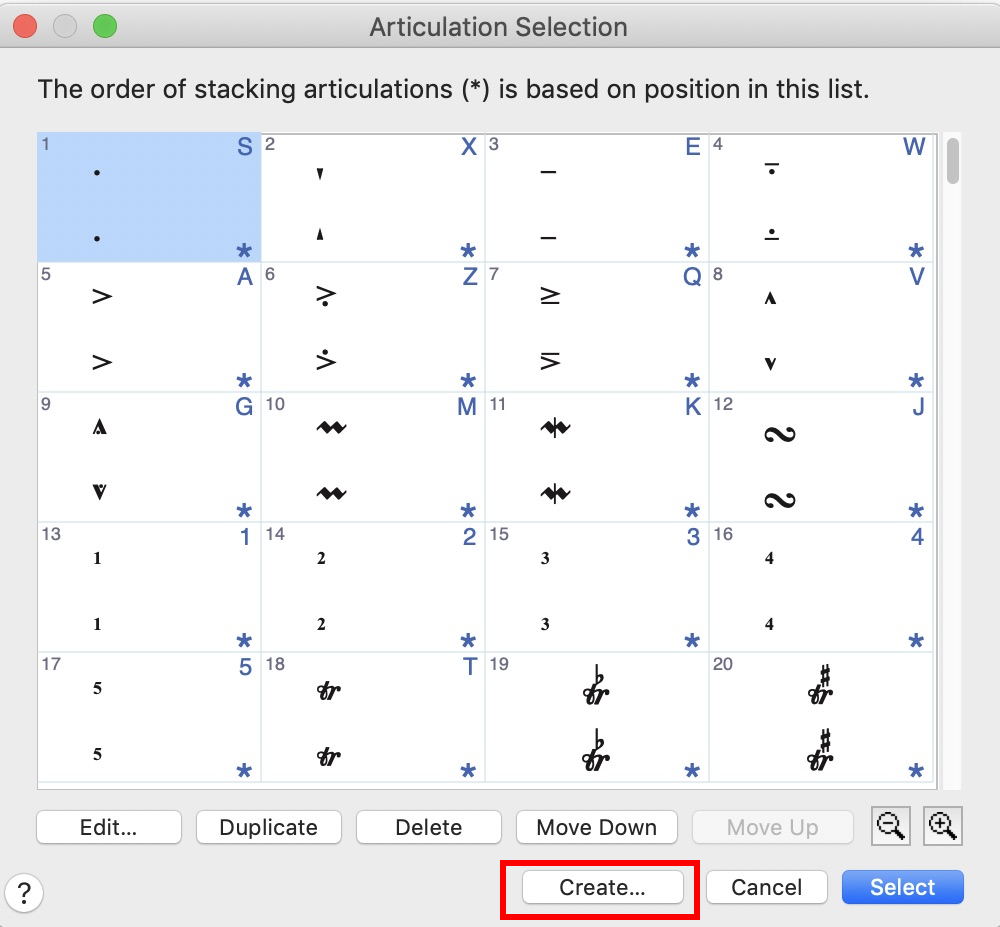
In the dialog box Articulation Selection there is a button called Duplicate, but there is also a button called Create:


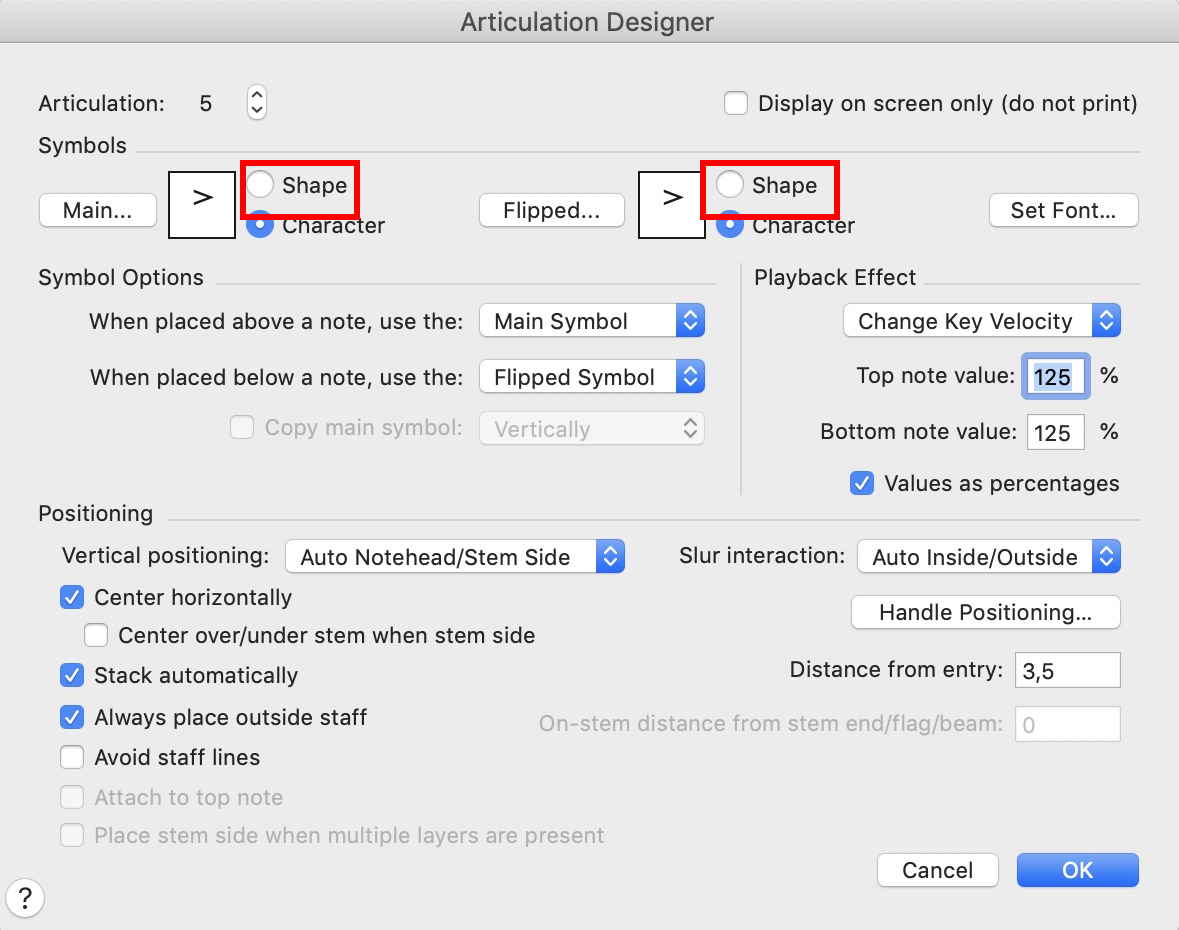
In the Articulation Designer you can create the new articulation as a ‘font character’ articulation, but you can also create it as a shape articulation:


Comment actions Permalink
Avatar
0

Thank you, Peter

But... where is the option to add parenthesis, to make this:   (>)  ?

:-)
Nessa

Comment actions Permalink
Avatar
0

As Peter said in his post, you would need to create this custom articulation as a "shape" articulation. You build this articulation in the shape designer window.


FWIW it's much easier to create this as an expression.

Comment actions Permalink
Avatar
0

Thank you, Jeffrey,

Yes, I did as Peter said, however, when I click on "Shape" and then on "Set Font," nothing happens to allow me to enter or create a shape.
All "Set Font" does is allow me to change the font.

It does not provide me a place to enter (>).
I can duplicate the accent and then edit it, but it does not allow me to add the parenthesis.

BTW--you are right about using the Expression--please see my original post

:-)
Nessa

Comment actions Permalink
Avatar
0

In the shape designer box, you change the font to Maestro. You create your shape in the big window of the shape designer. Then you just type in the left parens, accent and right parens. Just make sure you have this placed on the 0/0 coordinate in the shape designer window.

Comment actions Permalink
Avatar
0

… when I click on "Shape" and then on "Set Font," nothing happens to allow me to enter or create a shape …


Click on (the leftmost) "Shape" and then on "Main".


To create a flipped version, click on (the rightmost) "Shape" and then on "Flipped".

Comment actions Permalink
Avatar
0

Aha!  That did it!

Thank you, Peter.

What I was missing was how to enter the Shape Designer box, which I finally understood was via the Shape and then "Main..." buttons.

It was quite easy, and very effective, once I understood the above.

I did have a little difficulty aligning it on the 0/0 coordinate, but with a little trial and error (and eye-balling) I achieved my goal.

Thank you, too, for your patience!

:-)
Nessa


Comment actions Permalink
Avatar
0

… I did have a little difficulty aligning it on the 0/0 coordinate, but with a little trial and error (and eye-balling) I achieved my goal …


For precision work, consider using the Shape Designer’s higher zoom view levels (= 200 %, 400 %, 800 %).

Comment actions Permalink

Please sign in to leave a comment.