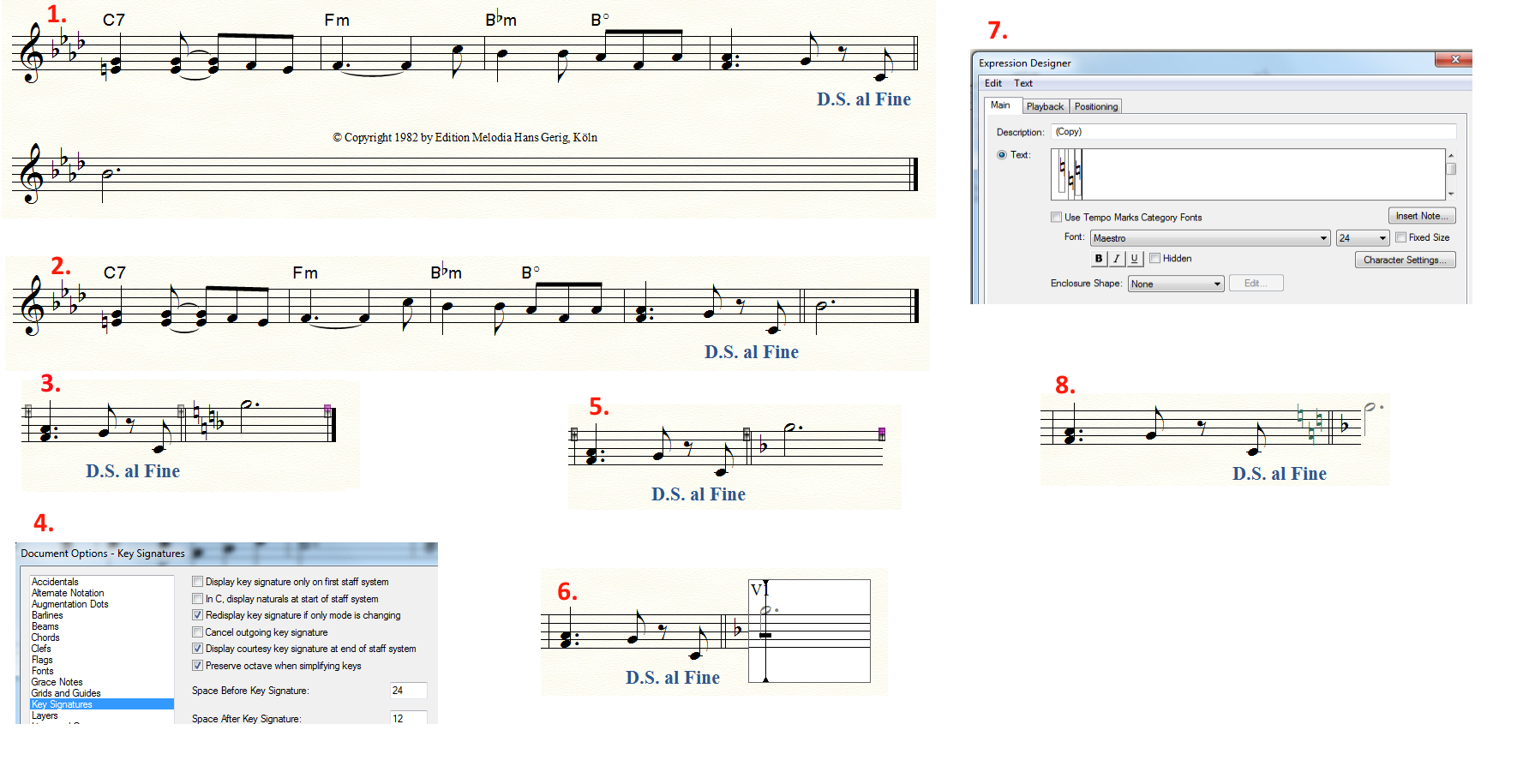
I would be very happy if someone could help me in placing a key signature as shown in the image attached circled .
.
I run windows 7 and have Finale 2014.5.


You haven't said what, if any, music comes after the key change. If this is the last measure of written music, then you might consider adding an additional measure, forcing it onto a new page, and setting the file not to print or play the extra measure.
You can configure the cancellation naturals in Document Options, but Finale will likely put them after the double-bar line.

… If this is the last measure of written music, then you might consider adding an additional measure, forcing it onto a new page, and setting the file not to print or play the extra measure …
Another way to do it:
The added 1-measure system will not print of it is positioned outside the right edge of the page.
To do so you must de-select Avoid Margin Collisions in the Page Layout menu.
In that way there will be no extra page ⇒ no need to remember, not to print the last page.
… I forgot to as you how can I send you the file so you be able to have a look into it? …
You can attach graphic files here, but you can not attach Finale documents.
To make your Finale document available here, upload the document elsewhere, and add here a hyperlink to your document.
My own steps:
(Measurement Units set to Points)
1) Add an extra measure.
Lock the extra measure in its own system. Change its key signature to 1♭.
2) Page Layout Tool.
Page Layout menu > Avoid Margin Collisions (de-select)
Position the extra system outside the page edge.
In that way it will not print.

3) Create a new expression category for the false key signature.
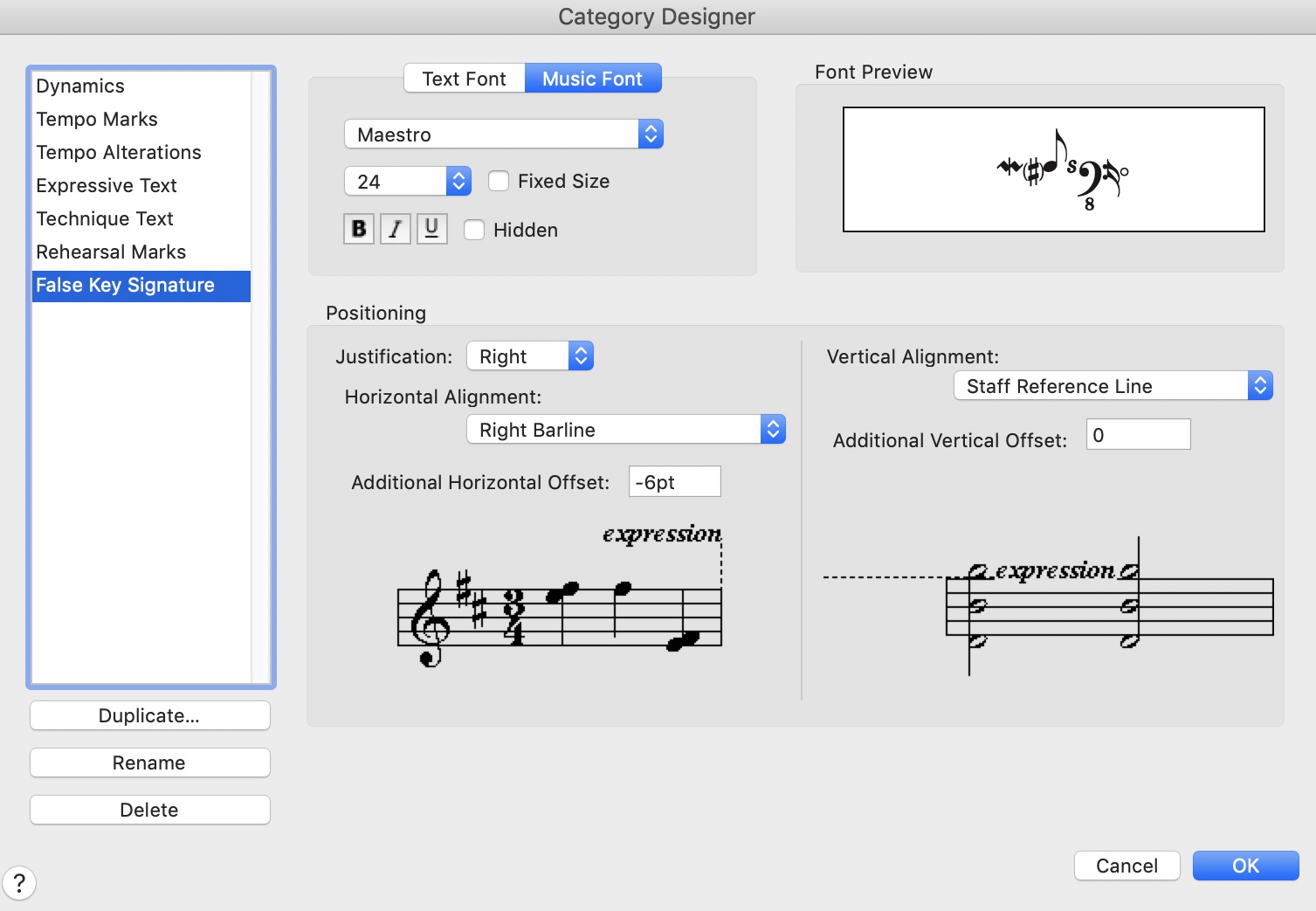
In the new expression category, create a new expression.
In the Expression Designer, click Shape, and de-select {Allow Horizontal Stretching}.
Click {Create…},
To work with precision in the Shape Designer, zoom to 400 %.
Position the 3 naturals as text blocks, at (0 ; -3), (6 ; -15) and (12 ; -6).
(Measurement Units set to Points)
You can save the false key signature as an expression library, and you can create a complete library of false key signatures, for all keys.
4) Document Options - Key Signatures
Un-check {Cancel Outgoing Key Signature}.
5) Measure Tool.
To make room for the false key signature, double-click the measure, and add Extra Space (18pt) at the End of the measure.
Thank you and I will try your steps.
However, why are such things not in the library, which would be available for other users too?
I'm not the only one who mentioned things like that.
Please look at the following link in the community::
After completion of step 3) - where you in the new expression category False Key Signature have created a shape expression with 3 naturals - add the new shape expression to the measure before the key change.
With the False Key Signature category’s default positioning the shape expression will be positioned 6pt before the Right Barline.
Do you need instructions on, how to create a new expression, and add it to the score?
Disclaimer:
I do not know the document settings (in Document Options - Key Signatures) in the Finale document you are working on.
Hence my suggested layout values may not be precisely suited to the settings in your Finale document.
I've uploaded the file in the hope you be able to download it.
https://www.mediafire.com/file/1lomlrztsrm8np1/Plaisir_d%27amour_6_8.musx/file
...As Far As I Can Tell, you have not done any of my steps, right?
Those where my own steps.
Here is the file which was done according your steps:
Kind regards,
Hans
Hans Heise,
I have examined your new Finale document.
It looks like you have managed to follow my steps, and add an expression with a false key signature.
In your false key signature the {Horizontal distances between the naturals} is not precisely as they would be according to my instructions.
But that is a matter of taste, I suppose.
If you have any further questions, let me know.
I was wondering why the naturals did not automatically jump to its position. I had to move it to its place.
Is there something I did wrong?
When I setup the Category Designer and used Music Font Maestro 24. Then after I hit OK to create the naturals
with the Shape Designer why I had to select the select Maestro font again. I used 24 Regular.
Is this correct or is there another way to do it? Maybe I did something wrong?
Kind regard,
Hans
… When I setup the Category Designer and used Music Font Maestro 24. Then after I hit OK to create the naturals
with the Shape Designer why I had to select the select Maestro font again …
This is a misunderstanding.
The default fonts in the Category Designer are for text expressions.
A category has no default fonts for shape expressions.
On The Other Hand, the category settings for positioning are for all expressions, both text expressions and shape expressions.
… I was wondering why the natural did not automatically jump to its position. I had to move it to its place …
You are talking about the Shape Designer, right?
Finale can not (yet) read your mind, and understand that the three text blocks should be at (0 ; -3), (6 ; -15) and (12 ; -6).
To enter a {text block containing a natural} at (0 ; -3), click on (0 ; -3), and hit the letter N key.
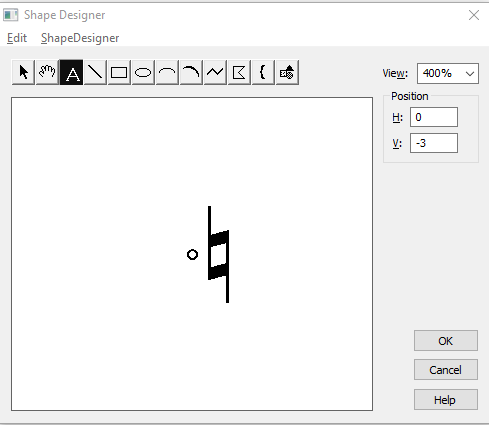
...You are talking about the Shape Designer, right?...
Yes!
Before I can create the first natural in the shape designer at (0 ; -3) I have to select the font and then
select the letter A, then click inside to the right of the origin and hit the letter N. After that I can fill in
the Position for H: 0; and V: -3.
Is this correct? If not please show me how.
I couldn't find a tutorial to work with the Shape Designer.
It drives me to despair!
… then click inside to the right of the origin and hit the letter N. After that I can fill in
the Position for H: 0; and V: -3 …
What I do:
While the cursor is moved around in front of the Shape Designer, the Position parameters H and V are simultaneously updated to show the cursor’s current position.
I move the cursor around until the Position says H: 0; and V: -3.
Then, I click, and hit the letter N key.
...I move the cursor around until the Position says H: 0; and V: -3...
This is not a good way to do it.
I hit the letter n and then type in the values in the H: and V: fields then do the rest with the other Naturals.
However, the main thing is that I know how to do it my way. Tried to follow your steps was not possible when it comes to the end
...Position the extra system outside the page edge...
Lets close this thread and I will come up with a new one.
It's not a pleasure working with the Shape Designer!
This is my opinion!
Please sign in to leave a comment.
20 comments
Date Votes