Windows 7 Pro, Finale 2020
Choose the Custom Line Tool . The Smart Shape menu appears.
Well, i double-click on the custom line tool, but the smart shape menu does NOT appear.


I am afraid I do not understand.
… Choose the Custom Line Tool. The Smart Shape menu appears …
This does not make sense to me.
Choose the Smart Shape Tool (not the Custom Line Tool), and the Smart Shape menu is available.
You can see the Smart Shape menu title, but the Smart Shape menu will not drop down until you click the menu title.
One of the sub-tools in the Smart Shape Tool is the Custom Line Tool (icon in the Smart Shape palette).
… I double-click on the custom line tool, but the smart shape menu does NOT appear …
If I understand you correctly, the Smart Shape menu (which had just appeared) suddenly disappears again when you double-click the Custom Line Tool - right?
I could be wrong, but I do not think that double-clicking the Custom Line Tool is supposed to do anything.
At least I could not find anything (in the manual) about double-clicking the Custom Line Tool.
On The Other Hand, you can get to the Smart Line Selection by CTRL-clicking the Custom Line Tool.
Hi Peter,
Thanks for supplying the missing link. I need to <control> <click> on the custom line icon to bring up the menu of custom lines, ...not <double click>, which does nothing.
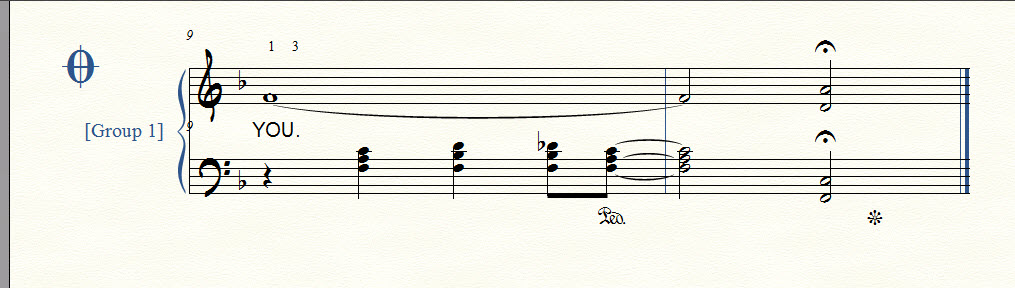
Sorry for the vagueness of my query. I'm trying to create piano sustain pedal markings. This is the entry in the manual: http://usermanuals.finalemusic.com/FinaleWin/Content/Finale/Pedal_markings.htm?Highlight=piano%20pedal It reads:
The Smart Shape Options dialog does not say anything about piano sustain pedal markings. Your way is better.
Peter, Once again, your assistance is very much appreciated!
Turns out my problem was two-fold:
1. Once again, I was stymied by "PLAYBACK SETTINGS / STOP AT / MEASURE 10. On numerous occasions, i have used EXPORT / AUDIO FILE only to discover the recorded performance is truncated half-way through. I strongly believe the default should be "END OF FILE." There has never been an occasion when i have wanted to limit an audio export to a small number of measures.
2. Following your expert guidance, i navigated to: MIDI/AUDIO / HUMAN PLAYBACK / CUSTOM and checked "pedal markings" and "auto piano pedaling."
Those 2 steps solved my issue. I post this, in case another user may encounter the same dilemma.
Thanks a million for your assistance.
Please sign in to leave a comment.
6 comments
Date Votes