New post
Avatar
0

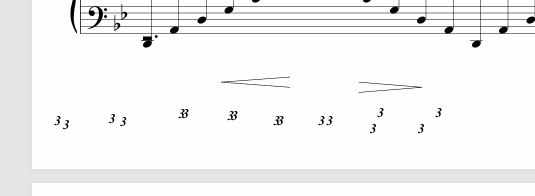
On my Finale file there are no extra numbers, but when I convert it to a pdf, extra numbers appear at the bottom of the page.

Why is this? And how do I get rid of them? I have a Toshiba PC for doing Finale and I save as a pdf on a thumb drive. 

Then I open the pdf on my MacBook Pro laptop to email it to my mentor. I have Finale 2012.


9 comments

Date Votes
Avatar
0

Hello Ruth,


If you create a Default Document (File > New > Default Document) enter a few pages worth of notes and export it, does this still occur?


If not you may need to create an XML of your current file and import it into Finale. To do this you'll want to:

1. Open your document in Finale.
2. Choose File > Export > MusicXML.
3. Save your document as an XML file to your desktop.
4. Choose File > Close.
5. Choose File > Import > MusicXML. Select the file you just saved to the desktop and click Open.
6. Choose File > Save As to save the new document as a Finale file and give it a new filename.
7. Once the new Finale file has been saved, you can delete the XML file from your desktop.

Comment actions Permalink
Avatar
0

I think this is what Ruth is talking about:

See all those threes at the bottom?  They don't appear on any layer in Page or Scroll views, but only in the PDFs when exported, and only on pages 6 through 9, and not in the same order/format.

I think I found them once, way outside the page margins, maybe I reduced the page size or something, but that was a long time ago, and I don't have time to look into it today.  But I'll try to see what I can find, if it's still an issue.

Comment actions Permalink
Avatar
0

Given that the post is 8 years old, I’m not sure if it’s still an issue.

But of it is. Export your score as a graphic PDF, rather than using the method described avove.

Comment actions Permalink
Avatar
0

Given that the post is 8 years old, I’m not sure if it’s still an issue.


And it's about Finale 2012, the fourteen year old version written by CodaMusic just before they went under.

Comment actions Permalink
Avatar
0

Yes, that post is kind of old, and that was back when I started just ignoring it as no recommended fixes had worked.

My latest Google search indicates that it's still an issue.

The XML fix didn't work (yet).  I'm not using 2012, but a later version.  Someone has said in, v26 "...it's a known bug..."

Comment actions Permalink
Avatar
0

Did you try exporting the score through the Graphics tool?

Comment actions Permalink
Avatar
0

A few times.

Comment actions Permalink
Avatar
0

Best thing I've found is just "Adobe Acrobat whiteout".  Save as PDF, Open, Draw, select White marker, use like Whiteout.

Kinda low-tech, but seems to work.

Comment actions Permalink
Avatar
0

Is Adobe whiteout a Windows app? According to Adobe

use the Redact tool in Adobe Acrobat by marking text or images and then applying the redaction

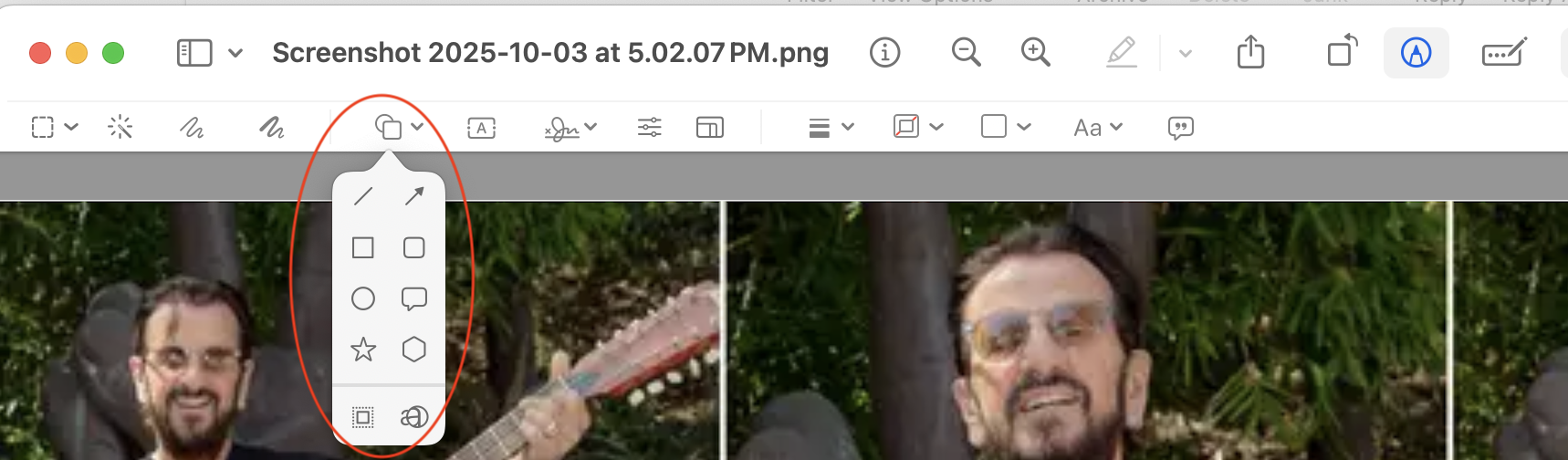
There are versions of Acrobat not available to Mac users — in this case, it's not a problem as the ability to remove marks in pdf files is part of Preview, part of the macOS for many years. It's the same tool that some of us use to draw circles and arrows onto screen shots.


Back to the original problem. Any spurious characters can be removed in Finale. The problem is that you have to know how and where they were created. Sometimes you'll find them in Layers, other times Expressions or Graphics or Text or... 


In the graphic from seven days ago, those are the number 3. I suspect that a file was imported with Tuplets via MIDI or MusicXML and the translation had problems. I've seen this before. PDF is an engine that manipulates font information—it doesn't take a picture of the file. 


I am not suggesting that one chase down and find the actual source of the problem if all you want to do is have a clean pdf file. Although I also have Acrobat Pro, the erase tool in Preview gets a lot of use from me.


Comment actions Permalink

Please sign in to leave a comment.