New post
Avatar
0

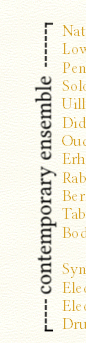
Is it possible to make vertical text in Finale like my attached image? In my example, I created a graphic with another program and placed/resized it as needed, but it looks terrible when I print to PDF.

The only other way I know how to get this across is

l
i
k
e

t
h
i
s,

and you can see that is cumbersome to read.

Thanks for any ideas. I'm on v25, Windows 10.
7 comments

Date Votes
Avatar
0

To rotate text in Finale, use a line with zero thickness, and put the text on the end of the invisible line.


You can create the line in the Shape Designer - and use the new shape as a shape expression or a shape articulation.


You can also create the line with the Smart Shape Tool, using the sub-tool Custom Line Tool.

Comment actions Permalink
Avatar
0

I cannot find a way to rotate text created in shape designer or rotate expressions/articulations created from shapes. Please elaborate, if this is possible.


This works using the custom line tool, thanks. However, you can only attached it to pages that have staves. What about title pages, which contain no staves, but only text (and/or graphics)?

Comment actions Permalink
Avatar
1

Do it on a staff, export what you want as a PDF graphic, and import it back in to your new doc.

Comment actions Permalink
Avatar
0

Thanks, Mike. That comes out much cleaner than creating the graphic in another program.

Comment actions Permalink
Avatar
0

As a side note, for anyone else who comes across this, after cropping my exported page, the re-imported image looked the best when I left the white background in place, rather than removed it to create a transparent background.

Comment actions Permalink
Avatar
0

I cannot find a way to rotate text created in shape designer or rotate expressions/articulations created from shapes. Please elaborate, if this is possible …


You can not “rotate expressions/articulations”.

You can only rotate text in the Shape Designer, and then use the shape (with already rotated text) as an expression or articulation.


To rotate text (create vertical text) in the Shape Designer:

Click the sub-tool Line Tool.

Shape Designer menu > Line Thickness > None

Shape Designer menu > Arrowheads…

In the dialog box Arrowheads, in the pop up menu Start, choose Custom Arrowhead

In the dialog box Custom Arrowhead Selection, choose Create…

You get to a special version of the Shape Designer, with a line showing.

Use the sub-tool Text Tool to create a text block with the text you need to rotate.

Begin the text block at the Origo (0;0).

Click OK 3 time, to return to the “normal” version of the Shape Designer.

Draw a vertical line (with Thickness set to None).

Since the line itself is invisible, you will only see the arrowhead with the (vertical) text.

Comment actions Permalink
Avatar
0

Thanks for the explanation.

Comment actions Permalink

Please sign in to leave a comment.