New post
Avatar
0

Hi everyone,

I'm looking for a way to get all beams flat at the same level - whatever the note played is...

Attached is an example where I'd like all beams to be at the "red line" level!
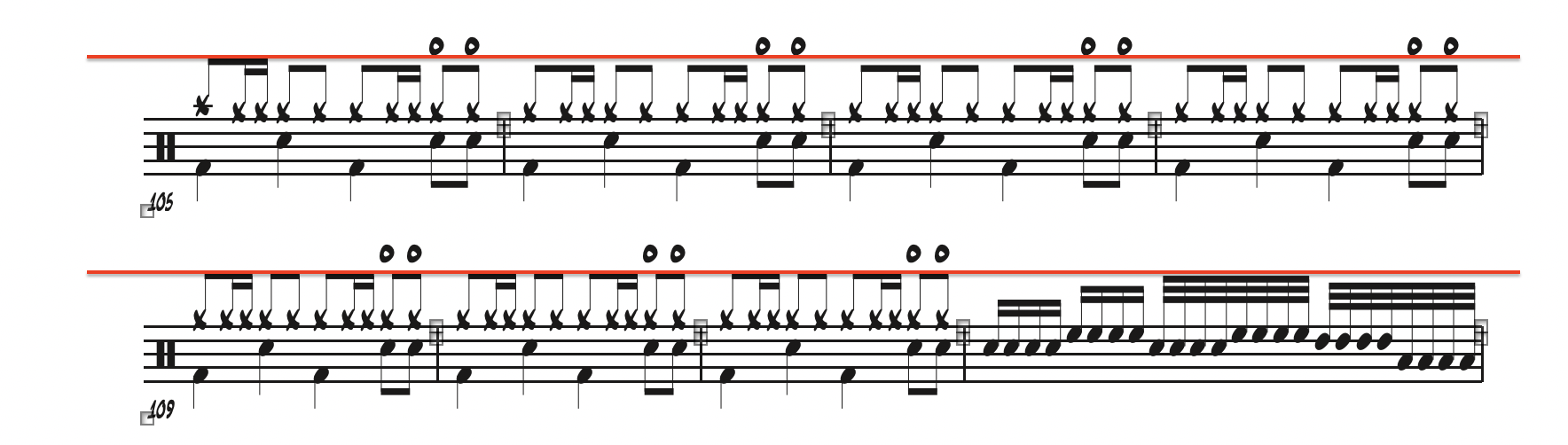
I know how to adjust one beam at a time using "Special Tools --> Beam Angle Tool", but it gets very time consuming... and I'd like to find a more elegant way to edit all beams at once.

I have also tried exploring Patterson's Beam tool and JW Change plugin without success, because it always increases/decreases all beams lenghts according to the NOTE position instead of a fixed reference point from the staff...

Can anybody help with this please?

(I hope my description of the problem is clear enough... 😅)


Thanks for you help!

Manu

Finale v26.3.1

iMac Pro / Mojave

4 comments

Date Votes
Avatar
1

Manu Morin,


I suppose that you already, in Document Options - Beams > Beaming Style, have selected {Flatten All Beams}, right?


I suppose that you, by your word “length”, mean “vertical position”, right?

Perhaps you were thinking of “stem length”?


I suppose that you are talking about up-stem notes only (not down-stem notes), right?


Unfortunately I do not know of an “automatic” solution.

Adjusting with the Beam Angle Tool (at a high zoom percentage) is the general solution.

Watch the Message Bar to see the actual beam position.


Some ideas:


1) For the program’s Measurement Units, choose small units - like Points, or EVPUs.

The height of a staff is 24pt, hence the height of a scale step is 3pt.


2) Go to Document Options - Stems,

and set both the Normal Stem Length and the Shortened Stem Length to an integer multiple of 3pt (like 15pt, 18pt, 21pt).

Comment actions Permalink
Avatar
0

Hi Peter,


Thanks for your quick answer!


I confirm that "Beaming Style" was set to Flatten All Beams!

I also confirm that I was talking about up-stem notes only.


I tested your 2 ideas, but as I thought, ALL stems are getting longer or shorter based on the "highest notehead" in the group of notes beamed together... 


As you can see in the following screen captures, even if I put a higher number under "normal or shortened stem lenght", the problem remains... and the beams contained in the first 6 pulses still show a different lenght than the following measures...


With Normal Stem Lenght and Shortened Stem Lenght set to 21: This is what it looks like

With Normal Stem Lenght and Shortened Stem Lenght set to 15: This is what it looks like

It seems to me that the Stem Lenght is set according to a reference point which seems to be the "Highest Note of each pulse" - In my example, this is usually the Hi-Hat notes or the Crash notes as it is a Drumset Notation.


One solution that I think would solve the problem would to be able to change this reference point to a fixed point on the staff, or maybe the LOWER note of each pulse - which would usually be the Snare Notes in my case!


But I don't know if this is possible or not...

(I hope I am clear... English is not my first language, so thanks for your understanding! 😅)


Again, thanks for your help Peter! Let me know if you have any other ideas! I'm all ears! 😁

Comment actions Permalink
Avatar
0

Hi Manu,


Silly me!

In my first post I wrote “Unfortunately I do not know of an “automatic” solution”.

But I do know of an automatic solution:

Staff Tool.

Double-click the staff.

In the Staff Attributes, in the pane Items to display, go to Stems, and click the button {Stem Settings…}.

I think the dialog box Staff Stem Settings is quite clear and understandable, but if you are having difficulties, let me know.

Comment actions Permalink
Avatar
0

Peter! You're definitely the man here!

You can't believe how much time this is going to save me in the weeks and months to come!

I can't thank you enough!

This worked like a charm! Fantastic!

Comment actions Permalink

Please sign in to leave a comment.

