New post
Avatar
0

I am using Finale version 25 on a 2017 Mac computer. (high Sierra version 10)


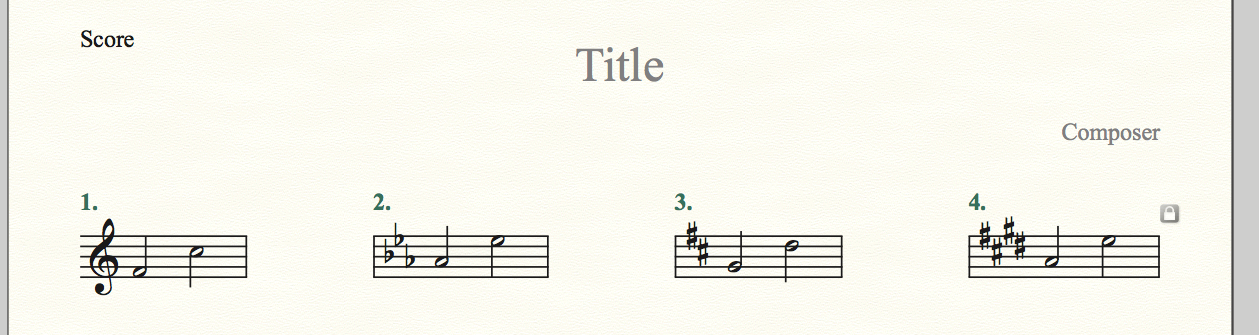
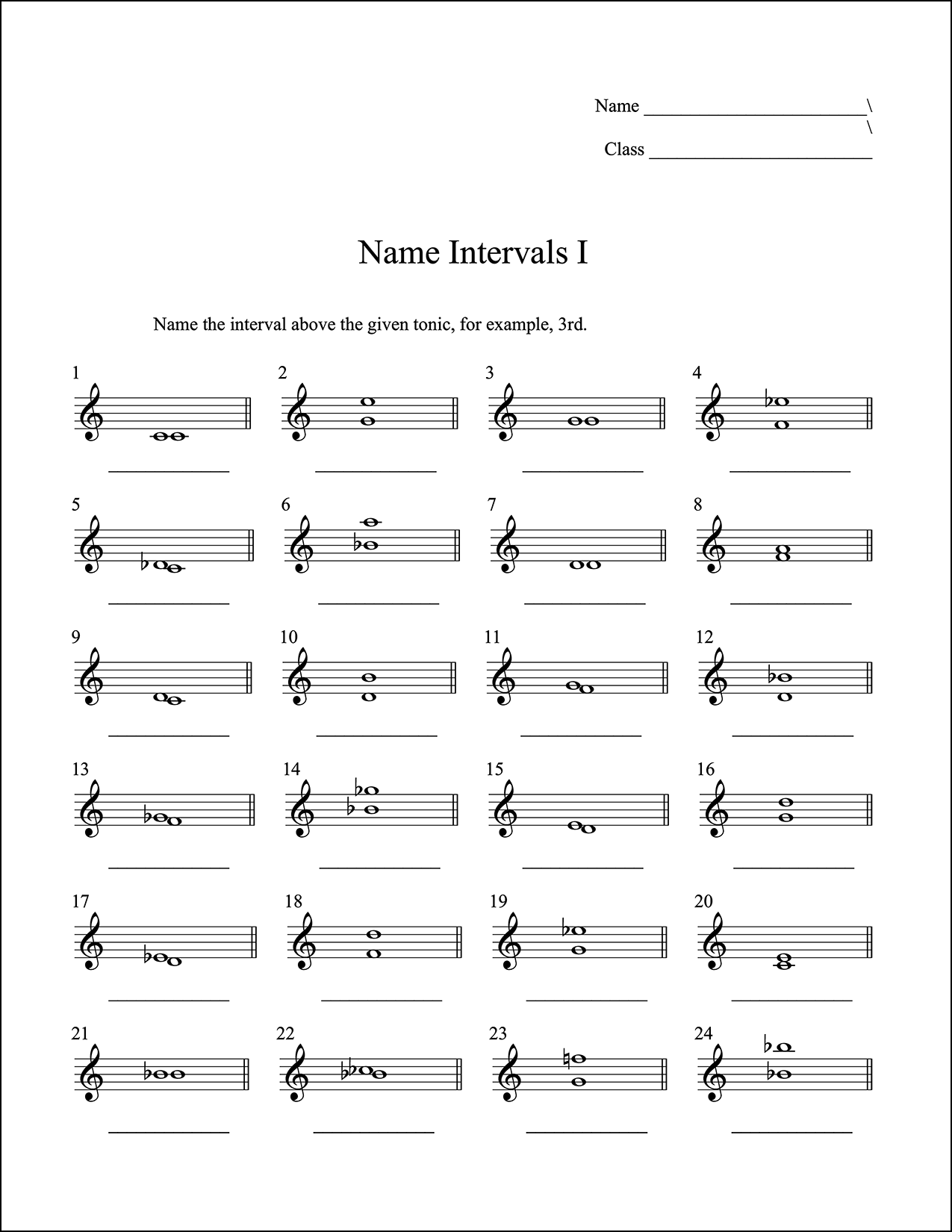
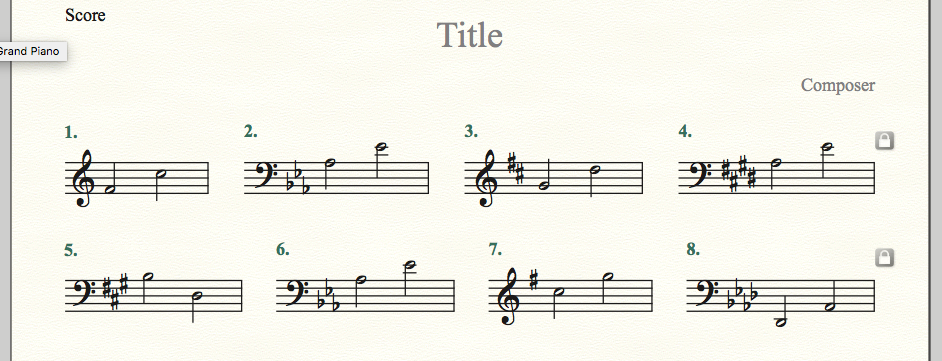
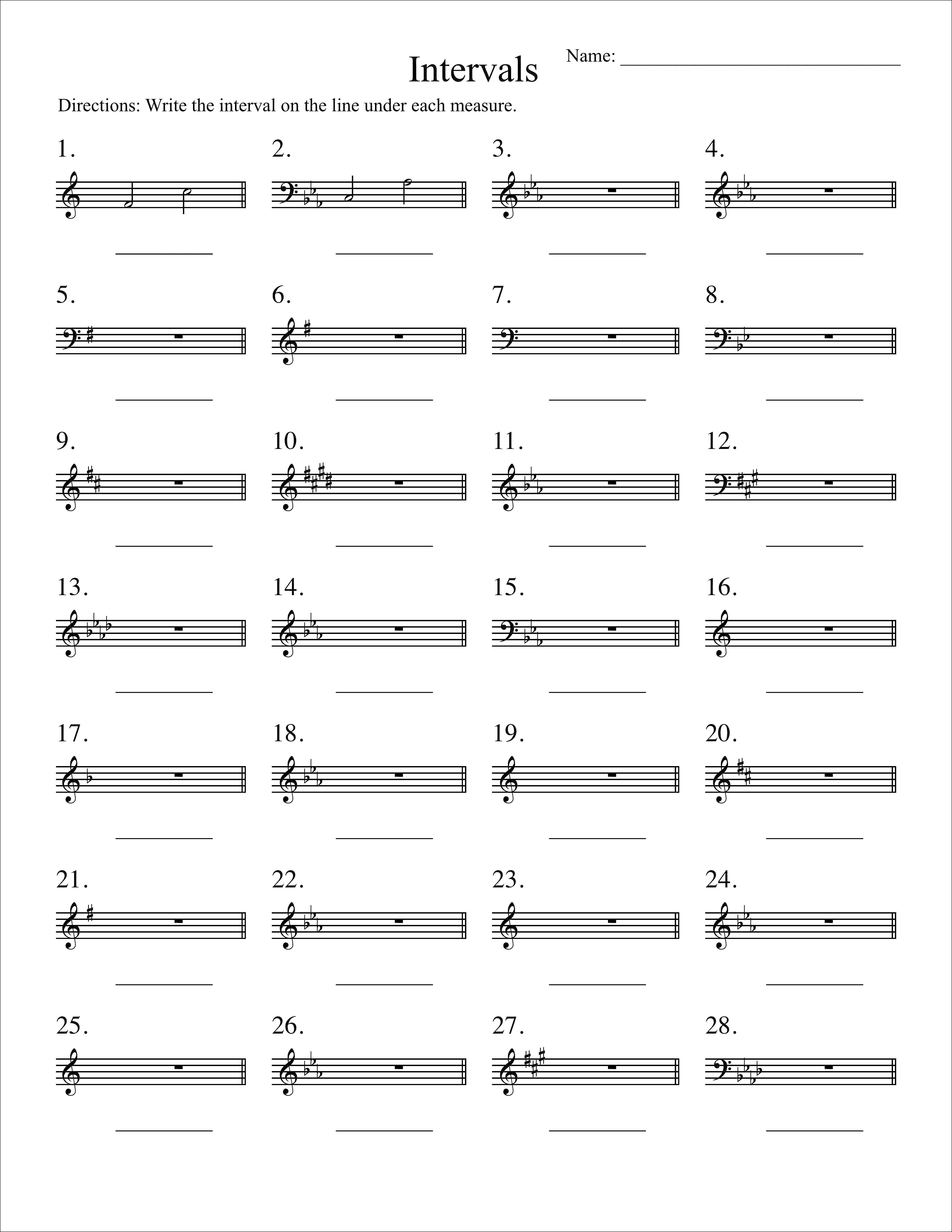
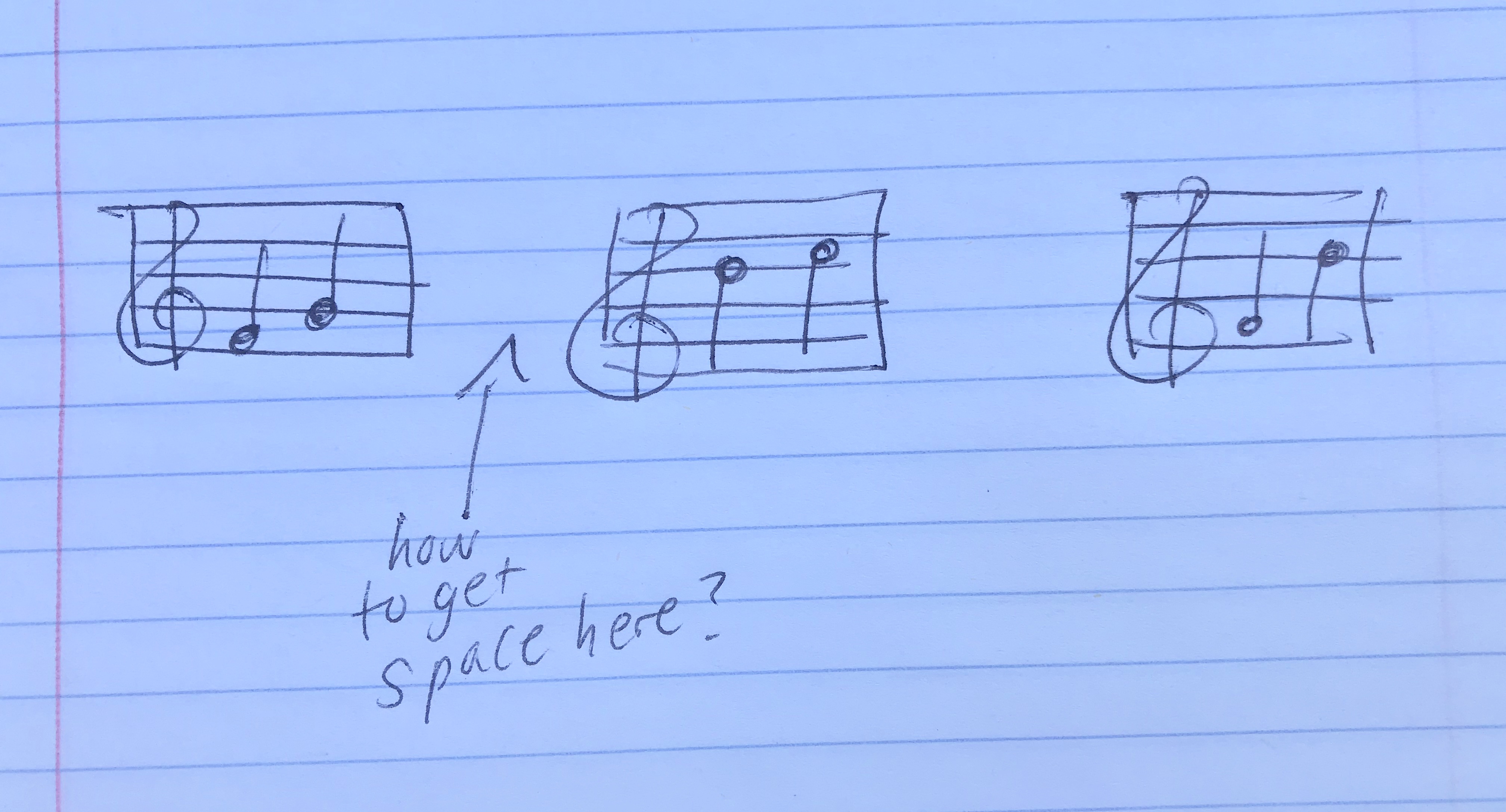
I would like to create interval and other worksheets for my students that are single measures with white space in between the measures.  I used to have Sibelius and there was a way to do this, but I can not seem to find the solution on Finale.  I have attached a photo of what I am hoping to accomplish.  Any help would be greatly appreciated!
25 comments

Date Votes
Avatar
0

Here's an old thread that deals with this in Finale. Check the manual and adapt as necessary.

https://forum.makemusic.com/default.aspx?f=5&m=300501 


You can also create single measure staves, save as graphics and import into a Word doc or use a page layout tool such as those from Adobe. If that's what you really want, I can post some links.

Comment actions Permalink
Avatar
1
Comment actions Permalink
Avatar
2

Both of the above examples will work...

Try this... it might be easier in the long run - plus it keeps everything straight and positioned correctly across the page(s).

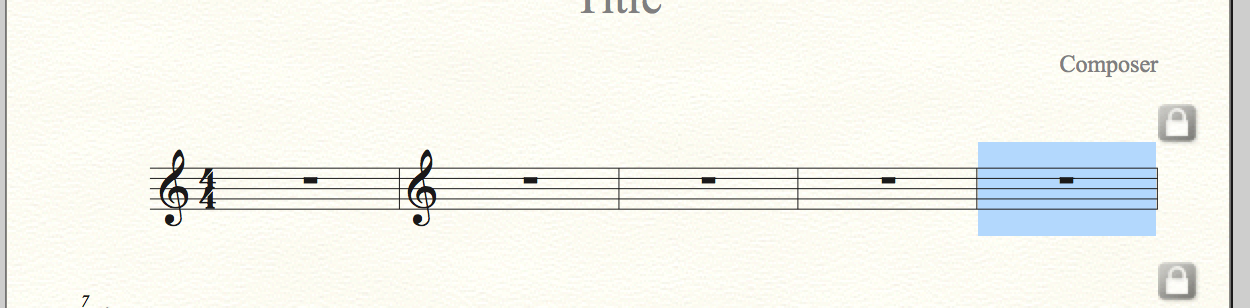
1. Create your worksheet from the standard Finale default document with one blank measure in between each "question" measure (except at the end of any line).
2. Mouse to DOCUMENTS –>DOCUMENT OPTIONS. Select "Barlines" in the left column.
3. Uncheck "Double Barline Before Key Changes" and click "OK".
4. Select the STAFF tool (the treble clef icon).
5. Right-Click on the first measure you want to remove, then select item no. 12 - "Force hide staff (cut-away)" - OR - just hold down "H" and click the measure you want to remove. (pre-assigned metatool)
6. The clicked measure will disappear and you have what you want. Continue for each cut-away measure.
7. If you don't want a time signature in measure 1, uncheck it in the lower right corner of the staff attributes dialog box. (Click "Staff Tool", mouse to STAFF –> EDIT STAFF ATTRIBUTES...)
8. If you want automatic "question numbers" - click on the EXPRESSION tool, double click in the first "question measure" and select the "1,2,3,4" auto-sequencing style. Add to each question measure.
9. To get the "." (period) after each question number - add the period in the expression designer dialog box after the "1,2,3,4".
10. You could also add an answer line after the period by adding ". ___________" in that same box instead.

I created this in about 90 seconds:


Let me know if you get stuck along the way - glad to help...

Comment actions Permalink
Avatar
1

Doug's solution is the most elegant. Thanks for posting it!

Comment actions Permalink
Avatar
0

...I forgot two things:

To eliminate cautionary key signatures at the end of a line do this:

1. Highlight the entire staff with the Selection tool.
2. Right-click the first measure to bring up the "Edit Measure Attributes..." dialog box.
3. Check the item "Hide Cautionary Clefs, Key and Time Signatures", then click OK.

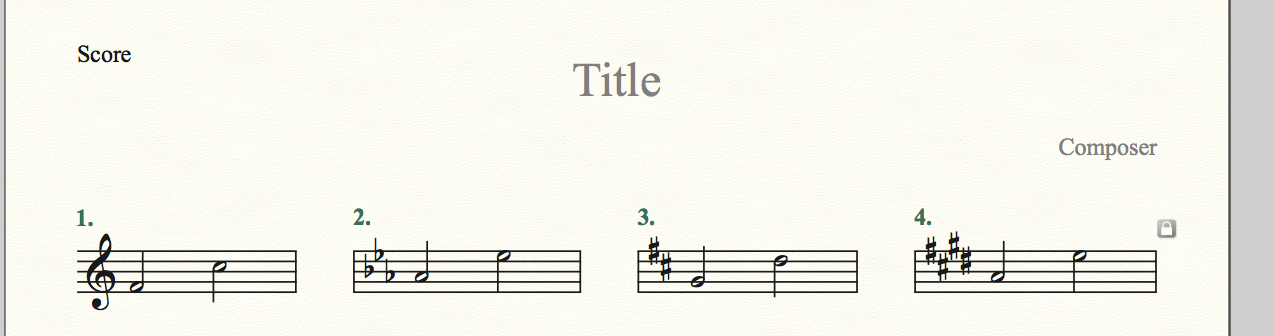
If you want a smaller space between each question measure, change the hidden measure's time signatures to 1/4 time. Then re-space the staff using "Beat Spacing".  It should then look like this:


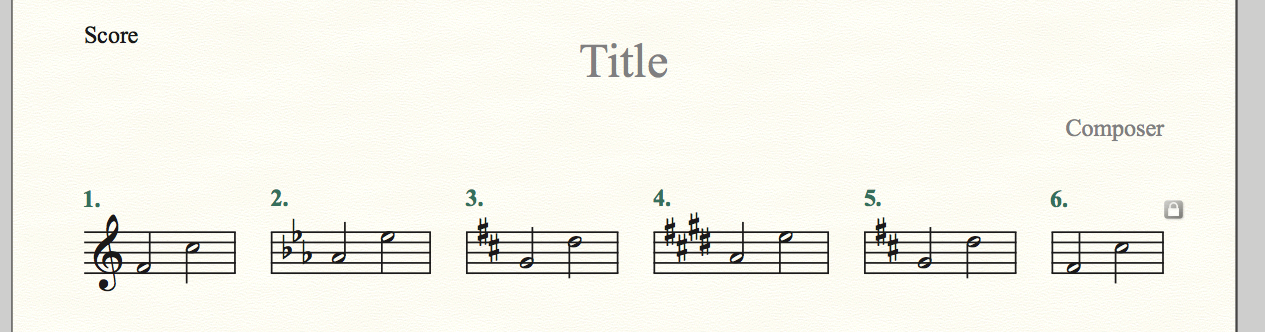
You could even add a couple more questions per line. It could look like this:


A couple of notes:

1. All of the hidden measures must be in the key of C Major, or you will get cancellation natural signs in the following question's measure.

2. I have not figured out an elegant way to use multiple clefs in this worksheet example. What I need is some sort of "force clef to show" on a per measure basis and then "Force Hide clef" to remove the courtesy clefs in the following bars.

Is there a way to use multiple clefs in my above examples?

Comment actions Permalink
Avatar
0

… I have not figured out an elegant way to use multiple clefs in this worksheet example. What I need is some sort of "force clef to show" on a per measure basis and then "Force Hide clef" to remove the courtesy clefs in the following bars …


That is the reason why I 2 years ago suggested (and attached a Finale document with) “the other solution”, where you position systems next to each other.

See the hyperlink in my previous post.


By positioning systems next to each other you get the clef before the key signature.

Also, you can make a 2-staff example (like a Grand Staff), and display a Grand Staff brace, or you can make a multi-staff example (score), and display a staff group bracket.

Comment actions Permalink
Avatar
0

Hi Peter - you are correct - that is one way to do it - used to be how I did all of my worksheets - but after 33 years of worksheets, I am tired of that archaic way to do it - it takes a half hour to make a worksheet that way (even with 50 different templates), and if I accidentally re-space ANYTHING in the page - the whole worksheet gets wacked and I'm starting over with all of the positioning.

Except for the clef thing, using staff styles just works and I can create dozens of worksheet types and have successfully worked around the clef limitation.

Hopefully if someone from MM reads this - they might consider adding a "Force Clef to display" in the measure attributes dialog box...? That would solve everything as far as I am concerned.

My current solution is to use a custom font set I am creating that allows these musical "questions" to be typed into any word processor or page layout app. Still tweeking it, but so far it has been very easy to create these types of pages not using Finale at all.

I submitted a support ticket asking the question today - maybe there is some voodoo combination of settings that could force a clef to appear in a measure... hope I'll get a response before too long.

Thanks again!!

Comment actions Permalink
Avatar
0

Mike, Peter and Doug


Thank you so much for taking the time to respond to my post. With all of the tips, I was able to create exactly what I wanted! 

I am a recent transfer from Sibelius to Finale and sometimes am getting stuck on the new lingo so I really appreciate your help!

Sincerely,

Jennifer Bowman

Comment actions Permalink
Avatar
0

OK - full disclosure... I only use Finale for my "real" work... but I own other notation apps as I often get files I need to convert to Finale. I saw someone bragging about quick and dirty worksheets in some other forum, so I had to check it out...

That said, I opened one of them up, found something called "worksheet creator", and in nine mouse clicks had this:


This other notation app uses a routine they have labelled "gap before bar" to simply add a user defined gap between any two measures. The above example was created automatically, but the gap feature is available for any two measures in any score/part.  After the gap, a new clef appears automatically and it's all done. I have rarely longed for any other app's features, but this feature would solve the issue this thread is wrestling with...

Comment actions Permalink
Avatar
0

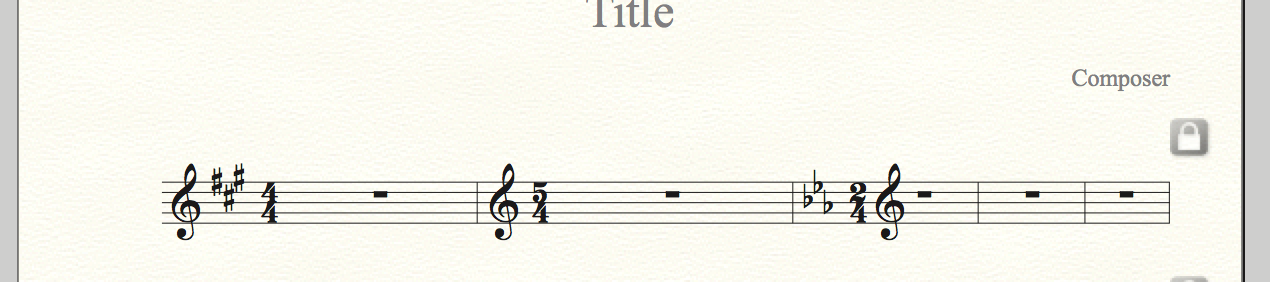
I did receive a very fast reply from MM tech support - and YES, it is indeed possible to change clefs and keys using the "hide measure" option for worksheet style measures - without needing to endlessly manipulate staff systems. A huge THANK YOU to David Cusick of MM for helping me understand it.

Since the original poster has replied "mission accomplished", I guess we are good to go.

Here is an example of different keys and different clefs:


I"m still hoping for two things in a future version of Finale:

1. An "Always show clef" option in the Measure Attributes dialog.
2. A "Blank space before measure" option, also in the Measure Attributes dialog.
         ...this one would make coda systems easier and eliminate more staff system manipulations.


Those two features would make any worksheet creation much more user friendly.

Thanks again David from MM for your expertise on this topic! 


Comment actions Permalink
Avatar
0

Doug Bakkum,


So ....


1. Hide one measure (m. 1)

2. Leave following measure alone (m. 2).

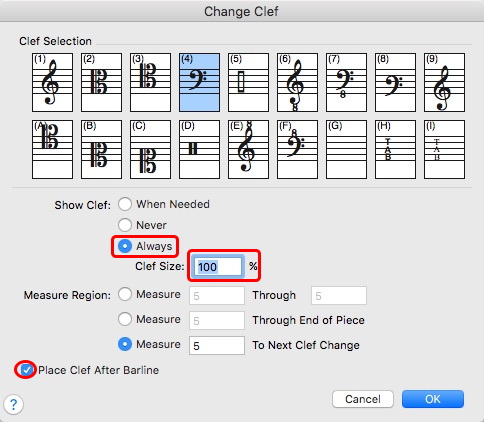
3. The next measure (m, 3), Clef Tool > Select Clef > Choose "Always Show" > Clef Size 100%.

4. Add negative space to the beginning of m. 2.

5. Uncheck "Display rests in empty measures" from Staff Attributes.

6. Use "Invisible Barlines" where appropriate.


Is that what you did?

Comment actions Permalink
Avatar
0

"I"m still hoping for two things in a future version of Finale:
1. An "Always show clef" option in the Measure Attributes dialog."


Doug,

Your first request is already available, but in the Clef tool.


Comment actions Permalink
Avatar
0

Hi Michel,

I am aware of that clef display option...  On my screen that option shows a courtesy clef to the left of the measure 2 barline, I need the clef to appear after the left bar line, but before the key/time signatures...    - I'm guessing that's why there is a clef size option...  If it was intending to show a clef after the left bar line, before the key/time signatures, there would be no need for a smaller clef.... 

The Show Clef option I would like needs to live in the Measure Attributes dialog box so it can be utilized on a measure by measure basis - without a clef change being involved - would be great for theory worksheets and quizes, etc...

Are you able to create this example using that Show Clef option?  With a bar line to the left of the clef?


I can't... I have to adjust a bunch of settings to get it to display as shown above.

Comment actions Permalink
Avatar
0


Have you tried with the checkbox "Place clef after barline" ?

Comment actions Permalink
Avatar
0

Yep - but that option only works if there is not a key or time change. This example shows measure 2 correctly (lots of  individual settings to get it there), and measure 3 shows your "Show clef always" option  - with the "Place clef after barline" option checked:


When that option is checked - the clef is drawn to the right of all key and time objects. (could be a bug, I guess...)
Give it a try - if you get different results, let me know.

Comment actions Permalink
Avatar
0

You are correct. That's why Peter Thomsen's method (allowing several systems to be positioned next to another with a blank space in between them) is probably preferable and faster than the workarounds. All clefs, key signatures, time signature will be positioned in the conventional order.

Comment actions Permalink
Avatar
0

I started with Peter's method too... but if a publisher or author wants perfectly aligned individual measures across the page, using that method, it takes forever. Actually easier to export everything individually and assemble them in page layout programs. (for me anyway)

I don't disagree with Peter's method... maybe in the big picture though, it should be easier all around, given that competing notation programs have options for these issues that are simply a couple of clicks to set up.


...wishful thinking, I guess.  Thanks for your ideas!!

Comment actions Permalink
Avatar
0

A last remark : for fine positioning, Finale has guides and a grid. The "snap to grid' function could help.

Comment actions Permalink
Avatar
0

FYI - Snap to grid only works with the staff tool... and won't permit multiple staves to be in the same horizontal plane...

Comment actions Permalink
Avatar
0

… if a publisher or author wants perfectly aligned individual measures across the page, using that method, it takes forever. Actually easier to export everything individually and assemble them in page layout programs. (for me anyway) …


If the playback order is not an issue, then I would suggest entering the examples in vertical columns, instead of horizontal rows.

In that way you can quickly enter the same system margins for all the systems in a column (except for one system).

It still takes time, but it is faster than entering system margins for each system, one system at a time.

Comment actions Permalink
Avatar
0

Well - Peter is on to something with his latest post...  I'm assuming he meant to use a multi-line score, rather than a single staff...?

This might work... The worksheet below contains 10 measures across and 7 staves in the score.  I've combined some of the tricks that tech support offered when using a single staff and Peter's idea of using a score rather than a single staff.

I had to turn on/off several show/hide items in a couple of tools, use hidden measures for spacing and positioning, staff styles to get the clefs to redraw, and finally - turning off auto note spacing in Preferences.  This approach maintains horizontal staff alignment, and also adds vertical alignment of each column. It also works with different time signatures. Still... a little too much is involved for the average/novice user, for sure...

If I create a few templates - It might just work!  Thanks Peter!!!

Here is an example of an "Intervals" worksheet:

Comment actions Permalink
Avatar
0

… Peter is on to something with his latest post...  I'm assuming he meant to use a multi-line score, rather than a single staff …


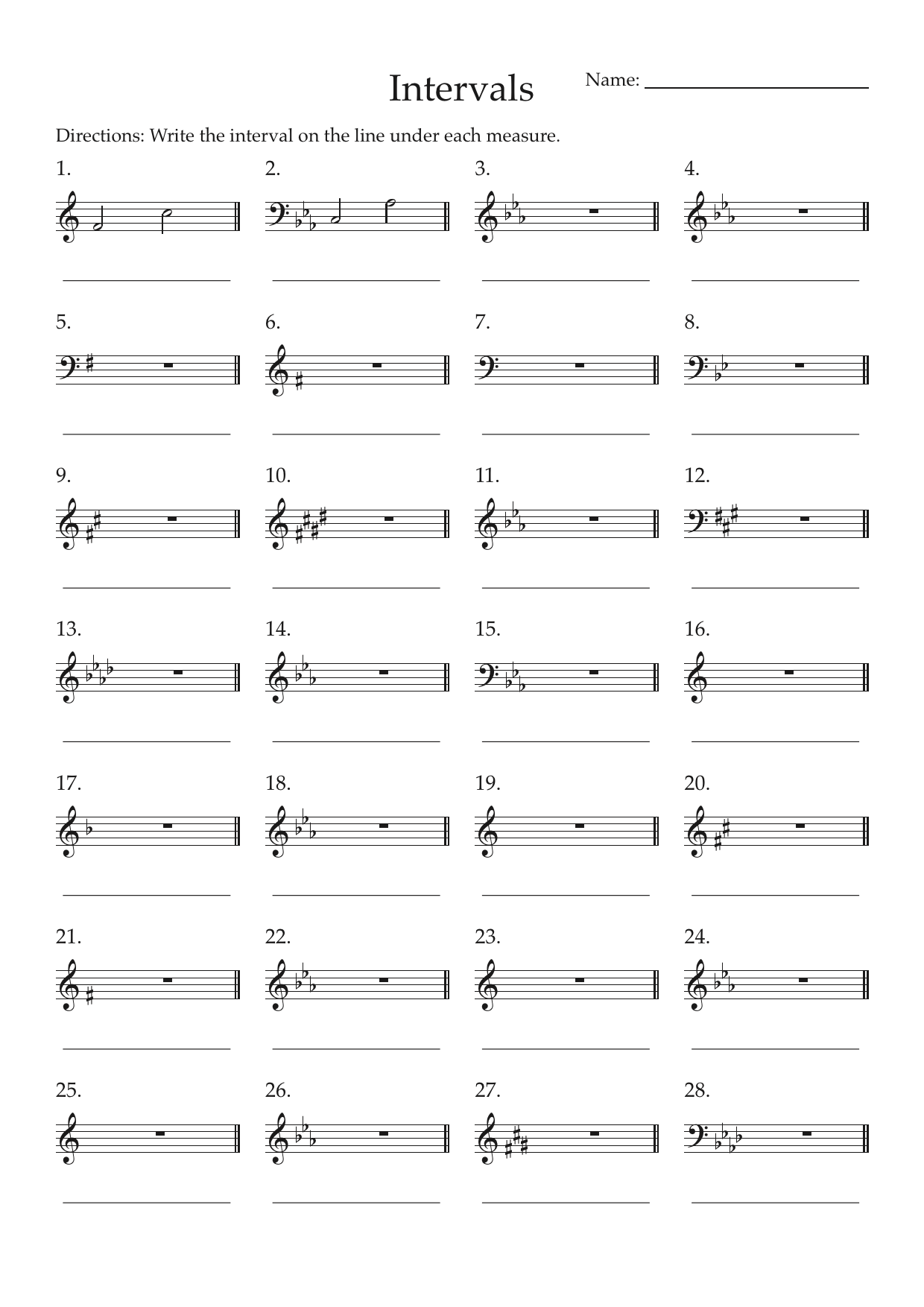
Actually I meant a one-staff document where each example is a separate system:


In this example there are 28 measures.

The playback order is (in columns):

1 - 5 - 9 - 13 - 17 - 21 - 25 - 2 - 6 - 10 - &c.

Comment actions Permalink
Avatar
0

OK - I'm still not getting how you are setting that up (sorry) - would you be willing to email me the file?

 It looks great, but I'm not sure about the key signatures in measures 6, 9, 10, 20, 21, 27...?

Comment actions Permalink
Avatar
0

… I'm still not getting how you are setting that up (sorry) - would you be willing to email me the file? …

Hyperlink here:

https://www.finaleforum.com/download/file.php?id=5526 


… It looks great, but I'm not sure about the key signatures in measures 6, 9, 10, 20, 21, 27…? …

My example is not an exact copy of your example.

I wanted to show what is possible with Finale.

Apart from the key signatures there are several other differences, such as line thicknesses and text font.

What matters, is that a such worksheet does not have to “take forever”.

You can select all the measures, and in the Measure Attributes select “Hide Cautionary Clefs, Key and Time Signatures” for all the measures “at one fell swoop”.

You can quickly set the clefs via clef metatools - and you can set the key signatures via key signature metatools.

Comment actions Permalink
Avatar
0

Thanks! Makes sense now that I see it.

Comment actions Permalink

Please sign in to leave a comment.